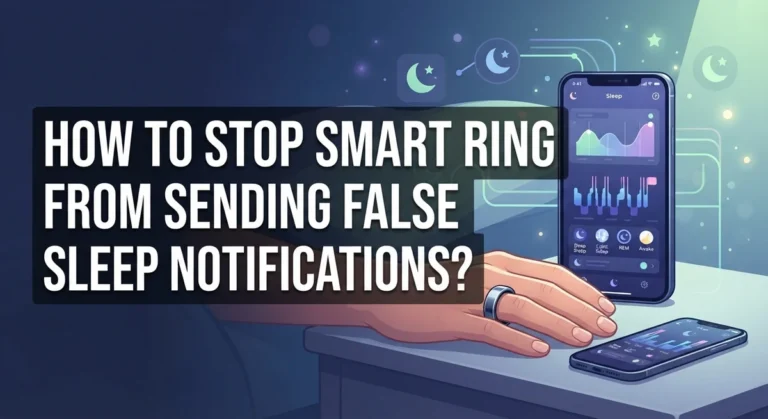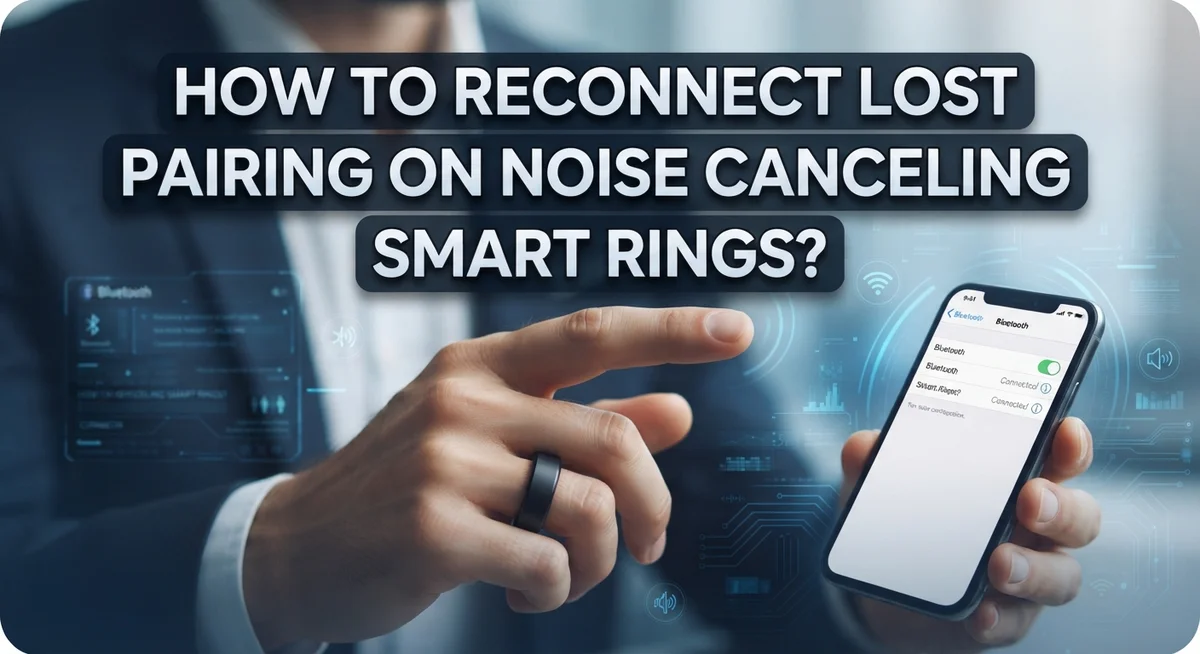
How To Reconnect Lost Pairing On Noise Canceling Smart Rings?
Your noise canceling smart ring just stopped connecting, and now it feels completely useless. That frustrating moment is more common than you think.
Lost Bluetooth pairing is one of the top issues smart ring users face, especially after software updates or phone resets. The good news? You can fix it yourself in just a few minutes.
This guide walks you through exactly how to reconnect a lost pairing on your noise canceling smart ring. You will learn the correct steps from start to finish, including how to forget the old connection and set up a fresh pairing.
We also cover the most common mistakes people make during reconnection that actually make things worse. Skipping those mistakes alone can save you a lot of time.
Whether your ring suddenly disconnected after weeks of normal use or the LED stopped blinking the right color, this article has you covered.
In a Nutshell
- Place your ring on its charger first. The LED should blink blue to show it is ready for pairing mode.
- “Forget” the old Bluetooth connection on your phone before trying to reconnect. Skipping this step is the most common mistake people make.
- Force close the ring’s app completely. Running it in the background during a reset can block the reconnection process.
- Toggle your phone’s Bluetooth off and back on. This clears any leftover connection data that may be causing the issue.
- Reopen the app and follow the re-pairing steps as if you are connecting the ring for the very first time.
- If the ring still won’t connect, a full Bluetooth reset usually solves the problem for good.
Why Smart Rings Lose Their Bluetooth Pairing
Smart rings lose their Bluetooth pairing for several reasons. Understanding these causes helps you prevent future disconnections and fix current ones faster.
Software updates are a leading cause of lost pairing. When your phone or ring receives an update, the Bluetooth connection sometimes gets corrupted. The old pairing data becomes incompatible with the new system, forcing you to reconnect from scratch.
Phone resets also trigger pairing loss. If you factory reset your phone or restore it from a backup, your ring’s connection disappears because the Bluetooth profile no longer exists on your device. The ring remembers the old pairing, but your phone does not.
Interference from other devices can weaken or break the connection. Microwaves, Wi Fi routers, and other Bluetooth devices operating on the 2.4 GHz frequency create signal conflicts. Your ring may disconnect repeatedly or fail to reconnect entirely.
Low battery on your ring prevents successful pairing. When the ring’s charge drops too low, it cannot maintain a stable Bluetooth signal. The connection drops, and reconnection attempts fail until you charge it properly.
Outdated app versions sometimes cause pairing problems. If you have not updated the companion app in months, it may not work with your current phone operating system. This incompatibility breaks the Bluetooth handshake process.
Accidental forgetting happens more often than you think. If you manually removed your ring from your phone’s Bluetooth settings and then forgot to re pair it, the connection stays broken until you reconnect.
Corrupted Bluetooth cache on your phone can also cause issues. Temporary files stored by your phone’s Bluetooth system may become damaged, preventing new pairing attempts from completing successfully.
What You Need Before You Start Reconnecting
Before you start the reconnection process, gather a few simple items and check your setup. These preparations save time and prevent frustration later.
First, locate your smart ring’s charger. You will need it plugged in and ready. The ring must have power during the entire reconnection attempt. A low battery is one of the biggest reasons reconnection fails. Place your ring on the charger now and let it sit for at least 5 to 10 minutes. This ensures the battery has enough power to complete the pairing process.
Next, find your smartphone. Make sure your phone has Bluetooth capability and that the feature works properly. Test this by checking if your phone can see other Bluetooth devices nearby. If your phone’s Bluetooth is broken or outdated, reconnection will not work no matter what you do.
You will also need access to the smart ring’s app. Check that the app is installed on your phone. If you uninstalled it, download it again before starting. Open the app once to confirm it launches without errors. Then close it completely. This step matters because a running app in the background can interfere with the reconnection.
Finally, clear your workspace. Sit somewhere quiet away from other electronics. Microwaves, WiFi routers, and other wireless devices can cause interference. Having a clean, quiet space gives your ring and phone the best chance to reconnect successfully.
Once you have your charger ready, phone charged, app installed, and workspace prepared, you are ready to begin the actual reconnection steps. These simple preparations take just a few minutes but make the entire process much smoother and faster.
How To Forget The Old Bluetooth Connection On Your Phone
Your phone stores the old connection information from your smart ring. You must delete this data before you can reconnect. This step is essential because your phone will try to use the old pairing details, which no longer work.
Start by opening your phone’s Bluetooth settings. Look for your smart ring’s name in the list of paired devices. The name usually appears as something like “Smart Ring” or the brand name followed by numbers.
Tap on the device name to select it. You should see an option that says “Forget,” “Remove,” or “Unpair.” Different phones use different words, but they all do the same thing. Click this option to forget the old connection.
Your phone will ask you to confirm. Select yes or confirm to proceed. This action removes all pairing data from your phone’s memory.
After you forget the device, check your Bluetooth settings one more time. The smart ring should no longer appear in your paired devices list. If it still shows up, repeat the forgetting process.
Some phones keep connection data in their Bluetooth cache even after forgetting a device. You can clear this by going to your phone’s app settings, finding Bluetooth settings, and selecting “Clear Cache.” This step removes any leftover files that might interfere with reconnection.
Wait a few seconds after forgetting the device. This pause allows your phone to fully process the removal. Then you can move forward with the actual reconnection process.
Do not skip this step. Attempting to reconnect without forgetting the old connection first usually fails. Your phone needs a clean slate to establish a new pairing with your smart ring.
Step-By-Step Guide To Reconnect Your Noise Canceling Smart Ring
Place your smart ring on its charger first. Make sure the charger has power connected to it. You should see the LED blink blue when the ring is ready for pairing.
Open your phone’s settings and go to Bluetooth. Look for your ring’s name in the list of paired devices. Tap on it and select the option to forget or unpair this device. Your phone will remove the old connection information.
Now close the ring’s app completely. Don’t just minimize it. Force close the app so it stops running in the background. This step matters because the app may hold onto old pairing data.
Turn off your phone’s Bluetooth entirely. Wait about 10 seconds. This gives your phone time to clear any remaining connection traces. Then turn Bluetooth back on again.
Open the ring’s app on your phone. The app should now recognize that your ring is not connected. Follow the app’s pairing instructions exactly as if this is your first time connecting the device.
Keep your phone close to the ring during this process. Stay within a few feet of the charger. Bluetooth works best at short distances.
Watch for confirmation messages in the app. Once pairing is complete, you should see a connected status displayed. The LED on your ring may change color to indicate successful pairing.
If the app doesn’t find your ring after several attempts, leave the ring on the charger for 15 minutes. Sometimes a brief rest helps reset the ring’s Bluetooth module. Then try the pairing process again from the beginning.
How To Perform A Full Bluetooth Reset When Standard Steps Fail
When standard reconnection steps don’t work, a full Bluetooth reset becomes necessary. This process clears all connection data and starts fresh from scratch.
Start by ensuring your ring has full charge. Place it on the charger and wait until the LED shows a steady blue light. A ring with low battery often fails during reset attempts. Leave it charging for at least 30 minutes before proceeding.
Next, open your phone’s Bluetooth settings and locate your ring’s old connection. Tap the information icon next to it. Select “Forget This Device” and confirm the action. Wait 10 seconds after forgetting to let your phone process the removal completely.
Force close the ring’s app entirely. Don’t just minimize it. Go to your phone’s app settings, find the ring’s application, and select “Force Stop.” This clears any background processes that might interfere with pairing.
Now turn off your phone’s Bluetooth completely. Wait 20 seconds, then turn it back on. This action refreshes your phone’s Bluetooth system and removes any lingering connection data.
Open the ring’s app fresh. The app should now detect your ring as a new device. Follow the on screen pairing instructions carefully. Keep your phone within 10 feet of the ring during this process.
If the app still doesn’t find your ring, restart your phone entirely. Sometimes your phone’s operating system needs a full restart to clear Bluetooth conflicts. After restarting, repeat the pairing process.
Leave the ring on the charger throughout this entire process. Power connection helps the ring stay in pairing mode longer. If reconnection still fails after these steps, contact the manufacturer’s support team for additional help.
Understanding Your Smart Ring LED Indicators During Pairing
Your smart ring’s LED lights tell you exactly what’s happening during the pairing process. Understanding these signals helps you know when your ring is ready to connect and when something needs attention.
Blue blinking lights mean your ring is in pairing mode and ready to connect. This is the signal you want to see. When you place your ring on the charger, watch for this blue blinking pattern. It typically appears within 10 to 15 seconds of charging.
A steady blue light indicates your ring is fully charged and connected to power. This is different from blinking. A steady light means your ring has enough battery for the pairing process.
Red or amber lights signal a low battery. Your ring needs more charging time before you attempt reconnection. Leave it on the charger for at least 30 minutes, then check the light color again.
No light at all means your ring isn’t receiving power. Check that the charger is properly connected to both your ring and a power outlet. Try a different outlet if the first one doesn’t work.
During reconnection, keep watching the LED. If the light stops blinking or changes color unexpectedly, pause the process. Return your ring to the charger and wait for the correct light pattern to return.
Different ring models may use slightly different color codes, so check your ring’s manual for exact meanings. The key is recognizing when your ring shows the pairing mode indicator. This light confirms your ring is ready to communicate with your phone. Once you see this signal, you can proceed confidently with the app connection steps.
Common Mistakes That Prevent Successful Reconnection
Many people struggle to reconnect their smart rings because they make avoidable mistakes. Understanding these errors helps you succeed on your first try.
The biggest mistake is attempting reconnection without removing the old pairing first. Your phone remembers the old connection. If you skip the “forget device” step, your phone tries to connect to a ghost pairing. This causes repeated failures. You must go to your Bluetooth settings and delete the old ring connection completely before starting fresh.
Another common error is leaving the ring’s app running in the background. Apps continue working even when you think you closed them. This interferes with the reconnection process. You need to force close the app entirely. Simply tapping the back button isn’t enough. Go into your phone’s app settings and force stop the application.
People also fail to fully restart their Bluetooth. Turning it off for two seconds doesn’t work. You need a proper restart. Turn off Bluetooth completely. Wait at least 10 seconds. Then turn it back on. This clears your phone’s Bluetooth memory and allows fresh connection attempts.
Never skip the charging step. Your ring must sit on its charger during the entire reconnection process. A ring with low battery won’t enter pairing mode properly. The LED won’t blink blue as expected. Charge your ring fully before you begin.
Finally, people rush the process. Attempting reconnection every 30 seconds doesn’t help. Give each attempt several minutes. Wait for clear confirmation messages in the app. Patience prevents frustration and increases your success rate significantly.
Tips To Keep Your Smart Ring Paired And Stable Long-Term
Keeping your smart ring paired and stable over months and years requires consistent habits. The most important step is charging your ring regularly on its designated charger. A well charged ring maintains its Bluetooth connection much more reliably than one running on low battery.
Update your ring’s firmware whenever new versions become available. Manufacturers release updates to fix connection bugs and improve stability. Check your ring’s app monthly for pending updates and install them promptly.
Keep your phone’s Bluetooth software current as well. Outdated phone operating systems can cause pairing conflicts with your ring. Enable automatic updates on your device to stay protected.
Store your ring properly when not wearing it. Place it on the charger in a cool, dry location away from direct sunlight. Extreme temperatures damage the battery and weaken Bluetooth signals over time.
Avoid keeping too many Bluetooth devices connected simultaneously. Each active device uses Bluetooth bandwidth and can interfere with your ring’s connection. Disconnect devices you’re not actively using.
Restart your phone’s Bluetooth weekly, even if everything works fine. Turn off Bluetooth completely, wait 10 seconds, then turn it back on. This simple reset clears temporary connection issues before they become serious problems.
Keep your ring within 30 feet of your phone during normal use. Walls and metal objects weaken Bluetooth signals, so maintain reasonable proximity for stable pairing.
Finally, perform a complete Bluetooth reset every few months as preventive maintenance. This clears old connection data and refreshes your pairing. Follow the standard reset steps even when your ring works perfectly. Regular maintenance prevents unexpected disconnections and keeps your ring functioning smoothly for years.
Final Thoughts
Reconnecting a lost pairing on your noise canceling smart ring is simpler than it seems. The process follows a clear, repeatable set of steps that work across most ring models.
Start by placing your ring on its charger. Wait for the LED to blink blue before doing anything else. This confirms your ring has enough power and is ready to pair.
Next, go into your phone’s Bluetooth settings and forget the old ring connection completely. Skipping this step is the most common reason reconnection fails.
Force close your ring’s app after that. Do not leave it running in the background. Then turn off your phone’s Bluetooth entirely, wait a few seconds, and turn it back on.
Open the app again and follow the on-screen pairing instructions carefully. Keep your ring on the charger throughout the entire process. This prevents power interruptions mid-pairing.
If standard reconnection still fails, perform a full Bluetooth reset. This clears all saved connections and gives you a completely fresh start.
The key takeaway is simple. Forget the old device, restart Bluetooth, and re-pair through the app. Those three actions solve the vast majority of lost pairing issues.
Staying consistent with good habits after reconnection also matters. Regular firmware updates, weekly Bluetooth restarts, and keeping your ring charged all reduce future disconnection problems.
Your smart ring is a useful daily tool, and losing its connection does not have to be a frustrating experience. Follow the steps in this guide, be patient, and your ring will reconnect reliably every time.
Frequently Asked Questions
Why did my smart ring suddenly disconnect after working fine for weeks?
Bluetooth connections can drop for several reasons. Your phone may have forgotten the ring’s pairing data. Interference from other wireless devices can also cause sudden disconnects. Sometimes your ring’s battery runs low, which triggers automatic disconnection. Try placing your ring on its charger first. Then go to your phone’s Bluetooth settings and remove the old connection completely. This fresh start often solves the problem.
What does it mean when the LED on my ring won’t blink blue?
A non blinking LED usually means your ring lacks sufficient charge. Place it on the charger for at least 30 minutes. Check that the charger makes proper contact with your ring’s charging pins. If the LED still doesn’t respond, try a different USB power adapter. A fully charged ring is essential before attempting any reconnection process.
Can I reconnect my ring without using the official app?
Most smart rings require their official app to complete pairing. The app guides you through security verification steps. You can attempt basic Bluetooth reconnection through your phone’s settings alone, but this rarely works completely. The app ensures all features activate properly. Always use the official app for full reconnection success.
How long should I wait before trying reconnection again if it fails the first time?
Wait at least 5 minutes between reconnection attempts. This gives your phone and ring time to clear their Bluetooth caches. Turn off your phone’s Bluetooth completely during this waiting period. Then restart Bluetooth fresh and try again. Rushing through multiple attempts back to back usually makes things worse, not better.

I’m a tech enthusiast who loves breaking down gadgets, apps, and tools into simple, honest reviews. At GenResizeHub, I help you make smarter buying decisions through in-depth comparisons and easy-to-follow guides. Got a question? Drop me a mail!