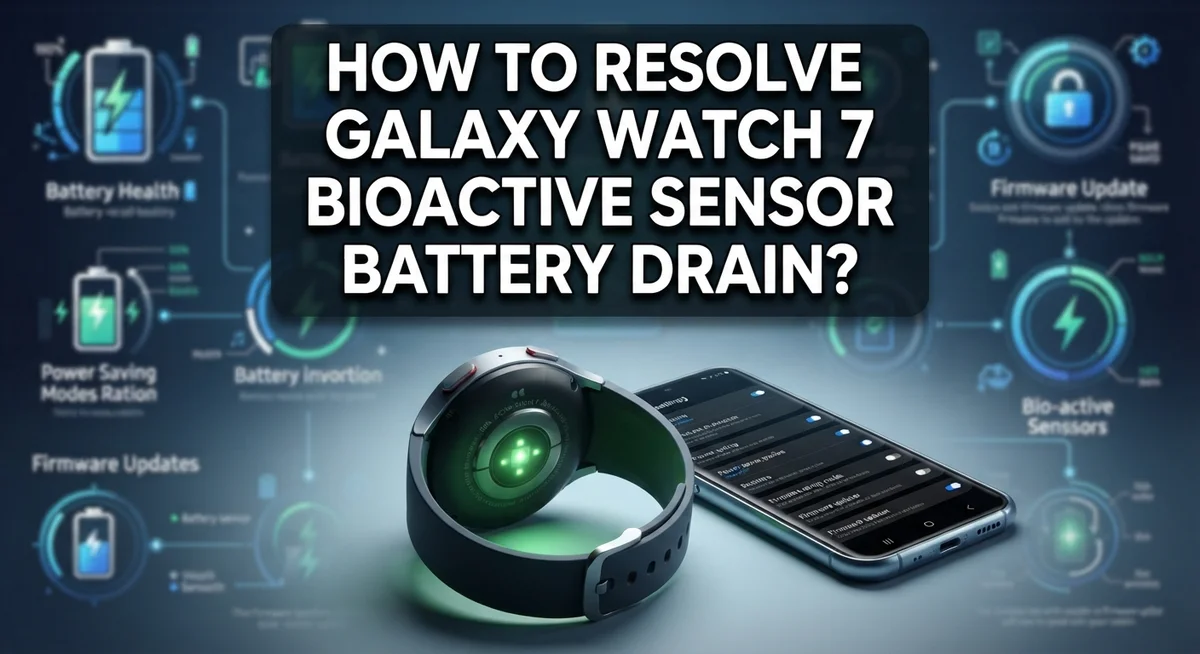
How To Resolve Galaxy Watch 7 BioActive Sensor Battery Drain?
Does your Galaxy Watch 7 lose battery faster than you expect? You are not alone.
Many users notice the battery drops quickly after long use. The BioActive sensor often plays a big role in this issue.
This sensor tracks heart rate, oxygen levels, and other health data. It works hard in the background, even when you do not check it often.
Frequent syncing with your phone adds to the problem too. Software bugs can also make battery drain worse over time.
The good news? You can fix this without losing your favorite features.
This guide will show you simple, effective steps to solve the drain. You will learn how to adjust sync settings, manage sensors, and update your software.
In a Nutshell
- Turn off frequent syncing in Samsung Health app. This single step gives the biggest battery boost. Many users see a huge improvement right away.
- Disable unused sensors like GPS when you don’t need them. Your BioActive sensor works hard tracking health data. Give it a break when possible.
- Check for software updates often. Samsung fixes battery bugs through updates. Skipping updates means missing these fixes.
- Manage always-on display settings selectively. This feature uses extra power throughout the day. Turn it off for apps you check less often.
- Perform a soft reset if problems continue. This clears small glitches without deleting your data. It often solves stubborn drain issues.
- Try a factory reset only as your last option. This should happen after other fixes fail. It gives your watch a completely fresh start.
Understanding the BioActive Sensor and Why It Drains Battery
Your Galaxy Watch 7 has a BioActive sensor that works hard all day long. This sensor measures your heart rate, blood oxygen levels, skin temperature, and electrodermal activity. It sends this health data to your phone constantly through syncing.
The BioActive sensor uses power every single second it runs. When you pair frequent syncing with continuous sensor activity, your battery drains much faster. Think of it like running multiple apps on your phone at once. Each one uses power, and together they empty your battery quickly.
Software bugs can make this problem worse. Sometimes the sensor stays active even when you don’t need the data. Your watch keeps syncing with your phone in the background without you knowing. This hidden activity drains your battery silently.
Frequent syncing is the biggest culprit for most users. Your watch tries to send health data to your phone every few minutes instead of once per hour. This constant communication keeps your watch awake and working hard.
GPS is another power drain you should know about. When GPS runs, it searches for your location continuously. This uses far more battery than the BioActive sensor alone. Many people leave GPS on even when they only walk around their home.
The always-on display feature also contributes to battery loss. Your screen stays lit constantly, which requires steady power. Combined with the BioActive sensor and frequent syncing, you get rapid battery drain.
Understanding these parts helps you make smart choices. You don’t need to turn off everything to save battery. Instead, you can disable what you don’t use right now. Keep the features you love while stopping the ones that drain power unnecessarily.
Disabling Frequent Syncing in Samsung Health
Open the Galaxy Wearable app on your phone to start this process. This app gives you control over your watch’s most important settings.
Look for Watch Settings in the app menu. Then tap on Connections to see all your sync options. This is where frequent syncing lives and drains your battery.
Find Samsung Health in your watch settings. You will see an option that says “Frequent Syncing” or similar wording. This feature sends health data to your phone constantly throughout the day.
Disable frequent syncing right away. This single step provides the biggest battery improvement for most users. Your health data will still sync when you open the Samsung Health app manually or when your watch connects to your phone.
After you disable frequent syncing, check what else is enabled. Look at your sensor settings carefully. GPS, heart rate monitoring, and blood oxygen tracking all run in the background.
Turn off GPS if you don’t use it for workouts or navigation. Leave heart rate monitoring on if you want sleep and stress tracking. You can pick and choose which sensors matter most to you.
Check the sync frequency settings too. Some watches let you change how often data syncs even when frequent syncing is off. Set it to sync less often if that option appears.
Save your changes and close the Galaxy Wearable app. Your watch will restart the connection with your phone. You should notice better battery life within one or two days of normal use.
If battery drain continues after disabling frequent syncing, move on to other optimization steps like checking software updates or adjusting your always-on display settings.
Turning Off Unused Sensors and GPS
Your Galaxy Watch 7 uses GPS and multiple sensors that consume significant battery power. When you leave these features running constantly, your battery drains much faster than necessary.
Start by opening the Galaxy Wearable app on your phone. Navigate to your watch settings and look for the sensors section. You’ll find options for GPS, heart rate monitoring, and other BioActive sensor features.
GPS is a major battery drain. Turn off GPS if you’re not actively using it for workouts or navigation. Most daily activities don’t require GPS tracking. You only need it when you’re running, cycling, or traveling to unfamiliar places.
Check your watch settings for any sensors running in the background. Some watches enable all sensors by default. Disable the ones you don’t use regularly. For example, if you don’t track blood oxygen levels constantly, turn that off too.
Selective optimization preserves your favorite features. You don’t have to disable everything. Just turn off what you genuinely don’t need.
After disabling unused sensors, monitor your battery for a few days. You should notice improvement within 24 to 48 hours. Battery drain often reduces by 20 to 30 percent when you turn off GPS and background sensors.
If battery drain continues even after disabling these features, check your software version. Outdated software sometimes causes sensors to malfunction and use excess power. Update your watch if new software is available.
Test your battery performance after making these changes. Give the watch time to stabilize before trying additional steps. Most users see significant improvement just by turning off unused sensors and GPS.
Adjusting Always-On Display and Screen Settings
The always-on display is one of the easiest battery drains to fix on your Galaxy Watch 7. This feature keeps your screen lit at all times, which means your display works continuously instead of turning off between uses.
Start by opening the Galaxy Wearable app on your phone. Navigate to Watch Settings and look for Display options. You’ll find the always-on display toggle here. Disabling this feature can save significant battery power throughout your day.
If you like having your watch visible at a glance, you have other options. Consider enabling the always-on display only during specific hours. Many users set it to turn on during work hours and off at night. This compromise lets you keep the convenience without the constant drain.
Next, check your screen timeout settings. This controls how long your display stays lit after you tap it. Set this to the shortest comfortable time, usually 5 or 10 seconds. A shorter timeout means less power consumption without losing functionality.
You can also adjust screen brightness. Lower brightness uses less battery. Your watch automatically adjusts brightness based on sunlight, but you can manually reduce the maximum brightness level in display settings.
After making these changes, monitor your battery for 2 to 3 days. You should notice improvement fairly quickly. If battery drain continues despite these adjustments, move on to checking other settings like sensor optimization or software updates.
These display changes work best when combined with disabling frequent syncing. Together, they create the biggest battery improvement for most users.
Checking for and Installing Software Updates
Software updates fix bugs that cause battery drain on your Galaxy Watch 7. Outdated software may contain code that makes the BioActive sensor work harder than necessary. Updates patch these issues and improve overall performance.
Open the Galaxy Wearable app on your phone to check for updates. Tap the menu icon and look for your watch name at the top. Select “About watch” or “Software information” depending on your app version. Your current software version appears here.
The app automatically notifies you when updates are available. You can also manually check by tapping “Check for updates.” Make sure your watch has at least 50 percent battery before starting. Connect your watch to WiFi for faster download speeds.
Start the update and let it run completely without interruption. Your watch may restart several times during this process. This is normal. Keep your phone nearby until the update finishes.
After the update completes, restart your watch by powering it off and back on. Check your battery performance over the next few days. Many users notice improved battery life after installing the latest software.
If battery drain persists after updating, the issue may be deeper. Software bugs sometimes survive updates if they’re tied to hardware problems. In this case, move forward with other optimization steps like disabling sensors and frequent syncing.
Keep your software current by checking monthly for new releases. Samsung regularly releases updates that improve sensor efficiency and fix battery issues. Regular updates prevent future battery drain problems before they start affecting your daily use.
Performing a Soft Reset or Factory Reset
A soft reset clears temporary files and stops background processes without erasing your data. This simple step often fixes battery drain caused by software glitches.
To perform a soft reset, hold the power button on your Galaxy Watch 7 for about 10 seconds. Your watch will vibrate and show a power menu. Release the button and tap “Restart.” The watch will turn off and back on automatically within a minute or two.
After the restart completes, monitor your battery for several days. Many users notice immediate improvement in battery life after a soft reset. This happens because the reset stops stuck processes that were draining power.
If battery drain continues after a soft reset, a factory reset may be necessary. This option erases all data and settings on your watch, so back up important information first through the Galaxy Wearable app.
To factory reset your Galaxy Watch 7, open the Galaxy Wearable app on your phone. Go to Watch Settings, then select “About Watch.” Scroll down and tap “Reset.” Confirm your choice. The process takes several minutes.
Factory reset should be your last option. Try all other optimization steps first, including disabling sensors, turning off frequent syncing, and adjusting display settings.
After a factory reset, set up your watch again from scratch. Avoid re-enabling features that caused battery drain before. Start with the essentials and add features gradually while monitoring battery performance.
Both reset options work best when combined with your previous optimization efforts. These resets give your watch a fresh start and remove corrupted files that drain battery power.
Avoiding Common Mistakes That Worsen Battery Drain
Many people make mistakes that actually make battery drain worse on their Galaxy Watch 7. Understanding these errors helps you fix the problem faster.
Leaving frequent syncing enabled is the biggest mistake. Your watch syncs health data to your phone constantly when this feature stays on. This keeps your sensors active and drains your battery rapidly. Many users don’t realize this setting exists, so they never turn it off. Disable frequent syncing in your Samsung Health app immediately.
Running all sensors at once creates another common problem. Your GPS, heart rate monitor, and blood oxygen sensor all work together when you leave them enabled. You don’t need GPS active when you’re indoors or not exercising. Turn off GPS and other sensors you’re not actually using right now.
Skipping software updates lets bugs continue draining your battery. Some users avoid updates because they worry about changes or glitches. Software updates actually fix the bugs causing your drain. Check for updates monthly and install them completely without interruption.
Not resetting your watch after optimization wastes your efforts. You disable sensors and turn off syncing, but your battery still drains fast. Sometimes your watch needs a soft reset to clear stuck background processes. Hold the power button for 10 seconds to restart it.
Expecting instant results sets wrong expectations. Battery improvements take 2 to 3 days to show clearly. Your watch needs time to adjust after you change settings. Monitor your battery level over several days before deciding if changes worked.
Avoid these mistakes and your battery will improve significantly.
Maintaining Battery Health After Optimization
After you optimize your Galaxy Watch 7, maintaining battery health requires consistent habits. Your watch will only stay efficient if you continue good practices going forward.
Check your battery status weekly. Open the Galaxy Wearable app and review which apps consume the most power. This helps you spot new problems early before they drain your battery significantly.
Keep syncing disabled unless you need it. Many people re enable frequent syncing after optimization and wonder why battery drain returns. Only turn syncing on when you actively use Samsung Health for workouts or health tracking. Disable it again when finished.
Monitor your sensor usage regularly. GPS and heart rate monitoring consume substantial battery power. Use GPS only during outdoor activities, then turn it off. Your watch should not run all sensors continuously throughout the day.
Stay on top of software updates. New updates often include battery improvements and bug fixes. Check for updates monthly through the Galaxy Wearable app. Install them promptly to maintain optimal performance.
Avoid unnecessary always on display features. Keeping your screen always visible drains battery quickly. Use the always on display only when you genuinely need it, then disable it otherwise.
Restart your watch monthly. A simple restart clears background processes and prevents battery drain from accumulating. Power off your watch completely, wait 30 seconds, then power it back on.
Track your battery drain patterns over time. Note which activities or settings cause the fastest drain. This information helps you make smarter decisions about what to enable and disable.
Consistency matters most. Battery health improves when you maintain these habits continuously, not just after initial optimization.
Final Thoughts
Your Galaxy Watch 7 does not have to suffer from constant battery drain. The BioActive sensor and syncing features cause most problems. Simple changes fix these issues fast.
Start with the easy fixes first. Disable frequent syncing in Samsung Health. Turn off sensors you rarely use, like GPS.
These small steps often bring massive improvement. Many users see their battery life double after just these two changes.
Software updates matter too. Samsung fixes bugs regularly through these updates. Always install them when they become available.
If problems continue, try a soft reset. This clears temporary glitches without erasing your data. Wait a few days and check your battery again.
A factory reset works as your last resort. Use it only after trying every other option. This step erases everything, so plan accordingly.
You can absolutely keep your favorite features. Selective optimization lets you choose what matters most. You do not need to sacrifice everything for better battery life.
Balance is key here. Turn off what you do not need. Keep what actually helps your daily routine.
Battery drain feels frustrating, but it is fixable. Most Galaxy Watch 7 owners see real results within days. The fixes are simple and do not require technical skills.
Take action today instead of waiting. Your watch battery will thank you. Small changes now save you from bigger headaches later.
Remember these steps whenever drain returns. Sensors, syncing, and updates remain the main culprits. Address them first, and your watch will run smoothly again.
Frequently Asked Questions
Why does my Galaxy Watch 7 battery drain so fast?
Battery drain happens for three main reasons. Frequent syncing pulls power constantly as your watch communicates with your phone. The BioActive sensor runs continuously and uses significant energy. Software bugs may also cause excessive drain in some cases.
Disabling frequent syncing alone provides the biggest improvement for most users.
How do I turn off frequent syncing on my Galaxy Watch 7?
Open the Galaxy Wearable app on your phone first. Go to Watch Settings, then select Connections. Find the frequent syncing option and disable it. You can also check your Samsung Health app settings to turn off syncing there.
Your watch will still sync when you need it. You just won’t have constant background syncing draining your battery.
Can I keep my favorite watch features while fixing battery drain?
Yes, absolutely. You don’t need to disable everything. Selective optimization lets you keep what you love while removing only the power hungry features.
Turn off GPS when you’re not exercising. Disable the always on display if you don’t need it constantly. Keep health tracking but reduce sensor frequency. This balance approach works best for most people.
When should I reset my Galaxy Watch 7 if battery drain continues?
Try optimization steps first before resetting. Disable sensors, turn off frequent syncing, and check for software updates. Give these changes a few days to show results.
If drain persists after optimization, try a soft reset. Hold the power button until your watch restarts. Only use a factory reset as your final option if nothing else works.

I’m a tech enthusiast who loves breaking down gadgets, apps, and tools into simple, honest reviews. At GenResizeHub, I help you make smarter buying decisions through in-depth comparisons and easy-to-follow guides. Got a question? Drop me a mail!