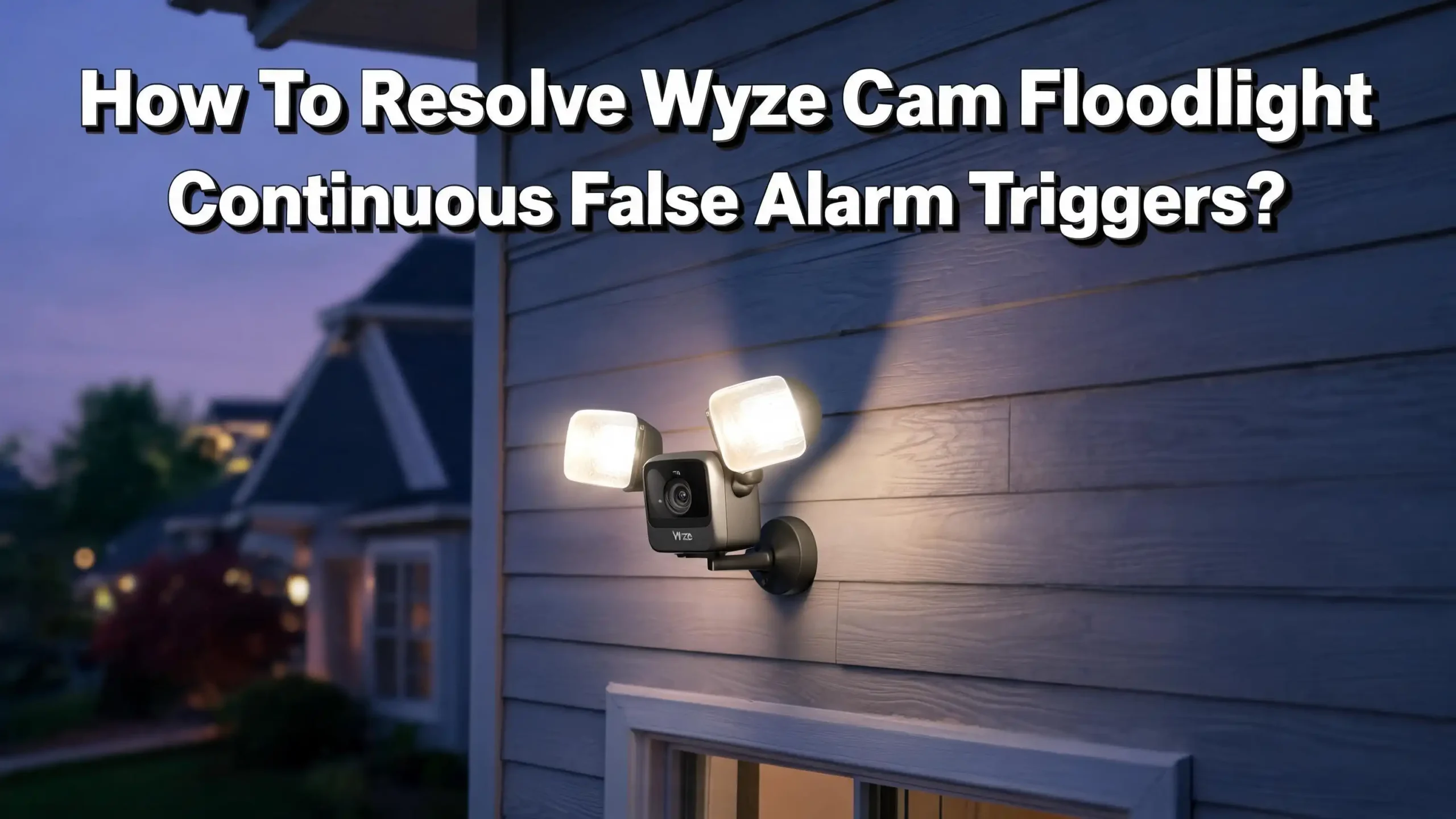
How To Resolve Wyze Cam Floodlight Continuous False Alarm Triggers?
Your Wyze Cam Floodlight is supposed to alert you about real threats. Instead, it floods your phone with notifications every few minutes. The lights flash on and off all night long. You check the footage each time and find nothing but headlights, shadows, spiderwebs, or blowing leaves.
You are not alone. Thousands of Wyze Cam Floodlight owners deal with this exact problem. The constant false alarms drain your patience and make you want to ignore all alerts entirely. That defeats the whole purpose of a security camera.
The good news is that this problem is fixable. Most false triggers come from incorrect settings, poor sensor placement, environmental interference, or outdated firmware.
This guide walks you through every practical solution. You will learn how to adjust PIR sensor settings, create detection zones, fine tune sensitivity, eliminate environmental causes, and reset your device when needed. Each fix is explained in plain language with clear steps you can follow right now on your phone.
Key Takeaways
- Lower your PIR sensor sensitivity first. The PIR (Passive Infrared) sensor is the most common source of false light triggers. Reducing its sensitivity and range stops the floodlight from reacting to distant cars, animals, and heat sources.
- Set the floodlight to trigger only on PIR detection, not camera motion. Camera motion detection picks up every pixel change, including shadows, headlights, and rain. PIR detection only responds to heat signatures, which dramatically reduces false alarms.
- Create a custom detection zone. Exclude areas like streets, sidewalks, and tree lines from your detection zone. This prevents the camera from recording events caused by passing traffic or swaying branches.
- Update your firmware and app regularly. Wyze frequently releases updates that improve AI detection accuracy. Running outdated software often causes detection errors and phantom alerts.
- Check your installation environment. Heat vents, air conditioning units, dryer exhausts, and reflective surfaces near the floodlight cause PIR sensors to misfire. Moving or shielding these heat sources stops many false triggers instantly.
- Use Cam Plus AI filtering for smarter notifications. With a Cam Plus subscription, you can set the camera to only notify you about people, vehicles, or pets. This filters out meaningless motion events before they reach your phone.
Understanding Why Your Wyze Cam Floodlight Triggers False Alarms
The Wyze Cam Floodlight uses two separate detection systems. The first is a PIR (Passive Infrared) sensor that detects heat signatures from moving objects. The second is pixel based motion detection from the camera itself. These two systems work together but often conflict with each other.
The PIR sensor detects changes in infrared radiation. A person walking across your driveway creates a clear heat signature. But the sensor also picks up heat from car engines driving by, warm air from vents, and even sunlight reflecting off windows. The sensor does not know what caused the heat change. It simply triggers.
The camera’s motion detection works differently. It monitors pixel changes in the video feed. Any visible change in the frame counts as motion. This includes headlights sweeping across a wall, rain falling in front of the lens, spiderwebs drifting across the camera, and shadows moving as clouds pass overhead.
When either system triggers, the floodlight turns on. The sudden burst of light causes a massive pixel change in the camera feed. This pixel change then triggers the camera’s motion detection, which can create a feedback loop. The camera records an event, sends a notification, and the cycle continues.
Understanding this relationship between the PIR sensor and the camera is the first step. Most fixes target one or both of these detection systems. The goal is to make each system more selective about what it reacts to.
Adjusting PIR Sensor Sensitivity and Range
The PIR sensor is the most common cause of false light triggers. Wyze sets the default sensitivity fairly high to avoid missing real events. But this high sensitivity also catches things you do not care about.
Open the Wyze app and go to your floodlight’s Settings. Tap Floodlight Settings or Accessories depending on your model. Find the PIR Settings section. You will see a sensitivity slider and options for PIR sensor zones.
Start by reducing the sensitivity to around 30% to 40%. Many users on the Wyze community forums report that this range catches real visitors while ignoring distant movement. If false alarms continue, drop it lower. You can always increase it later.
The Wyze Cam Floodlight v2 has three PIR sensor sectors: left, center, and right. Each sector can be turned on or off independently. If most false triggers come from one direction, such as a street on the left side, simply turn off that PIR sector. Keep the center sensor active to catch movement directly in front of your door or driveway.
You can also adjust the PIR detection range. The “Near” setting limits detection to close proximity. The “Far” setting extends the range. If your floodlight faces a busy street, set the range to Near or Mid. This stops the sensor from reacting to cars and pedestrians far away from your property.
Test your changes by walking in front of the camera yourself. Check whether the light turns on for your movement at the desired distance. Adjust the range and sensitivity until the results match your expectations.
Setting the Floodlight to Trigger Only on PIR Detection
This single change solves the false alarm problem for many Wyze Floodlight owners. By default, the floodlight can turn on from either PIR detection or camera motion detection. Camera motion detection is far more sensitive to visual noise like shadows, reflections, and headlights.
Go to your floodlight’s Settings in the Wyze app. Navigate to Floodlight Settings or Floodlight Control. Look for the option that controls what triggers the light. Set it to “Motion is detected by PIR sensor” only. Disable the camera motion trigger for the floodlight.
This does not affect your camera’s recording. The camera still records events based on its own motion detection settings. You are only changing what turns the physical floodlight on and off.
PIR sensors respond to heat, not light. This means they ignore headlight beams, shadows, rain, and wind blown debris. They only trigger when something warm moves through the detection field. A person, a car at close range, or a large animal will still activate the light.
One Wyze user on Reddit reported that making this single change “drastically reduced the false alarms” from their three floodlights. They went from constant on/off cycling throughout the night to only meaningful triggers.
After making this change, monitor your floodlight for a few nights. You should see a significant drop in false light activations. If the light still triggers too often, combine this fix with the PIR sensitivity adjustments described in the previous section.
Creating and Optimizing Detection Zones
Detection zones tell the camera which parts of the frame to monitor. Everything outside the zone is ignored for motion events. This is one of the most effective tools for reducing false notifications.
Open your Wyze app and go to the floodlight’s Settings. Tap Detection Settings. Find Detection Zone and toggle it on. You will see a grid overlay on your camera’s live view. Tap individual squares to include or exclude them.
Exclude these common problem areas from your detection zone: streets where cars pass, sidewalks with regular foot traffic, tree canopy areas where branches sway, and any zone with reflective surfaces like windows or parked cars.
Focus your detection zone on the areas that matter most. Your front porch, driveway entrance, garage door, and walkway to your door are good choices. Keep the zone tight and specific.
One important detail many users miss: the detection zone only controls what triggers a motion event. Once an event is triggered, the Wyze AI scans the entire frame for people, vehicles, and other objects. So even if a person appears outside your detection zone, the AI might still tag them if the event was triggered by motion inside the zone.
Review your event recordings after setting up the detection zone. Look at what is still triggering events. Adjust the zone boundaries based on these results. It may take a few rounds of adjustments to get the zone right for your specific setup.
Lowering Camera Motion Detection Sensitivity
The camera motion detection sensitivity controls how much pixel change is needed to trigger a recording. A high setting means even tiny changes start an event. A low setting requires significant movement.
Navigate to your floodlight’s Settings in the Wyze app. Tap Detection Settings. Find the Motion Detection Sensitivity slider. Wyze officially recommends setting this to about 40 or lower for users experiencing too many false alerts.
Start at 40 and test for a day or two. If you still receive false alerts from minor light changes or insects flying past the lens, lower the sensitivity further. If real events stop being captured, raise it slightly.
This sensitivity setting affects the camera, not the PIR sensor. The camera’s motion detection determines what gets recorded and what notifications you receive. The PIR sensor separately controls the floodlight’s physical lights. Adjusting both settings together gives you the best results.
Very low sensitivity settings like 10 or 15 will only detect large, close movement. This is useful if your camera faces a busy environment with lots of background activity. But it may also miss smaller events like package deliveries or a person walking at the far edge of the frame.
The right sensitivity depends on your environment. A camera facing a quiet backyard can run higher sensitivity than one facing a street. Test and adjust over several days to find the value that captures real events without flooding you with false ones.
Eliminating Environmental Causes of False Triggers
Many false alarms come from the environment around your floodlight, not from the device settings. Identifying and removing these triggers can solve the problem without touching any settings at all.
Heat sources near the floodlight are the biggest environmental culprit. Wyze specifically warns against installing the floodlight near dryer vents, bathroom exhaust vents, kitchen hood vents, and air conditioner condenser units. These all emit bursts of warm air that the PIR sensor reads as movement. If your floodlight is near any of these, consider relocating the unit or redirecting the vent.
Spiderwebs on the camera lens or PIR sensor are another frequent cause. Spiders are attracted to the warmth of the floodlight. Their webs directly in front of the sensor or lens trigger constant false events. Clean the lens and sensor regularly with a soft cloth. Some users apply a small amount of insect repellent around the housing to discourage spiders.
Reflective surfaces in the camera’s view create problems too. Windows, shiny vehicles, and metallic surfaces reflect light and infrared radiation. When the sun shifts or headlights sweep across these surfaces, the camera and PIR sensor both react. Reposition the camera to minimize reflective objects in the frame.
Wind blown objects like flags, hanging plants, wind chimes, and tree branches create persistent motion that triggers pixel based detection. Either remove these objects from the camera’s view or exclude their location using the detection zone feature.
Updating Firmware and the Wyze App
Outdated firmware is a common and overlooked cause of false alarms. Wyze regularly updates its camera firmware to improve AI detection accuracy, fix bugs, and refine motion detection algorithms.
Open the Wyze app. Go to the Account tab and tap Firmware Update. If an update is available for your floodlight, install it immediately. Keep in mind that firmware updates require the camera to restart, so plan for a brief period without recording.
Also check your Wyze app version. Go to Account and tap About. Compare your version number with the latest release on the Wyze Release Notes page. If your app is outdated, update it through the Apple App Store or Google Play Store.
Wyze has acknowledged that certain firmware versions introduced detection regressions that increased false positive rates. Forum moderators have confirmed that updates were released specifically to address degraded AI accuracy on certain camera models.
After updating, your detection settings may behave slightly differently. The updated AI models may process motion events more accurately. Give the system a day or two after the update before making further adjustments to your settings.
Enable automatic app updates on your phone so you always have the latest version. For firmware updates, the Wyze app will notify you when one is available. Do not skip these updates, especially if you are experiencing detection issues.
Using Cam Plus AI Filtering to Reduce Notifications
The Wyze Cam Plus subscription adds AI powered event filtering that dramatically reduces meaningless notifications. Without Cam Plus, every motion event triggers a notification. With it, you can choose to receive alerts only for specific detection types.
With Cam Plus enabled, go to your floodlight’s Settings. Tap Event Recording. Under Customize Detections, you will see options for Person, Vehicle, Pet, Package, and Other Motion. Check the Notify box only for the categories you care about.
For example, if you only want to know when a person is on your property, enable notifications for Person only. Disable notifications for Vehicle, Pet, and Other Motion. The camera will still record all events, but your phone will only buzz when the AI detects a person.
This filtering happens in the cloud after the camera uploads the event. The AI analyzes the video clip and determines what triggered the recording. If the trigger was just a shadow or passing headlight and no person or vehicle is detected, you receive no notification.
Without Cam Plus, the system only offers Person and Vehicle detection with a 5 minute cooldown between event thumbnails. This cooldown means you might miss events that happen within minutes of each other. Cam Plus removes this cooldown and gives you continuous event recording with smarter filtering.
The AI is not perfect. It occasionally tags a bush or statue as a person. But it eliminates the vast majority of irrelevant notifications from weather, insects, and lighting changes. For most users, Cam Plus combined with proper detection zone settings provides a reliable notification experience.
Fixing the IR Night Vision and Floodlight Feedback Loop
A specific and frustrating problem occurs at night when the camera’s infrared emitters interact with the PIR sensor. This creates a cycle of false triggers that can last all night.
Here is what happens: When the sun sets, the camera switches to night vision mode and activates its IR emitters. These IR emitters flood the area with infrared light. The PIR sensor on the floodlight detects this IR radiation and turns on the floodlight. The sudden bright light from the floodlight causes the camera to switch back to daytime mode and turn off its IR emitters.
Without the IR emitters, the scene goes dark again after the floodlight timer expires. The camera switches back to night vision, the IR emitters activate again, and the PIR sensor triggers the floodlight once more. This loop can repeat hundreds of times per night.
To break this cycle, go to the camera’s settings and find the Night Vision options. Change the IR light setting from Auto to Near or Off. The “Near” setting reduces the intensity of the IR emitters so they do not reach the PIR sensor. If “Near” does not fix the loop, try turning IR emitters completely off and relying on the floodlight’s ambient light for night vision.
Some users also solve this by adjusting the PIR sensor direction so it does not face the camera’s IR emitters directly. Angling the PIR sensor slightly away from the camera’s field can prevent the interference while still detecting real movement in the target area.
Power Cycling and Factory Resetting Your Floodlight
Sometimes the best solution is the simplest one. Power cycling clears temporary software glitches that may cause erratic detection behavior. A factory reset restores all settings to their defaults and gives you a clean starting point.
To power cycle your Wyze Cam Floodlight, switch the circuit breaker that powers the floodlight to the off position. Wait at least 10 seconds. Then switch the breaker back on. The floodlight will reboot and reconnect to your WiFi network. This process takes about one to two minutes.
If power cycling does not resolve the issue, perform a factory reset. First, remove any microSD card from the camera. With the floodlight powered on, press and hold the setup button on the camera for about 10 seconds. On the Floodlight Pro, hold until the status light turns solid red. On the Floodlight v2, hold until the status light turns solid red as well.
Once the light starts flashing (purple on the Pro, red on the v2), the device is ready to be set up again. Open the Wyze app and add the floodlight as a new device. You will need to reconfigure all your settings from scratch.
A factory reset erases all custom settings, detection zones, and schedules. Take screenshots of your current settings before resetting so you can recreate them afterward. This is especially important if you spent time fine tuning detection zones and PIR configurations.
After the fresh setup, apply the optimized settings described earlier in this guide rather than using the defaults. This gives you a clean installation with properly configured detection from the start.
Checking for Automation Conflicts
Wyze app automations and rules can trigger unexpected behavior, including false alerts and erratic floodlight activity. An automation you created months ago might be interfering with your floodlight’s normal operation.
Open the Wyze app and tap Automations on the Home tab. Review every rule and automation listed. Look for any that involve your floodlight or cameras in the same area. Common problematic automations include rules that turn the floodlight on based on another camera’s motion detection or schedules that conflict with your floodlight’s settings.
Wyze officially recommends deleting all automations and then adding them back one at a time while testing. This isolation method helps you identify which specific automation causes the conflict. Delete all floodlight related automations first. Monitor the floodlight for 24 hours. If false alarms stop, you found the source.
Re add automations one by one, waiting a full day between each addition. When false alarms return, the last automation you added is the culprit. Either modify that automation or remove it permanently.
Also check for automations involving other Wyze devices in your home. A motion sensor in your house could trigger an automation that activates your floodlight. A door sensor opening might turn the floodlight to full brightness. These cross device automations are easy to forget about but can cause mysterious false triggers.
Optimizing Floodlight Placement and Angle
Physical placement plays a major role in false alarm frequency. Even with perfect software settings, a poorly positioned floodlight will generate unnecessary triggers.
The ideal mounting height for a Wyze Cam Floodlight is 8 to 10 feet above the ground. This height gives the PIR sensor a good detection angle while keeping it above most environmental noise. Mounting too low increases sensitivity to small animals, ground level heat sources, and close range reflections.
Angle the floodlight so the PIR sensor faces your property, not the street. A sensor pointed at a road will trigger every time a car passes. Aim it at your walkway, driveway, or yard instead. A slight downward tilt of about 15 to 20 degrees helps focus detection on the area directly in front of your home.
Avoid positioning the floodlight where it faces east or west directly into the rising or setting sun. Rapid temperature changes during sunrise and sunset can cause PIR false triggers. A north or south facing position reduces this problem.
Check for moving objects within the PIR sensor’s field. Flags, wind chimes, rotating garden ornaments, and loose tarps all create movement and sometimes heat changes that trigger the sensor. Either secure or remove these items from the detection area.
If your floodlight faces a neighbor’s property and their activity triggers your alerts, adjusting the PIR sectors and detection zones together helps. Turn off the PIR sector facing their property and exclude that area from your camera’s detection zone for complete coverage control.
When to Contact Wyze Support
If you have tried every fix in this guide and false alarms persist, your floodlight may have a hardware issue. A malfunctioning PIR sensor or a faulty camera module can produce continuous false triggers that no software setting can fix.
Contact Wyze Support through the app or their website. Provide specific details about your problem: how many false alerts you receive per day, what the events show, what settings you have already adjusted, and your current firmware version. Screenshots and event video clips help the support team diagnose your issue faster.
Wyze may ask you to perform additional troubleshooting steps or provide diagnostic logs. They might also issue a replacement if the device is under warranty. The standard Wyze warranty covers manufacturing defects that cause abnormal behavior.
Before contacting support, confirm that you have completed these steps: updated firmware, updated the app, adjusted PIR sensitivity, created a detection zone, lowered camera sensitivity, checked for automation conflicts, power cycled the device, and factory reset the device. Having this checklist ready speeds up the support process.
You can also visit the Wyze Community Forums for crowd sourced solutions. Other users with similar setups may have found specific fixes for your exact situation. Search for your floodlight model and describe your environment for the most relevant advice.
Frequently Asked Questions
Why does my Wyze Cam Floodlight turn on and off repeatedly at night?
This usually happens because the camera’s IR night vision emitters interfere with the PIR sensor. The IR radiation triggers the PIR sensor, turning on the floodlight. The bright light switches the camera to daytime mode, turning off the IR. When the floodlight timer expires, the cycle repeats. Fix this by setting the IR emitters to “Near” or “Off” in the camera’s night vision settings.
Can I stop false alarms without a Cam Plus subscription?
Yes. Most fixes involve adjusting PIR sensitivity, creating detection zones, and changing the floodlight trigger source to PIR only. These settings are available to all users. Cam Plus adds AI filtering for smarter notifications, but it is not required to reduce false light triggers and event recordings.
What PIR sensitivity setting works best for the Wyze Cam Floodlight?
There is no single perfect setting because every environment is different. Most users find that 30% to 40% sensitivity works well for residential areas. If you live on a busy street, try going lower. If your property is quiet and isolated, you can keep it slightly higher. Test and adjust over several days.
Does weather cause false alarms on the Wyze Cam Floodlight?
Yes. Rain, snow, fog, and strong wind all cause false triggers. Rain creates pixel changes the camera detects as motion. Wind moves objects in the camera’s view. Fog and mist scatter the IR emitters and confuse the PIR sensor. Lowering sensitivity and tightening your detection zone helps reduce weather related false alarms.
How often should I clean my Wyze Cam Floodlight to prevent false triggers?
Clean the camera lens and PIR sensor at least once a month. In areas with heavy insect activity, clean it every two weeks. Spiderwebs are the most common physical cause of false triggers. A quick wipe with a soft, dry cloth removes dust, webs, and debris that interfere with accurate detection.
Will a factory reset delete my saved event recordings?
A factory reset erases all settings on the device, but your cloud saved event recordings remain in the Wyze app. Recordings stored on a microSD card are not deleted by the reset, but Wyze recommends removing the card before resetting. Reinsert the card after setup is complete.

I’m a tech enthusiast who loves breaking down gadgets, apps, and tools into simple, honest reviews. At GenResizeHub, I help you make smarter buying decisions through in-depth comparisons and easy-to-follow guides. Got a question? Drop me a mail!