How To Troubleshoot Windows On ARM App Compatibility Issues?
You just got a shiny new Windows on ARM laptop. The battery life is incredible, and the performance feels snappy. Then you try to install your favorite app, and it crashes. Or it refuses to launch at all. Maybe it runs, but something feels off. Sound familiar?
Windows on ARM devices have come a long way. Processors like the Snapdragon X Elite and Snapdragon X Plus deliver serious power with impressive efficiency. Microsoft’s Prism emulation engine can translate most x86 and x64 apps so they run on ARM hardware. But “most” does not mean “all.” Some apps still stumble, and certain categories of software flat out refuse to cooperate.
The good news is that many of these problems have clear solutions. Whether you are dealing with a program that crashes on launch, a driver that will not install, or a game blocked by anti cheat software, there is usually a path forward.
This guide walks you through every practical step to identify, diagnose, and fix app compatibility issues on your Windows on ARM device. You will learn how emulation works, how to adjust hidden settings, and what to do when an app simply cannot run. Let us get started.
Key Takeaways
- Windows on ARM uses the Prism emulation engine to translate x86 and x64 applications into ARM64 instructions. Most popular apps work without modification, but some niche or specialized software may encounter errors or performance issues during emulation.
- Kernel mode drivers cannot be emulated. Any hardware driver, anti cheat system, or security software that relies on kernel level access must be compiled natively for ARM64. This is the single biggest cause of compatibility failures on ARM devices.
- Microsoft provides built in emulation settings that you can adjust on a per app basis. Options range from “Default” to “Very Strict,” and each level trades performance for broader compatibility. You can access these through the Compatibility tab in an app’s Properties.
- Checking community resources like worksonwoa.com and windowsonarm.org before installing software saves time. These databases track which apps work natively, which run under emulation, and which ones fail entirely.
- Native ARM64 versions of apps always perform better than emulated ones. Major software like Chrome, Microsoft 365, Slack, Zoom, Spotify, and Blender already offer ARM64 builds. Always download the ARM64 version when available.
- Fallback options exist for truly incompatible software. Cloud PCs through Windows 365, remote desktop connections, and virtual machines can run x86 software when local emulation is not an option.
Understanding How Windows On ARM Emulation Works
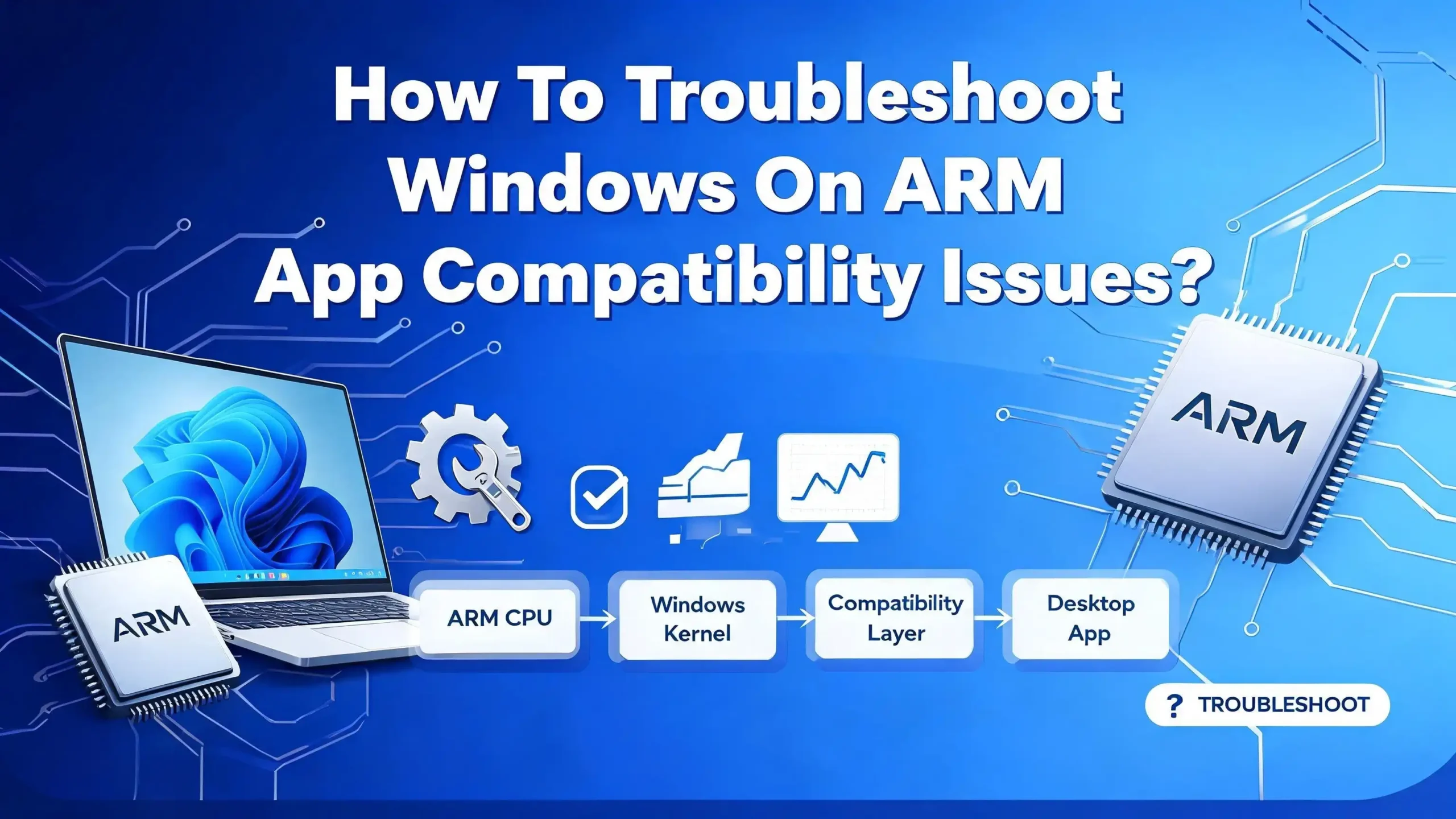
Before you start fixing problems, it helps to understand what happens behind the scenes. Windows on ARM does not run x86 apps directly. Instead, it uses an emulation layer called Prism to translate x86 and x64 instructions into ARM64 instructions on the fly.
Prism works as a just in time compiler. It takes blocks of x86 code, translates them into ARM64 code, and then caches those translations. The next time the same block of code runs, Prism pulls from the cache instead of translating again. This makes repeated operations much faster than the first execution.
Windows 11 version 24H2 introduced a major upgrade to Prism. It added support for AVX, AVX2, BMI, FMA, and F16C instruction set extensions. These are advanced features that many modern apps and games rely on for math heavy operations. Before this update, apps that required AVX would simply fail on ARM. Now, Prism can emulate those instructions too.
There is an important distinction between x86 (32 bit) and x64 (64 bit) emulation. Windows 10 on ARM only supported x86 emulation. Windows 11 added x64 support, which opened the door to many more applications. If you are still running Windows 10 on ARM, upgrading to Windows 11 is one of the best moves you can make for compatibility.
Emulation only covers user mode code. This is the critical limitation. Anything that runs in kernel mode, including drivers, must be compiled natively for ARM64. No amount of emulation settings will fix a missing kernel driver.
Identifying the Type Of Compatibility Problem
Not all compatibility issues look the same. The first step in fixing a problem is understanding what kind of failure you are dealing with. Here are the most common categories.
The app will not install at all. This often happens because the installer checks your processor architecture and refuses to proceed on ARM. Some installers are hard coded to require x86 or x64 processors. You may see an error message about unsupported hardware or architecture.
The app installs but crashes on launch. This suggests the app has code that Prism cannot translate correctly. It might rely on specific CPU instructions, use self modifying code, or interact with memory in ways the emulator does not handle by default.
The app runs but behaves incorrectly. You might see graphical glitches, missing features, or random errors during use. This often points to a subtle emulation issue with floating point precision or multi core synchronization.
The app requires a driver that does not exist for ARM64. Specialized hardware like audio interfaces, lab equipment, or certain printers may ship with x86 only drivers. Since drivers run in kernel mode, they cannot be emulated. The hardware simply will not work until the manufacturer releases an ARM64 driver.
The app is blocked by anti cheat software. Many games use kernel level anti cheat systems like Easy Anti Cheat or BattlEye. These systems must have native ARM64 support to function. If the anti cheat blocks the game, there is no workaround on your end.
Write down which category your issue falls into. This determines which solution path you should follow.
Checking If A Native ARM64 Version Exists
The simplest fix for any compatibility issue is to use a native ARM64 build of the app. Native apps bypass emulation entirely. They run faster, use less battery, and avoid all the quirks that come with translation.
Many popular applications already offer ARM64 versions. Microsoft 365 apps including Word, Excel, PowerPoint, Teams, and Outlook all have native builds. Google Chrome, Mozilla Firefox, Brave, and Microsoft Edge all run natively on ARM. Productivity tools like Slack, Zoom, WhatsApp, Spotify, and Discord have released ARM64 builds as well.
Creative software is catching up too. Blender, DaVinci Resolve, and the Affinity Suite all support ARM natively. If you are using an older version of any of these apps, update to the latest release. The ARM64 build may have been added in a recent update.
How to check if you are running a native or emulated version: Open Task Manager by pressing Ctrl+Shift+Esc. Go to the Details tab. Look for the Architecture column. If you do not see it, right click on any column header and select “Select columns,” then check “Architecture.” Apps showing ARM64 are running natively. Apps showing x86 or x64 are running under emulation.
Visit worksonwoa.com or windowsonarm.org to search for your specific app. These community maintained databases track compatibility status and often note whether a native ARM64 build is available. Microsoft also contributes data to these resources.
If a native version exists but you installed the x86 version by mistake, uninstall and reinstall with the correct ARM64 installer. Many download pages now detect your architecture automatically, but some default to x86. Look for links labeled “ARM64” or “Windows on ARM” on the developer’s download page.
Adjusting Prism Emulation Settings For Problem Apps
When an app runs under emulation but crashes or behaves oddly, changing the Prism emulation settings is your most powerful tool. Microsoft built several options directly into Windows that let you fine tune how Prism handles specific applications.
To access these settings, find the executable file (.exe) of the app. Right click on it and select Properties. Go to the Compatibility tab. You will see a section labeled Windows on Arm. Click “Change emulation settings” to open the configuration panel.
You will find four predefined profiles: Default, Safe, Strict, and Very Strict. Each level adds more conservative emulation behavior. The Default profile offers the best performance but may not work with every app. The Safe profile adds basic protections. Strict increases memory synchronization barriers between CPU cores. Very Strict applies the maximum level of compatibility settings.
Start with Safe. If the app still crashes, move to Strict. Only use Very Strict as a last resort, because it has a noticeable impact on performance.
For advanced users, you can enable individual settings manually. The “Use advanced settings” option reveals granular controls. These include options to disable the application cache, disable hybrid execution mode for x86 apps, add lightweight emulation protections, enable strict self modifying code support, disable RWX page performance optimization, and disable floating point optimization.
The floating point optimization setting deserves special attention. Some older apps use x87 instructions with 80 bit floating point precision. Prism defaults to a 64 bit approximation for speed. If your app shows incorrect calculations or graphical errors, disabling floating point optimization forces Prism to use full 80 bit precision.
Fixing Multi Core Synchronization Crashes
Some emulated apps crash because of multi core threading issues. This is more common than you might expect. The problem relates to how x86 and ARM processors handle memory ordering differently.
On x86 processors, memory accesses follow a strong ordering model. If one thread writes data before another thread reads it, the order is guaranteed. ARM processors use a weaker ordering model for better performance. This means threads might see memory changes in a different order unless explicit barriers are used.
Prism adds memory barriers automatically to handle this difference. But some apps have subtle timing dependencies that slip through the default barrier strategy. Symptoms include random crashes, corrupted data, or freezes that happen unpredictably.
To fix this, open the Prism emulation settings for the app (as described in the previous section). Click “Use advanced settings.” You will see a multi core setting with four options: Fast, Strict multi core operation, Very strict, and Force single core operation.
The Fast mode is the default. It uses minimal barriers for best performance. Strict multi core adds more barriers, which slows execution but prevents most ordering issues. Very strict adds even more. The nuclear option is “Force single core operation,” which runs all threads on a single CPU core. This eliminates synchronization issues entirely but makes the app significantly slower.
Try Strict multi core first. If crashes continue, move to Very strict. Use Force single core only if the app is lightweight and does not need parallel performance. This fix works well for older games, legacy business software, and utilities that were written without modern threading practices.
Dealing With Driver Compatibility Failures
Driver issues represent the hardest category of compatibility problems on Windows on ARM. Unlike regular apps, drivers run in kernel mode. Prism cannot emulate kernel mode code. Every driver must be compiled as a native ARM64 binary to function.
If you plug in a device and it does not work, the most likely cause is a missing ARM64 driver. This affects printers, scanners, audio interfaces, specialized USB devices, lab instruments, and similar hardware. Windows built in drivers cover many common devices, but specialized hardware often requires vendor supplied drivers.
Step one: Check the hardware manufacturer’s website. Look for drivers specifically labeled for ARM64 or Windows on ARM. Many major manufacturers including HP, Epson, Canon, and Logitech have released ARM64 drivers for their popular products.
Step two: If no ARM64 driver is available, check if your device supports Mopria (for printers) or other universal standards. Mopria certified printers work through Windows’ built in print system without vendor specific drivers.
Step three: Contact the manufacturer directly and request ARM64 driver support. As Windows on ARM grows in market share, manufacturers are more motivated to release compatible drivers. Your request adds to the demand signal.
Step four: As a workaround, consider using the device through a network connection instead of a direct USB connection. Network attached printers and scanners often use platform independent protocols that work regardless of your processor architecture.
Microsoft also offers the App Assure program through FastTrack. If you are a business customer, App Assure provides direct technical support for resolving compatibility issues, including driver problems.
Resolving Anti Cheat And Game Compatibility Issues
Gaming on Windows on ARM has improved significantly, but anti cheat software remains the biggest obstacle. Games that use kernel level anti cheat systems like Easy Anti Cheat (EAC) or BattlEye require those systems to have native ARM64 support.
The core problem is straightforward. Anti cheat software uses kernel mode drivers to monitor your system for cheating tools. These drivers cannot run under emulation. If the anti cheat does not have an ARM64 driver, it blocks the game from starting.
Epic Games announced native ARM support for Easy Anti Cheat through its Epic Online Services SDK. Fortnite was among the first games to receive this update. More games that use EAC are expected to follow. BattlEye has also been working on ARM64 support, though adoption varies by game.
To check if a specific game works on your ARM device, visit worksonwoa.com. Search for the game title. The database shows whether the game runs natively, works under emulation, or fails due to anti cheat or other issues.
If your game does not work, here are your options. Check for updates to both the game and the anti cheat software. Support is being added regularly. Try launching the game in offline mode if the anti cheat only activates for online play. Some single player experiences still work.
You can also use cloud gaming services like Xbox Cloud Gaming, NVIDIA GeForce NOW, or Steam Link. These services run games on remote servers and stream the video to your device. Since the game executes on an x86 server, compatibility is not an issue. Your ARM device only needs to handle the video stream.
Updating Windows And Prism For Best Compatibility
Keeping your system updated is one of the easiest and most effective ways to improve app compatibility. Microsoft ships Prism improvements through regular Windows updates. Each update can add support for new instruction sets, fix emulation bugs, and improve performance.
Make sure you are running Windows 11 version 24H2 or later. This version includes the most advanced Prism emulator with AVX, AVX2, and related instruction support. Apps that previously crashed because they required AVX may work perfectly after this update.
To check your Windows version, press the Windows key and type “winver.” Press Enter. The dialog box shows your current version and build number. If you are on a version older than 24H2, go to Settings, then Windows Update, and check for available updates.
Microsoft also pushes Prism specific updates that do not require a full Windows version upgrade. These come through regular cumulative updates. Enable automatic updates to make sure you receive them promptly.
Beyond Windows itself, update your device firmware and drivers. Snapdragon X series processors receive firmware updates through Windows Update or your device manufacturer’s support page. These updates can improve how the hardware interacts with Prism and resolve low level compatibility issues.
If an app stopped working after a Windows update, you can roll back to a previous Prism behavior using the emulation settings. The option labeled “Hide newer emulated CPU features” forces Prism to behave like its previous version. This can fix regressions where a new Prism feature conflicts with an older app.
Using Compatibility Mode And Older Windows Settings
Beyond Prism emulation settings, Windows offers traditional compatibility tools that can help with older x86 apps running on ARM. These tools have existed in Windows for years, and they still serve a purpose.
Right click the app’s executable and select Properties. Under the Compatibility tab, you can set the app to run in compatibility mode for an older version of Windows. Options include Windows 7, Windows 8, and earlier Windows 10 builds. Some older apps check the Windows version and refuse to run on versions they do not recognize. Setting compatibility mode tricks the app into seeing an older Windows version.
You can also adjust DPI scaling settings from this tab. Some emulated apps do not handle high DPI displays correctly. You might see tiny text, oversized elements, or blurry rendering. Click “Change high DPI settings” and experiment with the “Override high DPI scaling behavior” option. Setting the scaling to be performed by the System instead of the Application often fixes display issues.
The “Run this program as an administrator” checkbox can resolve issues where an app fails because it lacks sufficient permissions. Some older apps expect full access to protected directories or registry keys.
Windows also includes the Program Compatibility Troubleshooter. Search for “Run programs made for previous versions of Windows” in the Start menu. This tool walks you through a guided process to test different compatibility settings automatically. It is a good starting point if you are unsure which settings to change.
Remember that these traditional compatibility settings stack with Prism emulation settings. You can use both at the same time. Set the compatibility mode first, then adjust Prism settings if the app still has issues.
Reinstalling Apps With The Correct Architecture
Sometimes compatibility problems happen because you installed the wrong version of an app. Many software download pages still default to the x86 or x64 installer. Running an x64 build under emulation works, but a native ARM64 build will always work better.
Check the developer’s download page carefully. Look for labels like “ARM64,” “Windows on ARM,” or “AArch64.” Some apps bundle all architectures into a single installer that auto detects your system. Others offer separate downloads for each platform.
If you are using package managers like winget, you can specify the architecture directly. Open a terminal and run winget install appname architecture arm64 to force the ARM64 version. This ensures you get the native build when one is available.
For apps from the Microsoft Store, the correct architecture should be selected automatically. The Store detects your device type and delivers the appropriate package. If an app from the Store is not working well, try uninstalling it, restarting your device, and reinstalling.
Some apps come in Arm64EC (Emulation Compatible) format. This is a hybrid approach where parts of the app run natively while other parts use emulation. Arm64EC apps offer better performance than fully emulated x64 apps while maintaining compatibility with x64 plugins and extensions. You do not need to do anything special to use Arm64EC apps. They work automatically on Windows on ARM.
If you manage apps through MSIX packages or MSI installers in an enterprise environment, verify that your deployment pipeline includes ARM64 packages. IT administrators should audit their app catalogs to identify which apps have ARM64 versions available.
Exploring Workarounds For Completely Incompatible Apps
Some apps simply cannot run on Windows on ARM through emulation. They might require kernel mode drivers, use unsupported system calls, or depend on hardware that has no ARM64 support. For these cases, you need alternative approaches.
Windows 365 Cloud PC is one of the most practical solutions. It gives you a full Windows desktop running on Microsoft’s servers. Since the server uses x86 hardware, every x86 app runs without compatibility issues. You access it through a browser or the Windows 365 app on your ARM device. This works well for business users who need one or two incompatible apps.
Remote Desktop is another option. If you have an x86 Windows PC on your network, you can connect to it from your ARM device using the Remote Desktop app. The incompatible app runs on the remote machine while you interact with it from your ARM laptop.
Virtual machines have limitations on ARM. You cannot run an x86 virtual machine on ARM hardware with full performance. However, Hyper V on Windows on ARM supports ARM64 virtual machines. Some users run Linux ARM64 distributions in Hyper V and use compatibility layers like Wine or Box86/Box64 within those VMs for specific use cases.
Web based alternatives are worth considering too. Many apps now have browser based versions that work identically on any platform. Tools like Google Workspace, Figma, Canva, and many project management platforms run entirely in the browser. If your incompatible app has a web version, switching to it eliminates the compatibility issue permanently.
Finally, contact the app developer. Let them know you need ARM64 support. Microsoft’s Arm Advisory Service helps developers port their applications. Your request could be the push they need to start the process.
Checking Community Resources And Compatibility Databases
The Windows on ARM community has built valuable resources that can save you hours of troubleshooting. Before you spend time diagnosing a problem, check if someone has already documented the issue and its solution.
worksonwoa.com is the most comprehensive database. Microsoft contributes data to this open source project. You can search by app name and see whether it works natively, runs under emulation, or fails. Many entries include notes about specific versions and workarounds.
windowsonarm.org offers a community driven compatibility list for both apps and games. Users report their experiences with specific software, including details about which emulation settings they used to get things working. This is especially helpful for niche or specialized applications.
Reddit communities including r/Surface, r/snapdragon, and r/Windows11 have active discussions about ARM compatibility. Search these communities for your specific app. Users often share detailed fix instructions that go beyond what official documentation covers.
Microsoft’s official FAQ for Windows ARM based PCs at support.microsoft.com provides guidance on known limitations and recommended solutions. The Microsoft Learn documentation includes technical articles about emulation settings, Prism behavior, and developer guidance for ARM64 porting.
Discord servers dedicated to Windows on ARM provide real time help. The windowsonarm.org Discord server is a good place to ask questions and get fast responses from experienced users.
When you find a solution that works, consider contributing it back to these databases. Your experience helps the next person who encounters the same problem. The ARM ecosystem grows stronger when users share their findings.
Contacting Developers And Using Microsoft App Assure
If you have tried every troubleshooting step and an app still does not work, your best remaining option is to reach out directly. Two channels can help: the app developer and Microsoft’s App Assure program.
Contact the app developer first. Most developers have support pages, forums, or feedback mechanisms. File a bug report or feature request specifically asking for ARM64 support. Be specific about your device, Windows version, and the exact error or behavior you see. Developers prioritize based on demand, so every request matters.
Check if the developer has a public roadmap or issue tracker. Many open source projects use GitHub, where you can search for existing ARM64 issues or create a new one. Adding your voice to an existing issue increases its visibility.
Microsoft App Assure is a free service available to business and enterprise customers. It is part of the FastTrack program. App Assure engineers work directly with you and the app vendor to resolve compatibility issues. They can help identify the root cause, suggest code changes, and test fixes.
The Arm Advisory Service is a related program that helps developers learn best practices for building ARM64 apps. If you are in contact with a developer who wants to add ARM support but does not know where to start, point them to this service.
For developers reading this guide, Microsoft provides extensive documentation on adding ARM64 support to existing apps. The process varies by technology stack, but tools like Visual Studio make it straightforward for many C++ and .NET applications. Recompiling for ARM64 often requires minimal code changes.
Persistence pays off. The number of ARM64 native apps grows every month. An app that does not work today may receive an update next quarter that fixes everything. Stay informed by following the app developer’s release notes and checking community compatibility databases regularly.
Frequently Asked Questions
Can all x86 apps run on Windows on ARM?
Most x86 and x64 apps run on Windows on ARM through the Prism emulation engine. However, apps that require kernel mode drivers, specific hardware, or unsupported anti cheat systems will not work. The emulation covers user mode code only. Check community databases like worksonwoa.com before installing to verify your specific app.
How do I know if an app is running natively or under emulation?
Open Task Manager and go to the Details tab. Add the Architecture column if it is not visible. Apps listed as ARM64 run natively. Apps listed as x86 or x64 are running under Prism emulation. Native apps always deliver better performance and battery efficiency.
Why does my game crash with an anti cheat error on ARM?
Anti cheat software like Easy Anti Cheat and BattlEye uses kernel level drivers that must be compiled for ARM64. If the anti cheat has not been ported to ARM64, it blocks the game. Epic Games has added ARM support for EAC, and more games are receiving updates. Check for game updates or use cloud gaming as an alternative.
Will changing emulation settings break my app?
Changing Prism emulation settings can cause unexpected behavior. Microsoft warns that modified settings might cause crashes or prevent an app from launching. Always start with the least aggressive change, like the “Safe” preset, and test the app before moving to stricter settings. You can reset to Default at any time.
How do I get ARM64 drivers for my hardware?
Visit the hardware manufacturer’s website and look for drivers labeled ARM64 or Windows on ARM. Many major brands now offer ARM64 drivers for popular devices. If no driver is available, check whether Windows built in drivers support your device or contact the manufacturer to request ARM64 support.
Is Windows on ARM good enough for daily use?
For most users, yes. All major browsers, Microsoft 365, communication tools, media players, and many creative apps run natively on ARM. The remaining compatibility gaps affect niche software, specialized hardware, and some games with anti cheat protection. The ecosystem improves with every Windows update and new app release.

I’m a tech enthusiast who loves breaking down gadgets, apps, and tools into simple, honest reviews. At GenResizeHub, I help you make smarter buying decisions through in-depth comparisons and easy-to-follow guides. Got a question? Drop me a mail!