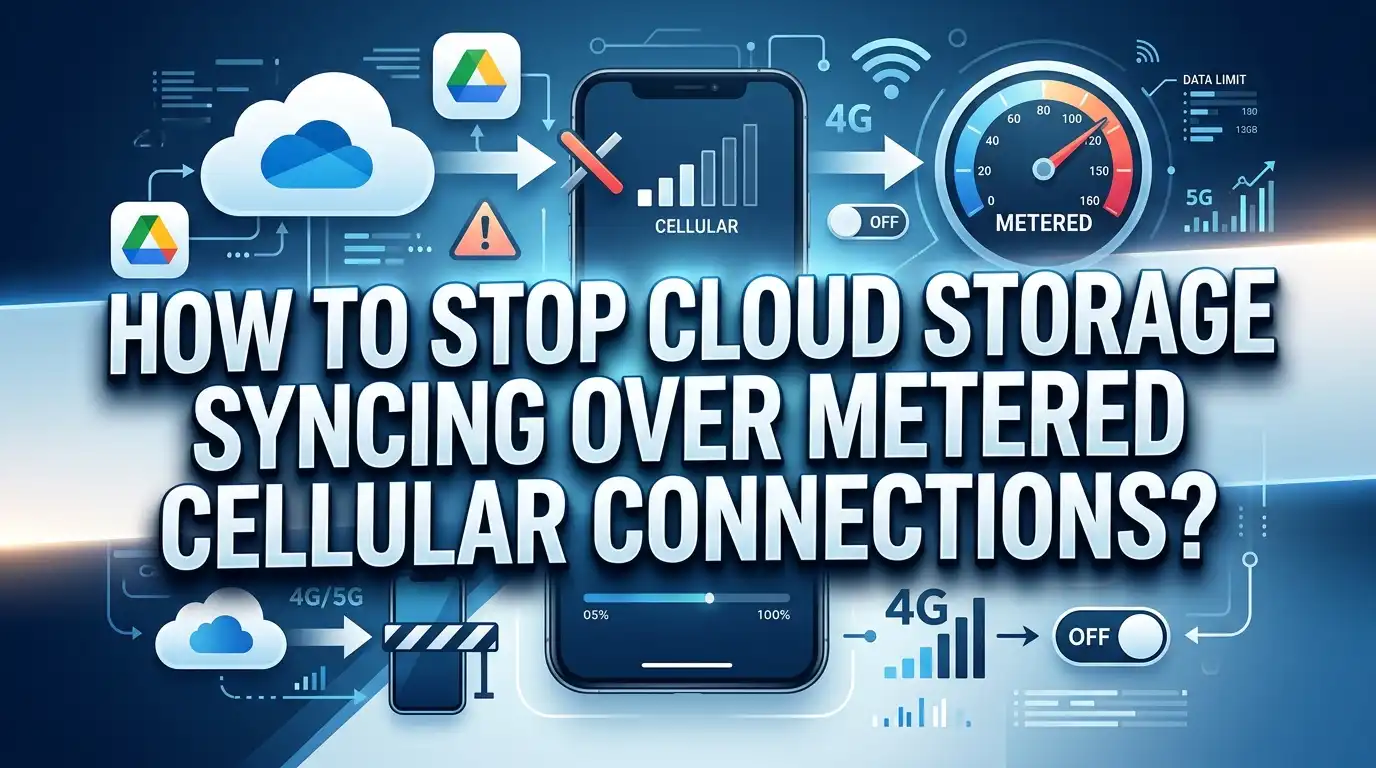
How To Stop Cloud Storage Syncing Over Metered Cellular Connections?
Cloud storage services like Google Drive, OneDrive, iCloud, and Dropbox are incredibly useful. They keep your files backed up and accessible across all your devices. But there is a catch. These apps often sync files automatically, and they do not always care whether you are on Wi-Fi or burning through your cellular data plan.
The good news is that every major cloud storage platform gives you a way to stop syncing over cellular data. You just need to know where to find the settings. This guide walks you through the exact steps for each major service and device. You will also learn system-level tricks that apply across all apps at once.
By the end of this post, you will have full control over which apps can sync on cellular and which ones must wait for Wi-Fi. Let us get started.
In a Nutshell
- Cloud storage apps sync files automatically in the background, and they often default to using whatever internet connection is available, including your cellular data. This can lead to surprise overages on metered plans.
- Each major cloud service has an in-app setting to restrict syncing to Wi-Fi only. Google Drive, OneDrive, Dropbox, and iCloud all offer this control, but the exact location of the toggle varies by platform.
- Your phone’s operating system also provides system-level controls. Both Android and iOS let you restrict background data usage for specific apps, giving you a second layer of protection beyond in-app settings.
- Windows and macOS users can mark their connections as metered. This tells the operating system and compatible apps to pause or reduce syncing activity until an unmetered connection is available.
- Disabling photo and video auto-upload on cellular is one of the fastest ways to save data. Media files are the largest items most cloud apps sync, and turning off cellular uploads for photos alone can save gigabytes each month.
- Combining in-app settings with OS-level restrictions gives you the strongest protection. Relying on just one method may leave gaps, so using both ensures no cloud app sneaks data usage past your controls.
Why Cloud Storage Apps Use So Much Cellular Data
Cloud storage apps are built to keep your files current across every device you own. This means they constantly check for changes and upload or download files as needed. The process happens silently in the background, and most apps do not display a warning before using cellular data.
Photos are the biggest offender. Many cloud apps offer automatic photo backup, which starts uploading every picture and video the moment you take it. A single one-minute video recorded in 4K can exceed 400 megabytes. Multiply that by a few clips from a weekend outing, and you can burn through a monthly data cap in a single afternoon.
Document syncing also adds up. If you edit files on your computer and your phone has the cloud app installed, it will pull down updated versions of those documents over whatever connection is active. Shared folders make this worse because other people’s changes trigger downloads on your device too.
Operating system updates to cloud-stored files, app cache refreshes, and thumbnail generation all contribute to background data consumption. Most users never see this activity because it runs quietly behind the scenes. The only evidence shows up on your data usage report at the end of the billing cycle.
Understanding this behavior is the first step. Once you know why these apps consume so much data, you can take targeted action to stop it.
How To Stop Google Drive From Syncing on Cellular Data
Google Drive is one of the most widely used cloud storage services, especially on Android devices. By default, Google Drive can transfer files over cellular connections. Here is how to change that.
Open the Google Drive app on your Android or iOS device. Tap the three horizontal lines in the top left corner to open the menu. Select Settings from the list. Look for the option labeled “Transfer files only over Wi-Fi” or a similar toggle. Turn this option on.
On newer versions of the app, the setting may appear under Data usage or Network preferences within the settings menu. Google occasionally moves these options with app updates, so if you cannot find it, use the search bar within settings.
For Google Photos, which handles the bulk of media uploads, open the Google Photos app separately. Tap your profile picture in the top right corner. Select Photos settings, then tap Backup. Under backup settings, you will find options for “Mobile data usage.” Set both photo and video backup to Wi-Fi only. You can also set a daily mobile data limit here as a safety net.
On desktop, Google Drive for Windows or Mac respects the metered connection setting of your operating system. If you mark your connection as metered (covered later in this post), Google Drive will pause syncing automatically. This is useful when you tether your laptop to your phone’s hotspot.
How To Stop OneDrive From Syncing on Cellular Data
Microsoft OneDrive is deeply integrated into Windows devices and is popular on mobile too. OneDrive can be particularly aggressive with background syncing because it ties into Microsoft 365 document saves. Controlling its cellular usage requires changes on both mobile and desktop.
On your Android device, open the OneDrive app. Tap the Me icon at the bottom right. Select Settings. Scroll to find “Upload only on Wi-Fi” and toggle it on. There may be separate toggles for photos and videos. Make sure both are set to Wi-Fi only.
On iPhone, open OneDrive and tap your profile icon. Go to Settings and find the Camera Upload section. Toggle off “Use Mobile Network” to prevent photo and video uploads over cellular.
On Windows 10 and Windows 11, OneDrive syncs files for your desktop, documents, and other folders. If you connect your laptop to a mobile hotspot, OneDrive will sync unless you tell it to stop. Right-click the OneDrive cloud icon in your system tray. Select Settings, then go to the Sync and backup tab. Check the box that says “Pause syncing when this device is on a metered network.”
You should also mark your hotspot or tethered connection as metered in Windows settings. This sends a signal to OneDrive and other apps that data usage should be limited. The steps for marking a connection as metered are covered in a dedicated section below.
How To Stop Dropbox From Syncing on Cellular Data
Dropbox operates on a straightforward sync model. It uploads and downloads file changes as they happen, and it does not discriminate between Wi-Fi and cellular by default. Fortunately, the mobile app provides clear controls.
On Android, open the Dropbox app. Tap your account icon, then select Settings. Under the Features or Camera uploads section, find the option for “Upload using” and change it to “Wi-Fi only.” There is often a separate setting for video uploads. Set both to Wi-Fi.
On iPhone, the process is almost identical. Open Dropbox, tap your profile icon, go to Settings, then Camera Uploads. Switch the “Use cellular data” toggle to off. This prevents Dropbox from uploading photos and videos on cellular.
For general file syncing on mobile, Dropbox also has a background data setting. Look for “Use data” or “Sync settings” in the app preferences. Restricting background data will prevent Dropbox from pulling down file updates while you are on cellular.
On desktop, Dropbox does not have a native metered connection setting. However, you can use your operating system’s data-saving features to limit its behavior. On Windows, marking the connection as metered will cause Dropbox to slow or pause syncing. On macOS, you can use the Low Data Mode setting on your network connection to achieve a similar result.
Another useful trick is to set Dropbox bandwidth limits. In the desktop app settings, go to Bandwidth and set the upload and download rates to the lowest values. This does not stop syncing entirely, but it reduces the data impact dramatically.
How To Stop iCloud From Syncing on Cellular Data
Apple’s iCloud is tightly woven into every iPhone, iPad, and Mac. iCloud syncs photos, documents, app data, messages, and more. Controlling its cellular behavior requires a few different settings because Apple spreads these controls across multiple locations.
On your iPhone or iPad, go to Settings, then tap Cellular (or Mobile Data depending on your region). Scroll down to see the list of apps with cellular data access. Find iCloud Drive in the list and toggle it off. This prevents iCloud Drive from syncing documents over cellular.
For iCloud Photos, go to Settings, then Photos. Find the “Cellular Data” option and turn it off. This stops your device from uploading or downloading photos and videos over cellular. There may also be a toggle for “Unlimited Updates” under cellular data. Make sure this is off too.
iCloud backups only run on Wi-Fi by default, so you do not need to worry about full device backups using cellular data. However, individual app data synced through iCloud (like Notes, Reminders, and Safari bookmarks) may still use small amounts of cellular data.
To apply a blanket restriction, you can go to Settings, then Cellular, and scroll to the bottom. Here, you will find “iCloud Drive” listed. Turning this off blocks most iCloud syncing on cellular. Keep in mind that this may affect your ability to access iCloud files when you are away from Wi-Fi.
How To Use Android’s Built-in Data Saver to Block Background Syncing
Android offers a powerful system-level tool called Data Saver that restricts background data for all apps at once. This is one of the fastest ways to prevent cloud storage apps from syncing on cellular.
To enable Data Saver, go to Settings on your Android device. Tap Network & Internet (or Connections on Samsung devices). Select Data Saver or Data usage. Toggle Data Saver to on.
When Data Saver is active, most apps cannot use data in the background while you are on cellular. Apps will only use data when you actively open and use them. This means Google Drive, OneDrive, Dropbox, and other cloud services will stop background syncing immediately.
You can also create exceptions. If you want certain apps (like your email or messaging apps) to still use background data, tap “Unrestricted data” or “Allowed to use data while Data Saver is on.” Add the apps you want to exempt from the restriction. Make sure your cloud storage apps are not on this exception list.
For even more control, go back to Data usage and tap “App data usage.” This shows you exactly how much data each app has used. You can tap on any specific cloud app and toggle off “Background data” individually. This works even if Data Saver is turned off, giving you per-app control.
Samsung devices have an additional feature called “Ultra Data Saving” that compresses data and blocks background activity more aggressively. Check your device settings for this option if you use a Samsung phone.
How To Use iPhone’s Low Data Mode to Limit Cloud Syncing
Apple introduced Low Data Mode in iOS 13, and it remains one of the best tools for controlling data usage on cellular connections. This feature reduces background network activity across all apps on your device.
To enable Low Data Mode for your cellular connection, go to Settings, then Cellular, then Cellular Data Options. Tap Data Mode and select “Low Data Mode.” This tells your iPhone to reduce automatic updates, background app refresh, and media quality on cellular.
With Low Data Mode active, cloud storage apps like iCloud, Google Drive, and Dropbox will pause or reduce background syncing. Apps may still function normally when you open them, but they will not pull data in the background.
You should also check Background App Refresh settings. Go to Settings, then General, then Background App Refresh. You can set this to “Wi-Fi” instead of “Wi-Fi & Cellular Data.” This prevents all apps from refreshing their content on cellular. Alternatively, you can turn off Background App Refresh for specific cloud storage apps while leaving it on for others.
Combining Low Data Mode with turning off Background App Refresh for cloud apps creates a strong barrier against unwanted cellular syncing. Both settings work together to keep your data usage in check without completely disabling your ability to use cloud services when you need them.
How To Mark a Connection as Metered on Windows
Windows 10 and Windows 11 allow you to mark any network connection as metered. This tells the operating system and compatible applications to limit their data usage on that connection. Cloud storage apps like OneDrive, Google Drive, and Dropbox respect this setting.
To mark a Wi-Fi connection as metered, go to Settings, then Network & Internet, then Wi-Fi. Click on the network you are connected to (or the properties link next to it). Scroll down and toggle “Set as metered connection” to on.
If you are using a mobile hotspot or USB tethering, the same process applies. Connect to the hotspot, find it in your Wi-Fi or Ethernet settings, and mark it as metered.
For Ethernet connections (such as a USB-tethered phone), go to Settings, then Network & Internet, then Ethernet. Click on the active connection and toggle the metered setting.
Once a connection is marked as metered, Windows will pause Windows Update downloads, reduce OneDrive sync activity, and limit other background processes. Most third-party cloud apps also check for the metered flag. Google Drive’s desktop client and Dropbox both reduce or stop syncing on metered connections.
This setting is especially useful for people who travel with laptops and rely on phone tethering for internet access. Marking the tethered connection as metered prevents all cloud syncing from draining your phone’s data plan while you work.
How To Mark a Connection as Metered on macOS
Apple added improved network management features to macOS in recent versions. While macOS does not use the term “metered connection” like Windows, it offers a Low Data Mode that achieves the same result.
To enable Low Data Mode on macOS, click the Apple menu and go to System Settings (or System Preferences on older versions). Select Network, then click on the active connection (Wi-Fi or Ethernet). Click Details next to the connected network. Toggle “Low Data Mode” to on.
When Low Data Mode is active on macOS, the system reduces background network activity. iCloud will slow down or pause syncing. Time Machine backups over the network will pause. Software updates will not download automatically.
Third-party apps may or may not respect this setting. Google Drive and Dropbox for Mac may continue syncing unless you also adjust their in-app settings. For these apps, you should combine the macOS Low Data Mode with the bandwidth or sync restrictions available within each app.
If you use a personal hotspot from your iPhone, macOS can detect this automatically. In some cases, it will enable Low Data Mode by default for hotspot connections. Check your network settings to confirm this behavior is active on your setup.
For the most reliable protection on Mac, use both macOS Low Data Mode and individual app sync settings. This double layer of control ensures no cloud service consumes your limited cellular data.
How To Set Data Limits and Alerts on Your Phone
Even after adjusting all your cloud storage settings, it helps to set a data usage limit on your phone. This acts as a final safety net in case any app slips past your other restrictions.
On Android, go to Settings, then Network & Internet, then Data usage. Tap “Data warning & limit.” Set a monthly data warning at about 80% of your plan’s limit. Then set a hard data limit at your plan’s actual cap. When you hit the warning level, your phone will send a notification. When you hit the hard limit, your phone will disable cellular data entirely.
On iPhone, iOS does not have a built-in data limit feature. However, you can reset your cellular data statistics at the start of each billing cycle and check your usage regularly. Go to Settings, then Cellular, and scroll to the bottom to see your current period usage.
Third-party apps like My Data Manager or your carrier’s official app can also track usage and send alerts. Many carriers provide their own usage tracking tools through their apps or by dialing specific codes.
Setting these alerts gives you peace of mind. Even if a cloud app somehow starts syncing over cellular, you will get a warning before the damage gets too bad. This simple step has saved many users from costly overage charges.
How To Handle Cloud Syncing When Using a Mobile Hotspot on a Laptop
Using your phone as a hotspot for your laptop creates a unique challenge. Your laptop does not automatically know it is connected to a limited cellular connection. It treats the hotspot like any other Wi-Fi network and allows all apps to sync freely.
The most important step is to mark the hotspot connection as metered on your laptop. On Windows, follow the steps in the metered connection section above. On macOS, enable Low Data Mode for the hotspot network.
You should also pause cloud syncing manually before connecting to the hotspot. In OneDrive, right-click the system tray icon and select “Pause syncing.” Choose a duration of 2 hours, 8 hours, or 24 hours. In Google Drive, click the Drive icon in the taskbar, click the gear icon, and select “Pause syncing.” Dropbox has a similar pause option in its system tray menu.
If you forget to pause syncing, the metered connection flag should catch most activity. But pausing manually gives you absolute certainty.
Some users create a separate network profile on their laptop specifically for hotspot use. On Windows, you can configure a profile that automatically marks itself as metered. This removes the need to remember toggling the setting each time you connect.
Planning ahead is key. Before switching to a hotspot connection, close any cloud storage apps or browser tabs that might trigger uploads. A few seconds of preparation can save you significant data.
How To Check Which Apps Are Using the Most Cellular Data
Before you change any settings, it helps to know which apps are the worst offenders. Both Android and iOS provide detailed breakdowns of cellular data usage by app.
On Android, go to Settings, then Network & Internet, then Data usage. Tap “App data usage” to see a ranked list of apps sorted by data consumption. Look for cloud storage apps like Google Drive, Google Photos, OneDrive, or Dropbox. Tap on any app to see a split between foreground and background usage. High background usage is a strong sign of automatic syncing.
On iPhone, go to Settings, then Cellular. Scroll down to see the list of apps and their data usage for the current period. Apps are listed with their total cellular data usage next to them. Look for any cloud storage apps with unusually high numbers.
If you see a cloud app using hundreds of megabytes or more in background data, that app is syncing files over cellular. This is the app you need to address first. Apply the in-app and system-level restrictions described in this guide.
Check this data usage screen regularly, perhaps once a week. It gives you an early warning if any app starts consuming more data than expected. You can catch problems before they become expensive.
Best Practices for Managing Cloud Storage on Metered Connections
Beyond the specific settings for each app, several general habits can keep your data usage low. These best practices work across all platforms and all cloud services.
First, review your sync folder settings. Most desktop cloud apps let you choose which folders sync to your device. Remove large folders that you rarely need on your phone or laptop. Fewer synced folders mean less data consumed during sync cycles.
Second, use selective sync or “Files on Demand” features. OneDrive and Dropbox both offer options to keep files in the cloud until you specifically open them. This prevents your device from downloading every file automatically.
Third, turn off auto-upload for screenshots and screen recordings. These files add up quickly and are often not important enough to back up immediately. You can upload them manually later when you are on Wi-Fi.
Fourth, schedule your backups. Some apps allow you to set backup schedules. Choose late night hours when you are likely connected to home Wi-Fi. This keeps large uploads off your cellular connection.
Fifth, audit shared folders. If you are part of shared cloud folders at work or school, other people’s file additions will trigger downloads on your device. Leave shared folders you no longer need, or set them to online-only access.
Consistent attention to these practices, combined with the technical settings described above, gives you complete control over cloud syncing behavior. Your cellular data stays reserved for the things you actually need while on the go.
Frequently Asked Questions
Does turning off cloud syncing on cellular mean I lose access to my files?
No. Turning off cellular syncing only prevents automatic uploads and downloads over your mobile data connection. You can still open and view files that are already stored on your device. Cloud files that have not been downloaded will show as available but will require a Wi-Fi connection to access. Most apps let you mark specific files as “available offline” so they stay on your device at all times.
Will my photos still back up if I disable cellular syncing?
Your photos will still back up, but only when you connect to Wi-Fi. The backup process will resume automatically once your device detects an unmetered connection. This may mean a short delay between taking a photo and having it safely backed up to the cloud. For most users, this delay is a few hours at most and is well worth the data savings.
Can I allow syncing on cellular for just one cloud app?
Yes. Both Android and iOS let you control cellular data access on a per-app basis. You can disable cellular data for most cloud apps and leave it enabled for the one you rely on most. This gives you flexibility without opening the door to unrestricted syncing from every app on your device.
Does the metered connection setting on Windows affect all apps?
The metered connection flag on Windows affects most built-in features and many third-party apps. Windows Update, OneDrive, and Microsoft Store downloads all respect this setting. However, some third-party applications may ignore it. For those apps, you will need to adjust their individual settings to prevent syncing on a metered connection.
How do I know if my connection is being treated as metered?
On Windows, look for a small warning icon near the network status or check the network properties in Settings. On macOS, check the Low Data Mode toggle for your active connection. On mobile devices, your phone always knows when it is on cellular versus Wi-Fi and treats them differently by default. If you have enabled Data Saver or Low Data Mode, your device will apply restrictions automatically.
Is there a way to automatically pause all cloud syncing when I leave home?
Some automation tools can help with this. On Android, apps like Tasker can detect when you disconnect from your home Wi-Fi and trigger actions like enabling Data Saver. On iPhone, you can use Shortcuts automations to remind you to pause cloud syncing when you leave a specific location. While full automation is limited on iOS due to system restrictions, these tools can reduce the manual effort involved in managing your sync settings.

I’m a tech enthusiast who loves breaking down gadgets, apps, and tools into simple, honest reviews. At GenResizeHub, I help you make smarter buying decisions through in-depth comparisons and easy-to-follow guides. Got a question? Drop me a mail!