Why Is My Antivirus Blocking Legitimate Apps on Windows?
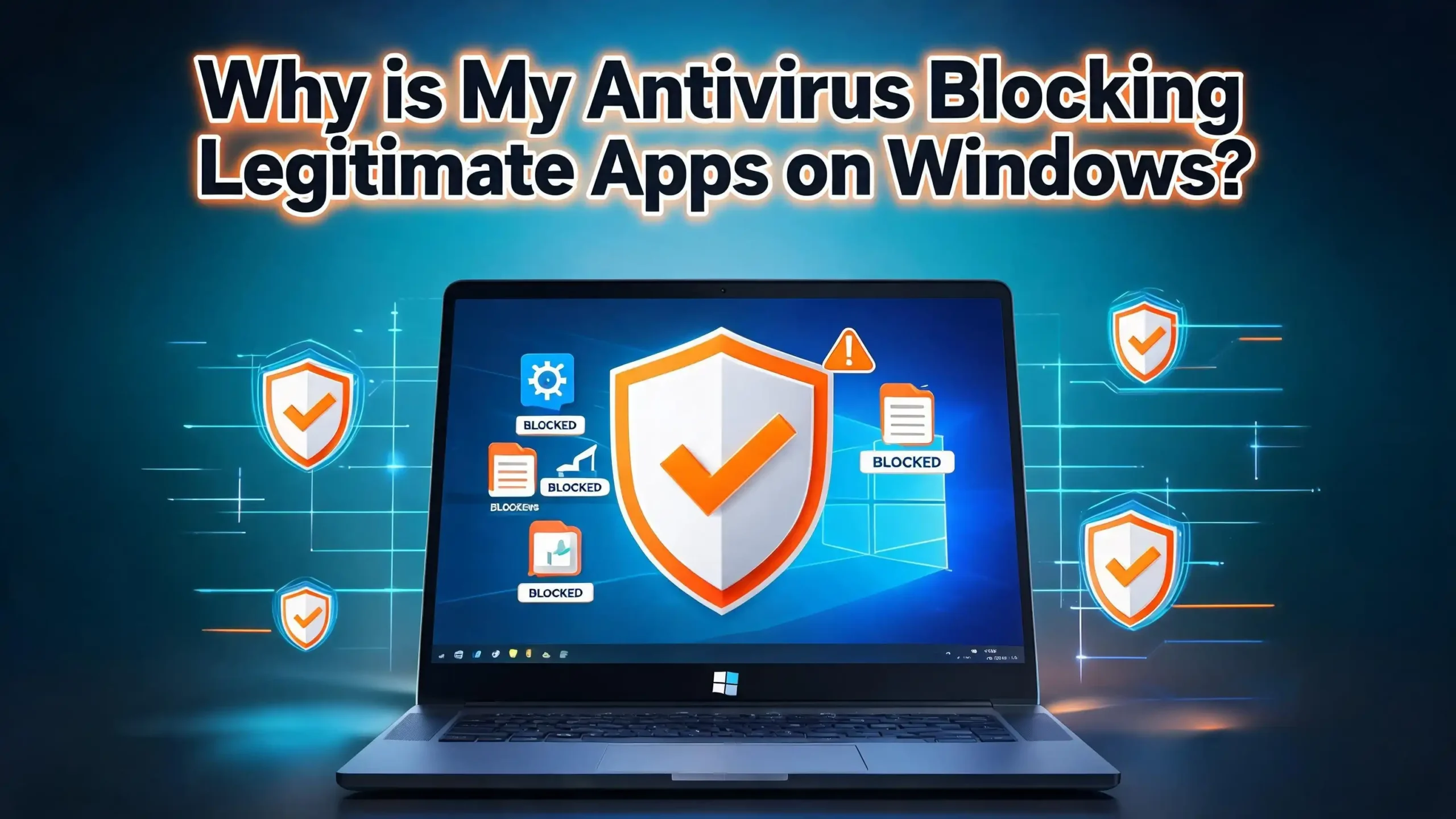
You just downloaded a program you trust. Maybe it is a popular photo editor, a game launcher, or a tool you have used for years. But your antivirus software jumps in and blocks it. A bright red warning flashes on your screen. The app gets quarantined or deleted before you can even open it.
This is frustrating. You know the app is safe. You downloaded it from the official website. Yet your antivirus treats it like a dangerous threat. This situation happens more often than most people think.
The good news? You can fix this. This guide will walk you through why your antivirus blocks safe apps, how to tell the difference between a false alarm and a real threat, and the exact steps to resolve the issue on Windows.
Key Takeaways
- False positives are common. Antivirus programs sometimes flag safe apps as threats because of similarities in code patterns, behaviors, or file structures that resemble known malware. This does not mean your app is actually dangerous.
- Heuristic scanning is a major cause. Modern antivirus tools use behavior analysis to detect new threats. This aggressive approach can incorrectly flag legitimate programs that perform actions similar to malicious software.
- You should always verify before ignoring a warning. Use tools like VirusTotal to scan a flagged file with dozens of antivirus engines. If only one or two engines flag it, the alert is likely a false positive.
- Windows Defender has multiple layers that can block apps. SmartScreen, Controlled Folder Access, and real time protection are separate features. Each one can independently block a legitimate application for different reasons.
- Adding exclusions is the primary fix. Once you confirm an app is safe, you can add it to your antivirus exclusion or whitelist. This prevents future false alarms without turning off your entire security system.
- Keeping your software updated reduces false positives. Antivirus vendors regularly update their threat databases to correct false detections. Running outdated definitions increases the chance of wrong alerts.
What Is a False Positive in Antivirus Software
A false positive happens when your antivirus software identifies a safe file, app, or process as malicious. The antivirus believes the file is a virus, Trojan, or some other form of malware. But in reality, the file is completely harmless.
Think of it like a smoke detector going off because you burned toast. The alarm system works correctly. It detected smoke. But there is no actual fire. Your antivirus works the same way. It detects something suspicious and raises an alert, even though the file poses no real danger.
False positives can affect any type of file. They can block app installers, executable files, DLL libraries, and even Windows system files. In some cases, antivirus software has flagged well known programs like Google Chrome update files, CCleaner, and even Windows system DLLs as threats. These incidents show that no software is immune to being incorrectly flagged.
The consequences go beyond simple annoyance. A false positive can prevent you from installing important software, break applications that are already running, or cause you to delete files that your system actually needs. Understanding what false positives are is the first step to handling them properly.
Why Your Antivirus Flags Safe Apps as Threats
Several factors cause your antivirus to block apps that are actually safe. Each one relates to how antivirus software identifies threats.
Heuristic analysis is one of the biggest reasons. Antivirus programs do not rely only on known virus signatures. They also analyze how a file behaves. If an app modifies system files, accesses network connections, or changes registry entries, the antivirus may flag it as suspicious. Many legitimate apps perform these exact same actions.
Code pattern similarities also play a role. Some safe programs use compression or packaging methods that are similar to those used by malware creators. For example, apps packaged with tools like UPX (Ultimate Packer for Executables) often trigger false alarms because malware authors also use UPX to hide their code.
New or uncommon software faces a higher risk. Antivirus programs build trust scores based on how many users have downloaded a file. If you download a small indie app or a newly released tool, your antivirus may not have enough data to classify it as safe. It defaults to treating the unknown file as a potential threat.
Unsigned applications trigger warnings more frequently. Software developers can digitally sign their apps with security certificates. This signature tells your antivirus that a verified publisher created the file. Apps without a valid digital signature appear more suspicious to security tools.
How Heuristic and Behavioral Detection Causes False Alarms
Heuristic detection is a powerful feature in modern antivirus software. It allows your antivirus to catch new and unknown threats before they appear in virus definition databases. But this same power leads to false positives.
Traditional antivirus detection works by comparing files against a database of known malware signatures. If a file matches a signature, it gets flagged. This method is accurate but limited. It cannot catch brand new malware that has not been cataloged yet.
Heuristic analysis fills this gap. It examines what a file does rather than what it is. The antivirus monitors behaviors such as attempts to modify system files, inject code into running processes, or establish network connections without user input. If a file’s behavior score crosses a certain threshold, the antivirus triggers an alert.
The problem is that many legitimate apps perform these same behaviors. A backup program needs to access and modify files across your system. A remote desktop tool needs to establish network connections. A system optimizer might adjust registry entries. All of these actions look suspicious to heuristic analysis even though they serve a completely valid purpose.
Some antivirus tools allow you to adjust the sensitivity of heuristic scanning. Lowering the sensitivity reduces false positives but also slightly increases the risk of missing real threats. Finding the right balance depends on your personal comfort level and the types of apps you use regularly.
The Role of Windows Defender SmartScreen in Blocking Apps
Windows Defender SmartScreen is a security feature built into Windows 10 and Windows 11. It works separately from your main antivirus engine. SmartScreen checks apps and files you download from the internet against a reputation database.
When you try to run an app that SmartScreen does not recognize, you see a blue warning screen that says “Windows Defender SmartScreen prevented an unrecognized app from starting.” This does not mean the app is dangerous. It means SmartScreen does not have enough reputation data to verify it.
SmartScreen uses a trust system based on download frequency and digital signatures. Apps that millions of people download build a positive reputation over time. New apps or apps from small developers often lack this reputation. SmartScreen blocks them by default as a precaution.
You can bypass the SmartScreen warning by clicking “More info” and then selecting “Run anyway.” This tells Windows you trust the file and want to proceed. However, you should only do this after verifying that the file is safe.
To adjust SmartScreen settings, open Windows Security, go to App and Browser Control, and then click Reputation based protection settings. Here you can change how SmartScreen handles apps, files, and downloads. You can set it to warn only instead of block, or turn it off for specific categories. Be careful with these changes and only reduce protection for apps you have verified.
How Controlled Folder Access Blocks Legitimate Programs
Controlled Folder Access is another Windows security feature that often confuses users. It is a ransomware protection tool that prevents unauthorized apps from making changes to important folders like Documents, Pictures, Desktop, and Videos.
When this feature is active, only trusted apps can write to protected folders. If a legitimate program tries to save a file to your Documents folder and it is not on the trusted list, Controlled Folder Access blocks it. You may see a notification that says the app was blocked from making changes.
This feature catches many users off guard because it blocks apps silently in some cases. A program might fail to save files or crash unexpectedly, and you may not immediately realize that Controlled Folder Access is the cause.
To allow a blocked app through Controlled Folder Access, follow these steps. Open Windows Security and go to Virus and Threat Protection. Scroll down to Ransomware Protection and click Manage ransomware protection. Under Controlled Folder Access, click Allow an app through Controlled folder access. Then click Add an allowed app and choose Recently blocked apps from the dropdown. Select the app you want to allow.
You can also manually browse for the app’s executable file if it does not appear in the recently blocked list. This grants the app permission to write to your protected folders without turning off the ransomware protection entirely.
How to Verify If an Antivirus Alert Is a False Positive or Real Threat
Before you dismiss an antivirus warning, you should verify whether the flagged file is actually safe. Blindly ignoring warnings can expose your system to real malware.
Use VirusTotal as your first verification tool. Visit VirusTotal.com and upload the flagged file. This free service scans your file with over 70 different antivirus engines. If only one or two engines flag the file while the rest mark it as clean, the alert is almost certainly a false positive. If dozens of engines flag it, the file may be a genuine threat.
Check the download source. Did you download the app from the official developer website? Files from third party download sites carry a higher risk of being bundled with unwanted software. Always compare file sizes and checksums with those listed on the official site.
Look at the detection name. Antivirus programs label detections with specific names. Generic labels like “Heuristic.Gen” or “PUA.Optional” often indicate a false positive or a potentially unwanted program rather than actual malware. Labels containing “Trojan” or “Ransomware” with a specific variant name deserve more caution.
Check online forums and communities. Search for the app name along with the words “false positive” or “antivirus block.” Other users likely encountered the same issue and can confirm whether the detection is legitimate. Reddit communities like r/antivirus are helpful resources for this kind of verification.
Verify the file’s digital signature. Right click the file, select Properties, and check the Digital Signatures tab. A valid signature from a known publisher adds confidence that the file is safe.
How to Add Exclusions in Windows Defender
Adding an exclusion tells Windows Defender to skip a specific file, folder, or process during scans. This is the most effective way to stop false positives from blocking your trusted apps.
Step 1: Open the Start menu and search for Windows Security. Click to open it.
Step 2: Select Virus and Threat Protection from the left sidebar.
Step 3: Scroll down and click Manage settings under the Virus and Threat Protection settings section.
Step 4: Scroll down to the Exclusions section and click Add or remove exclusions.
Step 5: Click Add an exclusion. You will see four options: File, Folder, File type, and Process. Choose the option that best fits your situation.
If a specific app keeps getting blocked, select File and browse to the app’s executable (.exe) file. If an entire program folder triggers alerts, select Folder and point to the installation directory. If a background process is being blocked, select Process and type the process name.
Important safety note: Only add exclusions for files and apps you have thoroughly verified as safe. Every exclusion creates a blind spot in your antivirus protection. Microsoft’s official guidance recommends defining exclusions sparingly and reviewing them regularly. Never exclude entire drives or broad file types like .exe across your whole system.
After adding the exclusion, restart the blocked app. It should now run without interference from Windows Defender.
How to Whitelist Apps in Third Party Antivirus Software
If you use a third party antivirus instead of Windows Defender, the process for whitelisting apps varies by product. However, the general steps follow a similar pattern across most antivirus programs.
Look for the Exclusions or Exceptions section in your antivirus settings. Most programs place this under the main Protection or Scanning settings. The exact label varies. Some call it “Exclusions,” others call it “Exceptions,” and some use “Whitelist” or “Allowed List.”
In most antivirus programs, you can exclude files by file path, folder, or file hash. Excluding by file hash is the most secure option because it only whitelists that specific version of the file. If the file changes for any reason, the exclusion no longer applies. This protects you in case the file is later modified by malware.
If your antivirus has quarantined a legitimate file, check the quarantine or vault section. You can usually restore the file from quarantine and add it to the exclusion list at the same time. This two step process recovers the file and prevents future detections.
Some antivirus programs also let you report false positives directly from the alert notification. This sends the file to the antivirus vendor for analysis. If they confirm the file is safe, they update their threat database to remove the false detection. This helps other users who encounter the same problem.
Always keep your antivirus updated after reporting a false positive. The fix typically arrives through a regular definition update within a few days.
How to Restore Files That Your Antivirus Quarantined
When your antivirus quarantines a file, it moves the file to a secure location where it cannot run or cause harm. The file is not deleted. You can recover it if you determine the file is safe.
In Windows Defender, open Windows Security and go to Virus and Threat Protection. Click Protection history. This screen shows all recent detections and actions taken by Windows Defender. Find the quarantined item in the list and click on it. You will see a Restore button that puts the file back in its original location.
You can also restore quarantined files using the command line. Open Command Prompt as Administrator. Navigate to the Windows Defender platform folder and run the restore command. This method is useful when the graphical interface does not show the quarantined file or when you need to restore files on multiple machines.
After restoring a file, immediately add it to your exclusion list. Otherwise, your antivirus will detect and quarantine the file again during its next scan. The restore and exclude steps should always go together.
Check your quarantine regularly. Antivirus programs often auto delete quarantined files after a set period, usually 30 days. If you wait too long, the file may be permanently removed. Make it a habit to review your quarantine within a few days of any unexpected detection.
How to Reduce False Positives Without Lowering Your Security
You do not need to weaken your security to stop false positives. Several strategies help you reduce false alarms while keeping strong protection in place.
Keep everything updated. Antivirus vendors release definition updates multiple times per day. These updates fix known false positives and improve detection accuracy. Make sure your antivirus, Windows operating system, and the apps themselves are all running their latest versions.
Download software only from official sources. Files from third party download portals, torrent sites, or file sharing platforms are more likely to trigger false positives. They may also contain actual threats. Always get apps directly from the developer’s official website or from trusted platforms like the Microsoft Store.
Use digitally signed applications. When possible, choose apps that come with a valid digital signature from a recognized publisher. Signed apps build trust with antivirus programs faster and trigger fewer false alarms.
Report false positives to your antivirus vendor. Every major antivirus company has a submission form where you can report false detections. Microsoft accepts submissions at their Security Intelligence portal. Your reports help improve detection accuracy for everyone.
Adjust sensitivity settings carefully. Some antivirus programs let you choose between different protection levels. If you experience frequent false positives, try lowering the heuristic sensitivity from “High” or “Aggressive” to “Normal” or “Default.” This reduces false alarms without significantly impacting your security.
Review your exclusion list periodically. Over time, you may accumulate exclusions for apps you no longer use. Remove outdated exclusions to keep your security posture tight and clean.
When the Problem Is Not a False Positive
Sometimes your antivirus blocks an app for a valid reason. Not every blocked program is a false positive. It is important to recognize the signs of a genuine threat.
Potentially Unwanted Applications (PUAs) sit in a gray area. These are not traditional malware, but they may display aggressive ads, bundle additional software without clear consent, or track your browsing behavior. Your antivirus may flag PUAs because they pose privacy and performance risks even if they are not technically viruses.
If your antivirus labels a detection as “PUA” or “PUP” (Potentially Unwanted Program), research the app carefully. Decide whether you truly need it and whether its behavior is acceptable to you. Windows Defender has specific PUA protection settings that you can configure under App and Browser Control.
Cracked or pirated software often triggers antivirus alerts for good reason. These modified files frequently contain actual malware injected by the person who cracked the software. If your antivirus blocks a cracked app, take the warning seriously. The risk of real infection is high.
Files from email attachments or unknown senders should also be treated with extra caution. Even if a file appears to be a legitimate document or installer, it could be a disguised threat. Verify the sender and scan the file with VirusTotal before opening it.
Trust your antivirus when multiple indicators suggest a real threat. If VirusTotal shows many detections, if the download source is suspicious, and if the file lacks a digital signature, the alert is probably not a false positive.
How to Report False Positives to Antivirus Vendors
Reporting false positives benefits you and the entire user community. When you submit a file that was incorrectly flagged, the antivirus vendor analyzes it and updates their detection rules. This prevents the same false positive from affecting other users.
For Windows Defender and Microsoft Defender, visit the Microsoft Security Intelligence submission site. You can upload the file directly and mark it as a false positive. Microsoft’s security team reviews submissions and pushes corrections through regular definition updates.
For third party antivirus products, look for a “Submit a file” or “Report false positive” option on the vendor’s website. Most major vendors including Norton, Bitdefender, Kaspersky, and Avast provide dedicated submission portals. You typically need to upload the file and describe why you believe it is a false detection.
When submitting a report, include helpful details. Mention where you downloaded the file, the official website of the developer, and the exact detection name shown by the antivirus. This information helps analysts verify the file faster.
After submitting your report, keep an eye on your antivirus updates. Most vendors process false positive reports within a few business days. Once the correction is released, the app should no longer trigger alerts. You can then remove any temporary exclusions you added.
Reporting takes just a few minutes, but it makes antivirus software better for everyone. Consider it a small contribution to the wider security community.
What to Do If Your Antivirus Keeps Blocking the Same App
If the same app triggers alerts repeatedly despite your exclusion settings, a deeper issue may be at play.
Check if multiple security layers are involved. Windows runs several protection features at the same time. Real time protection, SmartScreen, Controlled Folder Access, and firewall rules can all independently block the same app. You may have added an exclusion in one layer but not the others. Review each security feature separately to ensure the app is allowed across all of them.
Verify your exclusion path is correct. If you excluded a file but the app auto updated to a new version, the file path or file hash may have changed. The old exclusion no longer applies. Update your exclusion to match the current file location or use a folder level exclusion instead of a file level one.
Check for Group Policy or organizational restrictions. If your computer is managed by an employer or school, Group Policy settings may override your local exclusions. Contact your IT administrator to request a policy change if you need the app for work.
Reinstall the app from the official source. Sometimes a corrupted download or incomplete installation triggers persistent false positives. Uninstall the app completely, download a fresh copy from the developer’s website, and reinstall it. Add the exclusion before running the new installation to prevent immediate quarantine.
Consider switching your antivirus product. If a specific antivirus consistently produces false positives for apps you rely on, a different product may handle those files better. AV Comparatives publishes regular false alarm test results that compare how many false positives each antivirus product generates.
Frequently Asked Questions
Can I turn off my antivirus to install a blocked app?
You can temporarily disable real time protection to install an app, but this is risky. Your system is unprotected during that window. A safer approach is to add the app’s installer to your exclusion list first. Then install the app with full protection still running. This way, you skip the specific file without leaving your system exposed to other threats.
Why does my antivirus block an app after a Windows update?
Windows updates can change security definitions, reset antivirus settings, or introduce new protection features. An update may also change how SmartScreen evaluates app reputation. After a major Windows update, check your antivirus exclusion list and security settings to confirm everything is still configured correctly.
Is it safe to add exclusions to my antivirus?
Adding exclusions is safe when you verify the file first. Use VirusTotal, check the download source, and confirm the digital signature before excluding any file. Avoid excluding broad categories like all .exe files or entire drives. Keep your exclusions specific and review them regularly.
Why does only one antivirus flag my app while others say it is safe?
Different antivirus products use different detection algorithms, threat databases, and heuristic rules. One product may have an overly aggressive rule that matches your app’s behavior profile. If only one or two out of 70 engines flag a file on VirusTotal, the detection is almost certainly a false positive.
How often do antivirus companies fix false positives?
Most major antivirus vendors update their threat definitions multiple times per day. Once you report a false positive, the fix typically rolls out within one to five business days. Keeping your antivirus set to automatic updates ensures you receive these corrections as soon as they become available.
Can a false positive damage my computer?
A false positive itself does not damage your computer. However, the actions your antivirus takes in response can cause problems. If your antivirus deletes or quarantines an important system file or app component, it can break that program or even cause system instability. This is why restoring quarantined files promptly and adding proper exclusions matters.

I’m a tech enthusiast who loves breaking down gadgets, apps, and tools into simple, honest reviews. At GenResizeHub, I help you make smarter buying decisions through in-depth comparisons and easy-to-follow guides. Got a question? Drop me a mail!