How to Fix Delay Between Smart Doorbell Press and Chime?
Have you ever pressed your smart doorbell, only to hear the indoor chime ring several seconds later? Or worse, your visitor has already walked away before you even get the alert on your phone?
You are not alone. Thousands of smart doorbell owners report a frustrating delay between the button press and the chime sound.
This lag can range from a mild 2-second pause to an alarming 30-second wait. The good news is that most of these delays are fixable. You do not need to throw away your doorbell or call an expensive electrician right away.
This guide walks you through every proven fix, from simple Wi-Fi tweaks to wiring checks, so you can restore that instant ring and never miss a visitor again.
Key Takeaways
- A 1 to 2 second delay is normal for most smart doorbells because audio and video signals travel through the cloud. Anything beyond 5 seconds signals a problem you can fix.
- Wi-Fi signal strength is the number one culprit. Check your RSSI value in the doorbell app. A reading between 0 and -60 is great. Anything weaker than -65 causes noticeable chime lag.
- Your phone settings can silently add delay. Battery optimization, VPN connections, and low-power modes often restrict the doorbell app from sending instant alerts.
- Wired doorbells need adequate power. An old or underpowered transformer (below 16V AC) can cause the mechanical chime to ring late or buzz instead of chiming cleanly.
- Router configuration matters more than internet speed. Disable band steering, lock the doorbell to the 2.4 GHz band, and enable QoS priority for the doorbell device to slash latency.
- Factory reset works as a last resort. If all else fails, resetting the doorbell and setting it up fresh on a cleaned-up network often resolves stubborn firmware-related delays.
Why Does Your Smart Doorbell Chime Ring Late
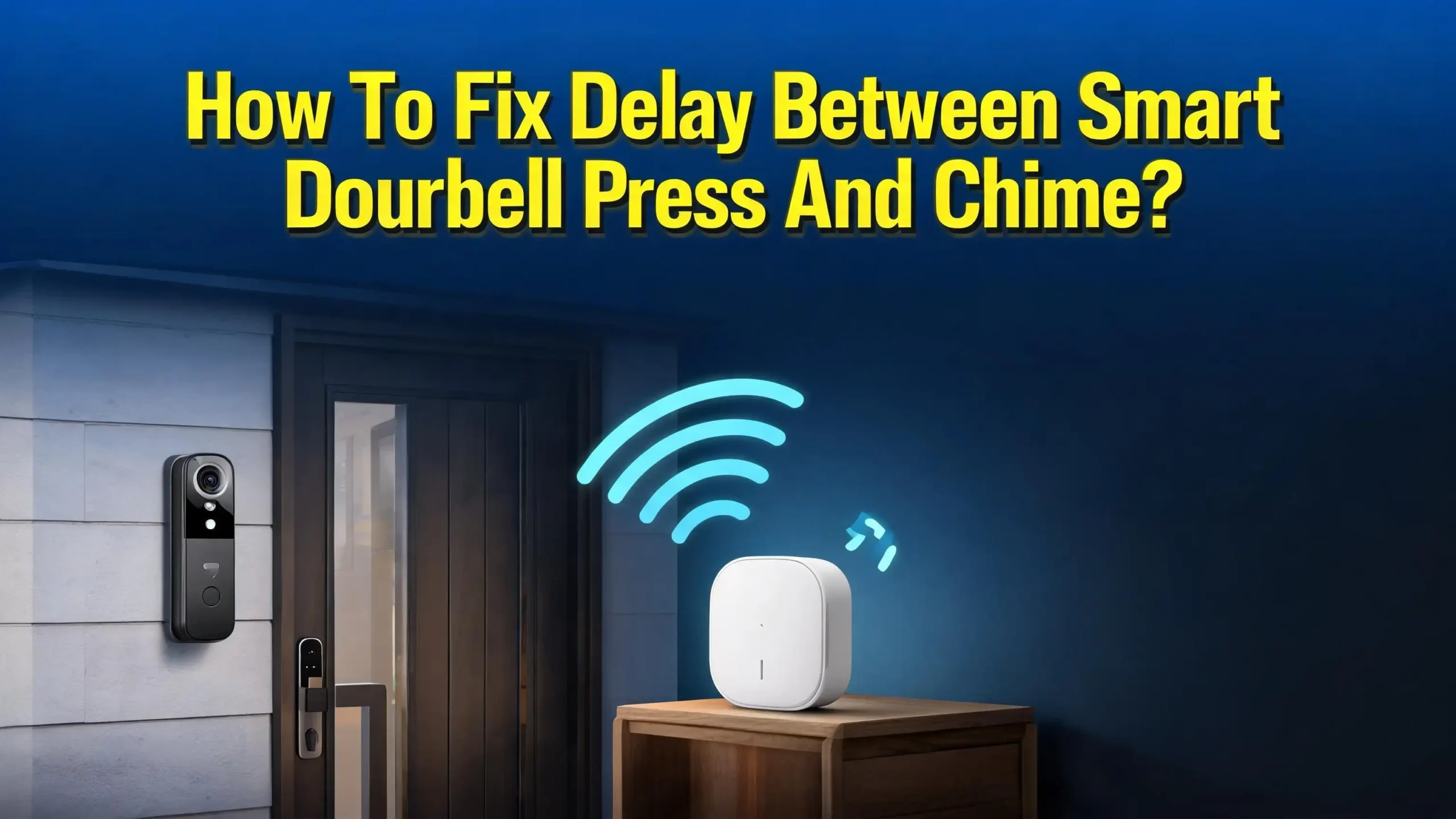
A smart doorbell does not work like an old analog button. When a visitor presses the button, the doorbell sends a signal through your home Wi-Fi to a cloud server. The server then forwards that signal to your indoor chime, your phone, or both. Each of these hops adds a tiny bit of time. Under perfect conditions, the whole process takes about 1 to 2 seconds. That small delay is normal and expected.
The problem starts when one of those hops slows down. A weak Wi-Fi signal at the doorbell forces data packets to queue up before transmission. A busy router juggling streaming and gaming traffic deprioritizes the doorbell signal. An old phone with aggressive battery saver settings holds back the notification.
In wired setups, an underpowered transformer struggles to energize the mechanical chime solenoid fast enough. Sometimes a firmware update introduces a deliberate power-cycling delay to prevent cold-weather brownouts. All these factors stack up. The result is a chime that rings 5, 10, or even 30 seconds after the button press.
Knowing the root cause helps you pick the right fix. Most homeowners solve this issue by improving Wi-Fi signal, adjusting router settings, and verifying the power supply. Let us break down each solution step by step.
Check Your Wi-Fi Signal Strength First
Your Wi-Fi signal quality at the front door is the single biggest factor behind chime delay. Even if your router is powerful, exterior walls, metal doors, brickwork, and distance can weaken the signal dramatically. The doorbell then takes longer to send its “someone pressed the button” packet to the cloud.
Open your doorbell app and navigate to Device Health or Network Settings. Look for a value called RSSI, which stands for Received Signal Strength Indicator. It appears as a negative number. A reading between 0 and -60 means excellent signal.
A reading between -60 and -70 is functional but may cause occasional lag. Anything between -70 and -80 is poor and will almost certainly produce noticeable delay. Below -80 means the device struggles to stay connected at all.
If your RSSI is weak, try moving your router closer to the front door. Even 5 to 10 feet can make a measurable difference. Remove metal objects, mirrors, or large appliances from the path between the router and the doorbell.
If moving the router is not possible, consider a Wi-Fi extender or a mesh satellite node placed near the front wall. Many users report that adding a mesh node drops their RSSI by 10 to 15 points, cutting chime delay from 8 seconds down to 2 seconds. Test the signal again after each adjustment.
Pros: Free to check. Often solves the problem without buying anything. Improves all smart devices near the front door.
Cons: Moving a router may not be practical in every home. Extenders and mesh nodes add cost. Some thick walls and metal frames still block signal even with extenders.
Lock Your Doorbell to the 2.4 GHz Band
Most modern routers broadcast both 2.4 GHz and 5 GHz Wi-Fi under a single network name. A feature called band steering automatically decides which band each device should use. This sounds helpful, but it often causes problems for smart doorbells mounted outside.
The router may push the doorbell to 5 GHz for speed, but 5 GHz signals struggle to penetrate exterior walls. The connection becomes unstable, and chime delay increases.
Log into your router admin page, usually at 192.168.1.1 or 192.168.0.1. Look for a setting called Band Steering, Smart Connect, or Dual-Band Steering. Disable this feature. Then create a separate SSID, which is a network name, for the 2.4 GHz band only.
Name it something like “MyHome_2G.” Connect your smart doorbell and all other smart home devices exclusively to this 2.4 GHz network. This prevents the router from constantly switching bands and introducing jitter and lag.
The 2.4 GHz band travels farther and penetrates walls better than 5 GHz. While 5 GHz offers faster speeds, a doorbell only needs a small, steady stream of data. Stability matters more than raw speed for reducing chime latency. Many doorbell support guides explicitly recommend 2.4 GHz for outdoor installations.
Optimize Your Router QoS and Channel Settings
Your router handles many devices at once: phones, laptops, smart TVs, gaming consoles, and your doorbell. When someone streams 4K video or downloads a large game file, the router may deprioritize the doorbell’s small data packets. This causes the chime signal to wait in line behind heavier traffic.
Access your router settings and find the Quality of Service (QoS) section. Enable QoS and look for an option to set device priority. Assign your smart doorbell a high priority or add its MAC address to a priority list. Some routers also let you prioritize specific types of traffic. Give priority to real-time or VoIP traffic, which behaves similarly to the doorbell’s chime signal.
Next, check the Wi-Fi channel settings for the 2.4 GHz band. Set the channel width to 20 MHz. Avoid 40 MHz or auto 20/40, which can increase interference from neighboring networks. Use a Wi-Fi analyzer app on your phone to find the least congested channel in your area.
Manually set your router to that channel instead of leaving it on auto. Crowded channels force data retransmissions, which add milliseconds that stack up into seconds of delay.
Upgrade Your Doorbell Transformer for Wired Setups
Many wired smart doorbells connect to your home’s existing mechanical chime and transformer. Older homes often have transformers rated at 10V or 16V AC with low power output, typically around 10 VA.
Modern smart doorbells demand more power, usually 16V to 24V AC and at least 30 VA. An underpowered transformer cannot energize the chime solenoid quickly, producing a noticeable delay between the button press and the “ding-dong” sound.
Locate your doorbell transformer. It is often mounted near the electrical panel, in the garage, in a closet, or attached to the chime box itself. Read the voltage and VA rating printed on its label. If it reads below 16V or below 30 VA, consider replacing it with a higher-rated unit.
A 16V 30VA transformer is a safe upgrade for most smart doorbells. The installation involves turning off the breaker, disconnecting the old transformer wires, and connecting the new one.
Users across forums repeatedly report that replacing an old transformer solved their chime delay instantly. One homeowner noted that after swapping a 10V transformer for a 16V 30VA unit, the mechanical chime rang within 1 second instead of 5 to 10 seconds. If you are not comfortable working with electrical wiring, hire a licensed electrician for this upgrade.
Pros: Solves power-related delay at its root. Eliminates chime buzzing. Provides stable power for night vision and winter operation.
Cons: Requires electrical work. Transformer locations can be hard to find. Adds cost if you hire an electrician.
Verify Chime Type Settings in the App
Smart doorbell apps ask you to select your chime type during setup: mechanical, digital, or none. Selecting the wrong type causes the doorbell to send incorrect power signals to the chime. A mechanical chime uses a solenoid that needs a strong, brief power pulse.
A digital chime expects a different signal pattern. If the app is set to digital but your home has a mechanical chime, the solenoid may engage slowly or not at all, creating a delayed and weak ring.
Open your doorbell app and navigate to device settings. Find the chime type or chime kit setting. Confirm it matches what is physically installed in your home. If you have a traditional “ding-dong” chime with physical metal bars and a striker, select Mechanical.
If you have a modern chime with a speaker that plays melodies, select Digital. If you use only a plug-in Wi-Fi chime accessory and have bypassed the indoor chime, select None.
Some apps also offer a chime duration or ring tone length setting. Set this to a shorter duration like 2 to 3 seconds. Longer ring durations can delay the chime reset and delay the ability to ring a second time consecutively. After changing the setting, test the doorbell several times to confirm the chime rings promptly.
Pros: Quick app setting fix. No hardware changes needed. Fixes both delay and weak ring problems.
Cons: Easy to overlook during initial setup. Some apps bury this setting deep in menus.
Disable Phone Battery Optimization and VPN
Even if your doorbell and chime work perfectly, your phone might still alert you late. Android and iOS devices use aggressive battery management to extend battery life. They put background apps to sleep, delay push notifications, and restrict data access.
A doorbell alert sitting in a sleep queue can arrive 10 to 30 seconds late. A VPN on your phone adds extra network hops, which can double the notification delay.
On Android, go to Settings > Apps > [Your Doorbell App] > Battery > Battery Optimization. Select Don’t optimize or Unrestricted. Also navigate to Settings > Apps > [Your Doorbell App] > Notifications and set alert categories like “Doorbell Press” and “Motion” to High Priority or Urgent. On some Android brands like Xiaomi, OnePlus, and Huawei, you must also enable autostart and disable background freezing in the phone’s power management settings.
On iPhone, go to Settings > Notifications > [Your Doorbell App] and enable Allow Notifications and Time Sensitive Notifications. Turn off Low Power Mode and disable Low Data Mode. If you use a VPN on your phone, disconnect it before answering doorbell notifications. The encryption and rerouting add latency that makes two-way conversations overlap and stutter.
Pros: Free and fast to implement. Improves all app notifications, not just the doorbell.
Cons: May slightly reduce phone battery life. Requires navigating different settings menus across phone brands.
Reduce Video Quality Settings Temporarily
Smart doorbells capture high-definition video alongside audio. Higher video quality means larger data packets traveling through your Wi-Fi and upload bandwidth. During peak hours, that data can bottleneck, delaying the simpler chime signal that rides alongside it.
Open your doorbell app and find the video settings. Lower the video quality from “High” or “HDR” to Standard or Basic. Disable HDR or high dynamic range recording if your doorbell supports it. Reduce the frame rate if that option exists. This does not permanently degrade your security footage. It simply reduces the data load while you test and troubleshoot the delay issue.
Many users discover that standard quality video still provides clear enough footage for identifying visitors. The trade-off of slightly lower resolution for near-instant chime alerts is often worth it.
Once you resolve the delay through other means like Wi-Fi boosting and transformer upgrades, you can gradually raise the video quality again and test the chime speed at each level.
Pros: Immediate reduction in data load. Easy to toggle in the app. Helps isolate whether bandwidth is the bottleneck.
Cons: Temporarily reduces video clarity. Not a permanent fix if other issues remain unaddressed.
Eliminate Wireless Interference Around the Doorbell
Your smart doorbell competes with many other wireless signals. Microwave ovens, baby monitors, cordless phones, Bluetooth speakers, and even neighboring Wi-Fi networks all operate on the 2.4 GHz spectrum.
When multiple devices transmit on the same or overlapping channels, interference causes packet loss and retransmission delays. The doorbell’s simple chime command gets lost in the noise and must be resent.
Walk around your front door area and identify potential interference sources. Move cordless phone bases and baby monitors away from the front wall. If your microwave sits on a kitchen counter near the front door, avoid using it during times when you expect visitors.
Switch Bluetooth devices to 5 GHz or turn them off during testing. Use a Wi-Fi analyzer app to scan for neighboring networks on your channel and switch to a less crowded one.
Some homes use metal siding, stucco with wire mesh, or low-E coated windows. These materials act as unintentional Wi-Fi shields. If your doorbell is mounted on such a surface, the signal may reflect away rather than passing through.
In these cases, a Wi-Fi extender placed outside the shielded area but within the doorbell’s line of sight can bypass the barrier entirely.
Power Cycle Your Entire Network and Doorbell
Sometimes the simplest fix works best. Routers, modems, and smart doorbells build up temporary memory caches and minor software glitches over weeks of continuous operation.
These can slow response times across the board. A full network power cycle clears these caches and forces all devices to reestablish fresh connections.
Unplug your modem and router from power. Remove the battery from your smart doorbell if it has one, or turn off the breaker for hardwired models. Wait a full 60 seconds. This waiting period allows capacitors to fully discharge and clears all temporary data.
Plug the modem back in first and wait for it to fully connect, usually indicated by solid lights. Then plug in the router and let it fully boot. Finally, reinsert the doorbell battery or turn the breaker back on.
Once everything reconnects, test the doorbell chime delay. This process resolves a surprising number of intermittent lag issues. Make power cycling a monthly habit, much like restarting a computer. If your router supports it, you can even schedule automatic weekly reboots in the router admin panel.
Pros: Free and requires no technical knowledge. Often resolves unexplained lag spikes. Good maintenance habit.
Cons: Temporary loss of internet during the reboot cycle. Does not fix underlying issues like weak signal or old transformers.
Update Doorbell Firmware and Router Firmware
Manufacturers regularly release firmware updates that fix bugs, patch security holes, and improve performance. A known firmware bug in some smart doorbell models introduced a deliberate 3-second delay to prevent power brownouts in cold weather.
Other updates improved cloud server communication and reduced chime latency. Running outdated firmware means you miss these fixes.
Open your doorbell app and check for device firmware updates. The app usually shows the current firmware version and an update button if one is available. Install any pending updates and test the chime afterward.
Also check your router’s admin panel for firmware updates. Router manufacturers release updates that improve Wi-Fi stability, QoS handling, and overall throughput.
Enable automatic updates for both the doorbell and router if the option exists. This prevents delays from returning as new firmware versions roll out. However, keep an eye on user forums after major updates.
Occasionally a new firmware version introduces a new delay issue. In such cases, you may want to wait before updating and let other users test it first.
Factory Reset the Doorbell as a Last Resort
If you have improved Wi-Fi signal, upgraded the transformer, optimized router settings, and updated firmware but still face significant delay, a factory reset may clear stubborn software corruption. A factory reset wipes all settings, video history, and custom configurations. The doorbell returns to its out-of-the-box state.
Before resetting, write down your current settings: Wi-Fi network name, chime type, motion zones, alert preferences, and any smart home integrations. The reset process varies by brand. For most Ring doorbells, press and hold the setup button for 20 seconds until the light flashes.
For Nest doorbells, hold the reset pinhole for 12 seconds until the status light turns solid yellow. Follow your specific model’s instructions carefully.
After the reset, set up the doorbell from scratch on your now-optimized network. Connect it to the dedicated 2.4 GHz band, select the correct chime type, and keep video quality at standard during initial testing.
Many users report that a clean setup on a good network reduces chime delay from 10 seconds to under 2 seconds. A factory reset essentially removes any corrupted configuration files that may have accumulated over months of updates and setting changes.
Pros: Clears deep software issues that other fixes cannot reach. Provides a clean testing baseline.
Cons: Erases all personalized settings and video history. Requires complete re-setup. Time-consuming.
When to Consider a Wi-Fi Extender or Mesh System
Sometimes your router is simply too far from the front door, and no amount of channel tweaking or repositioning helps. A Wi-Fi extender or mesh system becomes the practical solution. An extender plugs into a wall outlet between the router and the doorbell, picks up the existing Wi-Fi signal, and rebroadcasts it with full strength.
A mesh system replaces your single router with multiple nodes that create a seamless blanket of strong Wi-Fi throughout the home.
Place an extender or mesh node no more than halfway between the router and the doorbell. The device needs to receive a strong signal itself to rebroadcast a strong signal. If you place it too close to the doorbell, it receives the same weak signal and simply amplifies noise.
Many brand-specific chime accessories, such as the Ring Chime Pro, double as Wi-Fi extenders dedicated to the doorbell ecosystem. Third-party extenders work too but may require separate configuration.
A dedicated mesh satellite near the front wall can drop RSSI from -75 to -48, which transforms chime delay from 8 seconds to nearly instantaneous. However, wireless mesh backhaul introduces a small latency penalty of its own, typically under 1 second.
For most users, this is an acceptable trade-off for the dramatic signal improvement. Wired backhaul, where mesh nodes connect via Ethernet cables, eliminates even this small penalty.
Replace Old or Damaged Wiring and Connectors
Homes older than 30 years often have doorbell wiring that has corroded, loosened, or degraded over time. Thin, oxidized wires cannot carry the steady current that modern smart doorbells demand. Loose screw terminals at the chime or transformer create intermittent connections that delay or prevent the chime from firing.
Remove the doorbell button from the wall and inspect the two wires behind it. They should be clean copper, firmly attached to the terminals. If they appear dark, green, or brittle, strip back a fresh half-inch of wire to expose clean copper.
Do the same at the chime box and the transformer. Tighten all screw terminals firmly. If the existing wire gauge seems very thin, consider running new 18-gauge thermostat wire between the transformer, chime, and doorbell. This thicker wire handles the higher current draw of smart doorbells with less voltage drop.
Check the small diode or power kit that many smart doorbells include for mechanical chime installations. This component regulates power flow and prevents chime buzzing. If it is installed backward or has failed, the chime may ring late or not at all. Consult your doorbell manual for the correct diode orientation and placement.
Pros: Fixes intermittent and hard-to-diagnose delay issues. Improves overall reliability. Low material cost.
Cons: Requires opening the chime box and accessing wiring. Running new wire through finished walls is difficult. May need an electrician for complex runs.
Understand Cloud Delay vs Local Processing
All mainstream smart doorbells rely on cloud servers to process the button press and relay it to your chime and phone. This architecture means your chime signal physically travels from your home to a data center and back.
Under ideal conditions, this round trip takes about 1 to 2 seconds. No amount of local optimization can eliminate this baseline cloud delay.
Some newer doorbell models support local processing through a home hub or base station. Eufy doorbells with a HomeBase, for example, process chime signals locally without sending data to the cloud first. Ubiquiti UniFi Protect doorbells also process everything on a local network video recorder. These setups can reduce chime delay to under half a second.
If near-instant chime response is critical for your needs, consider switching to a locally processed doorbell system. This requires purchasing new hardware but eliminates the cloud latency variable entirely. For cloud-dependent doorbells, accept that 1 to 2 seconds is the best possible outcome. Focus your troubleshooting on eliminating any additional delay beyond that baseline.
Pros: Local processing nearly eliminates chime delay. Works even during internet outages. No subscription fees for cloud storage.
Cons: Requires buying into a specific ecosystem. Higher upfront hardware cost. Fewer brand choices with local processing.
Test Your Fix with a Simple Stopwatch Method
After applying fixes, you need a reliable way to measure whether the delay actually improved. Guessing does not work because even a 2-second delay can feel long when you are waiting for it. Use a simple stopwatch or a second person to time the gap precisely.
Stand at your front door with your phone stopwatch ready. Press the doorbell button and simultaneously start the timer. Stop the timer the moment you hear the indoor chime ring. Repeat this test five times and average the results.
Also test with your phone on Wi-Fi and then on mobile data to see if the delay changes. This reveals whether the problem is in your home network or in the cloud processing and phone notification path.
Record your RSSI value and the delay time before and after each fix. This data helps you identify which change made the biggest difference. Share these numbers with support teams if you ever need to escalate the issue. A clear before-and-after measurement is far more useful than saying “it feels slower.”
Pros: Provides objective proof of improvement. Helps isolate which part of the chain is slow. Useful for brand support escalations.
Cons: Requires a second person or creative self-timing. Slightly tedious but worth the effort.
Frequently Asked Questions
How much delay is normal for a smart doorbell chime
A delay of 1 to 2 seconds between the button press and the chime sound is normal for cloud-connected smart doorbells. This accounts for the time needed to transmit the signal to the cloud server and back to your chime. Delays of 5 seconds or more indicate a problem with Wi-Fi signal, router settings, transformer power, or phone notification settings.
Why does my doorbell chime delay get worse at night
Evening hours bring heavier home network traffic. Family members streaming video, online gaming, and large downloads consume upload bandwidth and router processing power. The doorbell’s chime signal gets queued behind this heavier traffic. Enable QoS priority for your doorbell in the router settings to prevent this evening slowdown.
Can a weak doorbell transformer cause chime delay
Yes. An underpowered transformer, typically below 16V AC or rated under 30 VA, cannot energize the mechanical chime solenoid fast enough. This creates a delay between the button press and the “ding-dong” sound. Upgrading to a 16V 30VA or 24V 40VA transformer often solves this instantly for wired smart doorbells.
Does using a VPN on my phone delay doorbell notifications
Yes. A VPN encrypts your data and routes it through an extra server, adding network hops that can double the notification delivery time. Disconnect your VPN before answering doorbell alerts or add the doorbell app to your VPN’s split-tunneling or bypass list if the feature is available.
Why does my mechanical chime buzz instead of ringing promptly
Chime buzzing usually indicates incorrect power regulation. The power kit or diode that came with your smart doorbell may be installed incorrectly or may have failed. It can also mean your transformer is too weak or your chime type setting in the app does not match the physical chime. Verify all three: diode orientation, transformer rating, and app chime type setting.
Is battery-powered or wired doorbell better for chime delay
Wired doorbells generally have less chime delay because they maintain a constant power connection and do not enter sleep mode. Battery-powered doorbells conserve energy by sleeping between events and waking up when the button is pressed, which can add 1 to 3 extra seconds. If minimizing delay is your priority, choose a wired installation or at least hardwire a battery doorbell to existing doorbell wiring.
When should I consider replacing my smart doorbell entirely
Consider replacement if you have improved Wi-Fi signal to excellent levels, upgraded the transformer, factory reset the device, and still experience more than 5 to 6 seconds of delay consistently. Also consider switching if your current doorbell uses cloud-only processing and you need near-instant chime response. Models with local processing through a hub or base station offer significantly lower latency.

I’m a tech enthusiast who loves breaking down gadgets, apps, and tools into simple, honest reviews. At GenResizeHub, I help you make smarter buying decisions through in-depth comparisons and easy-to-follow guides. Got a question? Drop me a mail!