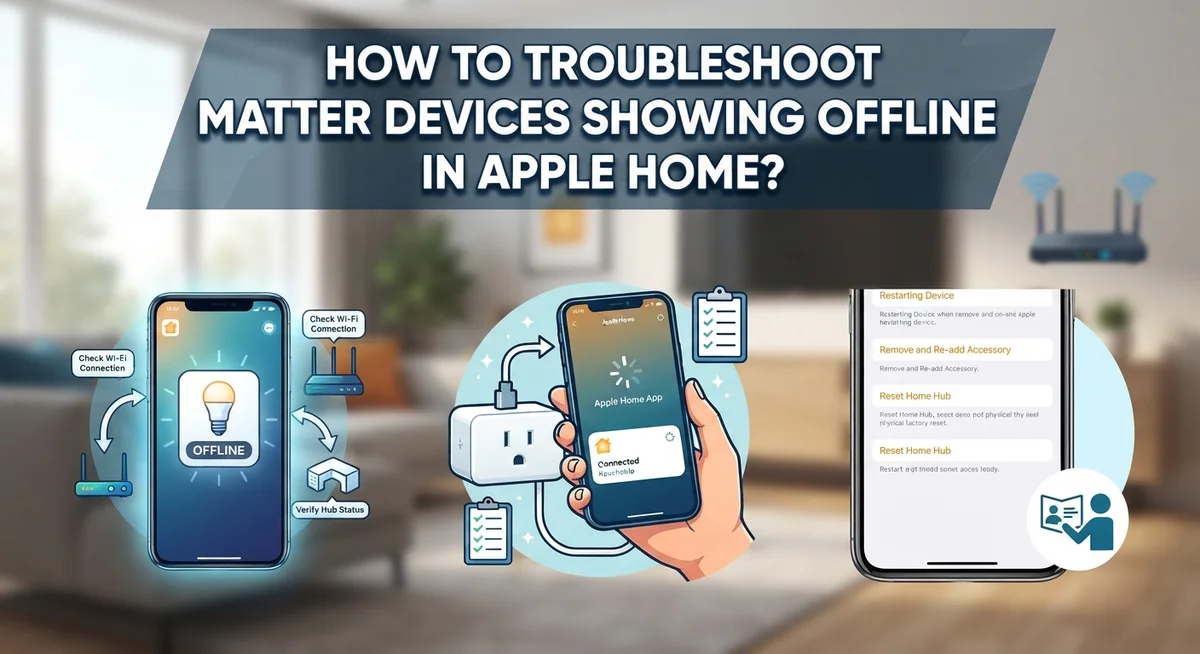
How To Troubleshoot Matter Devices Showing Offline In Apple Home?
Do your Matter devices show offline in Apple Home, even though they work fine? You are not alone.
This is one of the most common issues with smart home setups today. Lights, plugs, and sensors may respond to commands but still show an offline status.
Thread and Matter connectivity problems are usually behind this glitch. HomeKit hub selection errors and recent software updates can also trigger it.
Even tvOS updates have caused unexpected offline issues for some users.
The good news is that most of these problems have simple fixes.
In this guide, we will explain why Matter devices show offline in Apple Home. You will learn how to check your hub settings, restart Matter radios, and fix bridge syncing issues.
In a Nutshell
- Offline does not always mean broken. Your device often works fine. Apple Home just fails to show its true status.
- Check your HomeKit hub first. Turn off auto selection. Manually pick your main hub, like a HomePod or Apple TV.
- Restart the Matter radio. This step gets skipped a lot. It often fixes connection drops between devices and your hub.
- Reboot your Matter Server or controller. If you use a bridge like iHost, a simple restart can bring all devices back at once.
- Look at recent software updates. tvOS 26 caused issues for many users. Check your firmware and OS versions.
- Re-pair devices only as a last resort. Hard resetting should come after you try the simpler fixes above.
Why Matter Devices Show Offline in Apple Home
Matter devices show offline in Apple Home for several distinct reasons. Understanding these causes helps you fix the problem faster and prevent it from happening again.
Thread and Matter connectivity breaks down regularly in smart home setups. Your device may work perfectly, but the connection between your device and Apple Home drops. This creates the frustrating situation where your smart bulb turns on when you tap it, yet the app shows it offline.
Your HomeKit hub plays a critical role here. When Apple Home picks the wrong hub automatically, devices lose their connection path. The hub acts as a bridge between your devices and your phone. If that bridge is weak or misconfigured, devices appear offline even though they function normally.
Matter radio failures cause offline status too. The radio inside your device or controller needs to stay active and responsive. Sometimes these radios stop communicating properly without any obvious reason. A simple restart fixes this more often than you might think.
Recent software updates trigger offline issues unexpectedly. When your Apple TV, iPad, or other hub device receives a new tvOS or iPadOS version, compatibility problems can emerge. Your devices may have worked fine yesterday, then show offline after an update installs overnight.
Bridge device problems affect your entire network. If you use a Matter controller like iHost or a similar bridge, issues with that central device cascade to all connected devices. When the bridge struggles, every device connected to it appears offline simultaneously.
Pairing success does not guarantee connectivity works. Your device pairs correctly to Apple Home but fails to maintain a stable connection afterward. This distinction matters because it changes your troubleshooting approach entirely.
Understanding Thread, Matter, and HomeKit Hub Roles
Thread, Matter, and your HomeKit hub work together to keep devices connected. Understanding how these three components function helps you fix offline problems fast.
Thread is a wireless network that your smart home devices use to talk to each other. It creates a mesh system where devices pass messages back and forth. If Thread breaks down, your devices lose their connection path. Think of it like a relay race where runners pass a baton. When one runner drops it, the message stops moving.
Matter is a communication standard that lets different smart home brands work together. It sits on top of Thread and tells devices how to speak the same language. Matter devices need a strong Thread network to function properly. Without it, they show offline even though they physically work fine.
Your HomeKit hub acts as the control center. It manages all your devices and keeps them connected when you are away from home. The hub also maintains your Thread network. Common hub devices include Apple TV, HomePod, and HomePod mini.
Here is the key relationship: Thread carries the signal, Matter provides the instructions, and your HomeKit hub coordinates everything. When one fails, the others struggle too.
Many offline problems start with hub issues. Your hub might stop managing Thread properly. It could lose connection to your Matter devices. The hub selection might switch automatically to a weaker device.
This is why troubleshooting always starts with your HomeKit hub. A weak or misconfigured hub causes the majority of offline problems. Once your hub works correctly, Thread and Matter usually stabilize. Your devices stay online and respond instantly to commands.
Step-by-Step: Fixing the Offline Hub Selection Issue
Your HomeKit hub controls which device connects to your smart home network. When your hub selection is wrong, Matter devices go offline even though they work perfectly.
Start by opening the Home app on your iPhone or iPad. Tap the home icon in the top left corner. Look for “Home Settings” and select it. Find the “Hubs and Bridges” section.
You will see your current hub listed here. Check if it says “Connected” next to your hub name. If it shows a warning or says “Disconnected,” this is your problem.
Disable automatic hub selection first. Look for the toggle that says “Automatic” or “Auto Select Hub.” Turn this off. This prevents the system from picking the wrong device as your hub.
Now manually select your hub. Choose the device that stays powered on 24/7. Apple TV, HomePod mini, or iPad work best as hubs. Never pick a device you unplug regularly.
After you select your hub manually, wait 30 seconds. Your Matter devices should reconnect automatically. Check your device status in the Home app.
If devices still show offline, restart your hub. Unplug it for 10 seconds. Plug it back in and wait for it to fully restart. This takes about two minutes.
Once your hub restarts, check the Hubs and Bridges section again. It should say “Connected” now. Your Matter devices should show online within one to two minutes.
This simple fix solves most offline problems. Your hub is the foundation of your entire smart home network. Getting hub selection right stops most connectivity issues before they start.
Restarting Matter Radios and Rebooting Controllers
When your Matter devices show offline, restarting the Matter radios and rebooting your controller often fixes the problem quickly. This step matters because these components handle all communication between your devices and Apple Home.
Start by restarting your Matter radio first. Most Matter devices have a built in radio that manages connectivity. Power off the device completely by unplugging it from the wall. Wait 30 seconds, then plug it back in. Let it fully restart, which typically takes 2 to 3 minutes. Check if the device now shows online in your Home app.
If that doesn’t work, restart your Matter controller or bridge device next. This is the central hub that coordinates all your Matter communications. Unplug it from power for a full minute. This longer wait ensures the device completely resets its memory. Plug it back in and allow 3 to 5 minutes for it to fully restart.
After your controller restarts, give your Matter devices another 2 minutes to reconnect. They need time to rediscover the network and reestablish their connection.
Check your HomeKit hub status while devices restart. Open the Home app and go to Hubs and Bridges. Your hub should show as Connected. If it shows a different status, your hub may need attention next.
Most users find that restarting the Matter radio and controller solves offline issues within minutes. This approach works because it clears temporary connection problems and forces devices to rebuild their network links. If devices remain offline after these steps, you may need to check for recent software updates or investigate hub selection problems.
Re-Pairing and Hard-Resetting Unresponsive Devices
When your Matter devices refuse to respond, re-pairing and hard-resetting them often solves the problem. This process removes the device completely from Apple Home and starts fresh.
Start by removing the device from your home. Open the Home app on your iPhone or iPad. Find the offline device and tap the settings icon. Select “Remove Accessory” and confirm. This step clears all connection data from your system.
Next, physically reset your device. Most Matter devices have a small reset button you hold for 10 to 15 seconds. Check your device manual for the exact location and duration. You will see lights blink or hear a sound when the reset completes. This action erases the device’s memory and returns it to factory settings.
Wait at least one minute before re-pairing. This pause allows your device and HomeKit hub to fully disconnect.
Now add the device back to Apple Home. Open the Home app and tap the plus icon to add an accessory. Scan the HomeKit code on your device or enter the 8-digit code manually. Place your device within 15 feet of your HomeKit hub during pairing.
After pairing succeeds, wait 5 minutes before testing. Your device needs time to establish a stable Thread or Matter connection. Check the Home app to confirm it shows as “Connected” and not “Offline.”
If your device goes offline again after re-pairing, the problem likely stems from your HomeKit hub or Matter radio issues rather than the device itself. In this case, restart your hub or Matter controller next.
Checking tvOS and Firmware Updates for Known Bugs
Your tvOS version directly impacts whether your Matter devices stay connected. Apple releases updates regularly, and some versions introduce bugs that cause devices to drop offline unexpectedly.
Check your current tvOS version first. Open Settings on your Apple TV. Navigate to System, then About. Write down the version number you see. This helps you identify if you’re running a known problematic release.
tvOS 26 is a documented issue. Devices connected through an Apple TV running this version frequently show offline in cycles. The problem affects both Thread and Matter connectivity. If you’re on this version, consider whether updating or downgrading resolves your issue.
Visit Apple’s support website to check for known bugs in your specific tvOS version. Search for “tvOS [your version number] issues” to see if others report similar offline problems. This confirms whether your tvOS is the culprit.
Update your tvOS if a newer version is available. Go to Settings, System, then Software Updates. Select Update and Install. Your Apple TV will restart during this process. Wait at least 10 minutes for the update to complete fully.
Firmware updates on your Matter devices matter too. Check each device’s companion app or settings menu for available firmware updates. Some devices update automatically, but others require manual updates. Install any pending updates before testing connectivity again.
After updating both tvOS and device firmware, restart your HomeKit hub completely. Unplug it for 30 seconds, then plug it back in. Wait 5 minutes for your hub to fully boot. Check the Home app to see if your devices reconnect properly.
If devices still show offline after updates, the issue likely stems from a different cause. Move forward with other troubleshooting steps.
Common Mistakes That Delay a Real Fix
Many people make mistakes that prevent them from fixing offline Matter devices quickly. Understanding these errors helps you avoid wasting time.
The biggest mistake is assuming your device works fine just because it paired successfully. Pairing and actual connectivity are two different things. A device can pair perfectly yet still show offline repeatedly. Don’t stop troubleshooting after pairing completes. Test the device for at least 24 hours before declaring it fixed.
Another common error is ignoring your HomeKit hub selection. People often leave automatic hub selection turned on. This causes your system to pick the wrong hub, which breaks Matter connectivity. You need to manually select your primary hub instead. Open the Home app, go to Hubs and Bridges, and choose your most reliable device.
Many users also skip restarting their Matter radio entirely. They restart only the controller or bridge device. This incomplete restart leaves the radio in a bad state. Your Matter radio needs its own restart cycle to clear connection problems.
People frequently overlook recent OS updates as the culprit. A new tvOS version or firmware update can trigger widespread offline issues. Check what updated recently on your devices. This simple step often reveals the root cause immediately.
Finally, users rush the reconnection process. They re-pair devices and test them within minutes. Matter devices need time to establish stable connections. Waiting 5 to 10 minutes after re-pairing gives your device proper time to settle.
These mistakes delay real fixes by hours or days. Avoid them by staying patient and methodical. Address each potential cause completely before moving to the next one.
When the Problem Is a Bridge or Controller, Not the Device
Your HomeKit hub or Matter controller might be the real problem, even when your devices work perfectly fine. This situation happens more often than you think.
Your hub selection matters greatly. Apple Home automatically picks a hub for you, but this automatic choice sometimes fails. The app might select a hub that cannot reach your devices. Your solution is simple: disable automatic hub selection and manually assign one instead.
Open the Home app on your iPhone or iPad. Go to Home Settings and find the hub section. Look for your HomeKit hub options. Manually select a hub that sits close to your offline devices. This direct control often fixes devices that show offline immediately.
Matter radios need restarting too. Your hub or controller device has a Matter radio inside it. This radio can get stuck or lose synchronization with your devices. Restart the Matter radio by power cycling your hub device completely. Unplug it for 30 seconds, then plug it back in.
Your Matter Server or controller might need a full reboot as well. If you use a dedicated Matter controller like an iHost device, restart it through its settings menu. Wait for it to fully boot before checking your devices again.
Bridge synchronization failures cause mass offline issues. When your bridge or controller loses sync with your Matter network, multiple devices go offline at once. This is not a device problem. Restarting your controller fixes this quickly.
Check if your hub received a recent update. Updates sometimes cause connectivity issues temporarily. Give your hub 10 minutes to stabilize after any update completes. Your devices should reconnect automatically once your hub stabilizes.
Final Thoughts
Matter devices showing offline in Apple Home feels frustrating. But most fixes are simple once you know where to look.
Connectivity issues rarely mean your device is broken. Your device often works fine behind the scenes. The offline label just reflects a communication hiccup between your hub and your device.
Start with the basics every time. Check your HomeKit hub selection first. Then restart your Matter radio and reboot your controller.
These two steps solve most offline problems. Skipping them leads to wasted time and repeated frustration.
tvOS updates deserve your attention too. Software bugs like the one in tvOS 26 can trigger widespread offline issues. Always check your firmware and software versions before assuming a hardware problem exists.
Bridge and controller problems cause a different kind of headache. When multiple devices go offline together, your bridge is likely the real issue. Fix the bridge, and everything else falls back into place.
Patience matters during this process. Give your network time to fully reconnect after each troubleshooting step. Rushing the process often creates new problems instead of solving old ones.
Most offline issues stem from a small handful of causes. Hub selection, radio restarts, firmware bugs, and bridge sync failures cover the majority of cases. Work through these systematically instead of guessing randomly.
Your Matter and Thread network will stabilize once you address the root cause. Devices that seem broken usually just need proper reconnection steps. Stay calm, follow the checklist, and your smart home will run smoothly again.
Keep this troubleshooting order in mind for future issues. It saves you time and keeps your Apple Home setup reliable long term.
Frequently Asked Questions
Why do my Matter devices show offline when they actually work?
This happens because the display status in Apple Home doesn’t always match the actual device state. Your device might function perfectly, but the hub loses track of it temporarily. Thread or Matter connectivity hiccups cause this mismatch most often.
The HomeKit hub can’t communicate with the device at that exact moment, even though the device remains operational. Restarting your hub usually fixes this within minutes.
Can a HomeKit hub problem affect all my devices at once?
Yes. When your hub or Matter controller has issues, multiple devices go offline simultaneously. This is different from one device failing.
Your hub acts as the central point connecting everything. If it loses sync or stops communicating properly, the entire network appears down. Rebooting the hub typically restores all devices quickly.
Does updating tvOS cause Matter devices to go offline?
Recent tvOS updates have triggered widespread offline issues. After an update, your hub might need time to reconnect with all paired devices.
Wait 10 to 15 minutes after any tvOS update completes. If devices remain offline, restart the hub manually through Settings.
What should I do if devices keep going offline in a cycle?
Cyclical offline patterns (like every 6 hours) point to Thread network instability or automatic hub reassignment problems. Disable automatic hub selection and manually assign your primary hub instead.
Then restart the Matter radio on your hub device. This usually stops the repeating cycle.
How do I know if my bridge or controller is the real problem?
Check if offline devices work fine when you interact with them directly. If they respond normally despite showing offline in the app, your controller needs attention, not the devices themselves.
Restart your Matter Server or bridge device completely to restore synchronization.

I’m a tech enthusiast who loves breaking down gadgets, apps, and tools into simple, honest reviews. At GenResizeHub, I help you make smarter buying decisions through in-depth comparisons and easy-to-follow guides. Got a question? Drop me a mail!