How To Fix Rabbit R1 Network Connection Error?
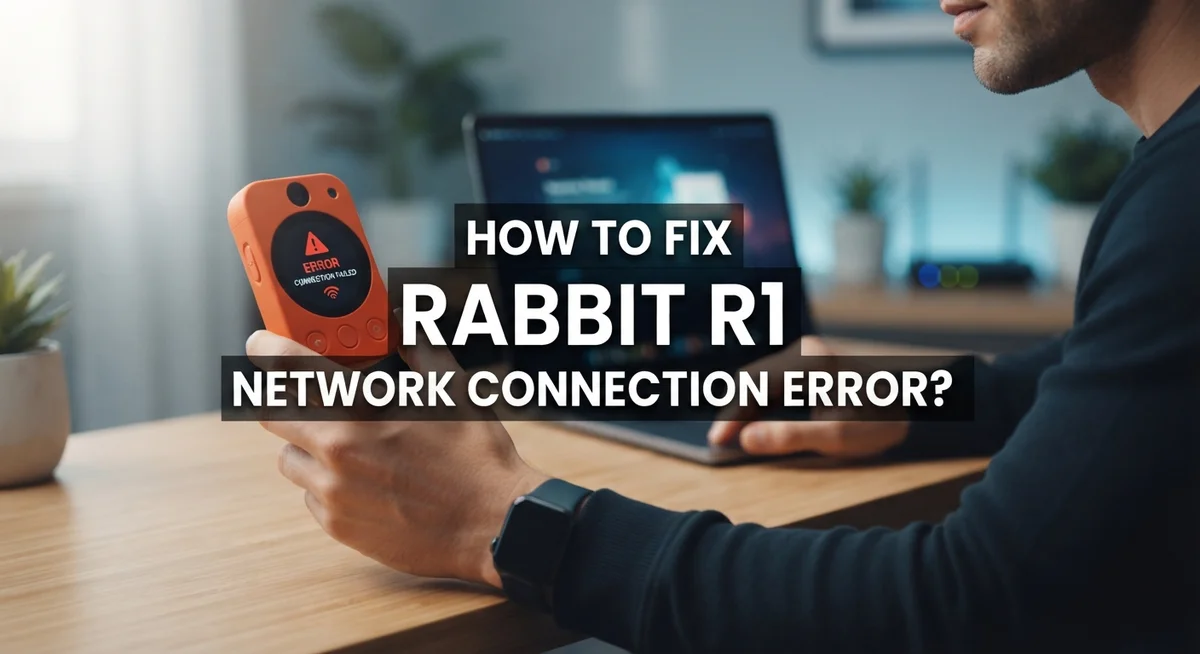
The Rabbit R1 is a fun and unique AI device, but a network connection error can stop it from working entirely. Without a stable connection, the device simply cannot function the way it should.
You might see a spinning connection circle that never stops, or the device may fail to connect to Wi-Fi at all. These issues are frustrating, especially when you just want to use your device.
The good news is that most Rabbit R1 network errors are fixable with a few simple steps. The causes are usually straightforward too, such as a weak Wi-Fi signal, a wrong password, or an ISP outage.
This guide walks you through every troubleshooting step you need. From re-entering your Wi-Fi password to using a SIM card as an alternative connection, we cover it all.
By the end, you will know exactly how to get your Rabbit R1 back online quickly.
In a Nutshell
- Weak Wi-Fi signal and wrong passwords are the most common causes of the Rabbit R1 network connection error.
- You can forget and re-pair your Wi-Fi network by shaking the device to open Settings, then going to Network and Wi-Fi.
- Always restart your router and move closer to it before trying anything else.
- Check with your ISP for outages in your area, as this is a step many people skip too soon.
- If Wi-Fi keeps failing, try a mobile hotspot or insert a SIM card to test if the hardware is the problem.
- If a SIM card works but Wi-Fi does not, your device may have a defective internal antenna, and a factory reset may be needed for persistent software issues.
What Causes the Rabbit R1 Network Connection Error?
Several different problems can cause your Rabbit R1 to fail connecting to the network. Understanding what triggers these errors helps you fix them faster.
Weak Wi-Fi signal is the number one culprit. Your device may be too far from your router, or walls and other obstacles block the signal. Moving closer to the router often solves this issue immediately.
Wrong password entry happens more often than you might think. You may have typed the password incorrectly, or your network password recently changed. Double check that you entered the exact password your router uses.
Router problems can also stop your connection. Your router may need a restart, or it could be experiencing temporary issues. Routers sometimes get stuck and simply need to power down and back up.
Internet service provider outages affect your entire network connection. Your ISP may be doing maintenance work or experiencing technical problems in your area. Checking your ISP’s website or calling their support line confirms whether an outage exists.
Hardware defects inside your Rabbit R1 may cause persistent connection failures. A faulty Wi-Fi antenna inside the device prevents it from receiving signals properly. This is less common but does happen with some devices.
SIM card connectivity issues occur when your device cannot read the SIM card correctly. The card may be inserted improperly, or the slot may have dirt or debris blocking contact.
Incorrect network settings can also trigger errors. Your device may be set to connect to an old network or have conflicting settings that prevent new connections.
The good news is that most of these problems have simple fixes. Start with the easiest solutions first, like moving closer to your router or restarting it. If those don’t work, move on to more advanced troubleshooting steps.
How To Access Network Settings on Your Rabbit R1
Your Rabbit R1 stores network settings in a dedicated menu. You access this menu by shaking your device firmly. The shake gesture opens the Settings interface on your screen.
Once Settings opens, look for the Network option. Tap it to enter the network configuration area. This section controls all your Wi-Fi and connectivity preferences.
Inside Network settings, you will find the Wi-Fi submenu. This is where you manage your wireless connections. You can view available networks, connect to new ones, or modify existing connections here.
The Wi-Fi submenu displays your current connection status. A green indicator shows you are connected. A red or gray indicator means no active connection exists.
To forget a network, select it from the list and choose the remove or forget option. This erases the saved password and connection details. You can then reconnect fresh by selecting the network again and entering the password.
Your network settings also show signal strength. Bars indicate how strong your Wi-Fi signal is at your device location. More bars mean better connectivity and faster speeds.
You can also view your device’s IP address in this menu. The IP address is a unique number that identifies your Rabbit R1 on the network. This information helps with troubleshooting connection problems.
Some devices let you switch between connection types. You may see options for Wi-Fi, mobile hotspot, or SIM card connectivity. Each option lets your Rabbit R1 connect to the internet in different ways.
The network settings menu also displays connection history. You can see which networks your device has connected to before. This helps you identify patterns if problems keep happening.
Take time to explore your network settings regularly. Familiarity with this menu makes troubleshooting much faster when errors occur. You will know exactly where to look and what to adjust.
How To Fix Rabbit R1 Wi-Fi Connection Problems Step by Step
Start by checking your Wi-Fi password. Wrong passwords cause more connection failures than most people realize. Open your Settings menu by shaking your device, then navigate to Network and Wi-Fi. Look for your network name in the list. If you see it but cannot connect, the password might be incorrect.
Next, verify that your router is working properly. Restart your router by unplugging it for 30 seconds, then plug it back in. Wait two minutes for it to fully restart. This simple step fixes many connection problems that seem complicated at first.
Move your Rabbit R1 closer to your router. Distance weakens your Wi-Fi signal significantly. If you are in a room far from your router, walk closer and try connecting again. Signal strength improves dramatically when you reduce the distance between devices.
Check with your internet service provider to see if there are outages in your area. Network problems sometimes come from your ISP, not your device. Visit your ISP’s website or call their support line to confirm service status.
If Wi-Fi still fails, try alternative connection methods. Use a mobile hotspot from your phone or insert a SIM card into your Rabbit R1 to test connectivity. If a SIM card works but Wi-Fi does not, your device may have a defective internal antenna.
When nothing else works, perform a factory reset. This erases all settings and returns your device to its original state. A factory reset often fixes persistent connection errors that resist other solutions. After resetting, set up your Wi-Fi connection from scratch.
Take your time with each step. Most connection problems resolve themselves once you identify the specific cause. Document what you try so you can explain the issue clearly if you need professional help later.
How To Test Your Rabbit R1 With a Mobile Hotspot or SIM Card
Testing your Rabbit R1 with a mobile hotspot or SIM card helps you identify whether the problem is with your device or your Wi-Fi network. This method works because it uses a completely different connection method than your home router.
Start with a mobile hotspot first. Grab your smartphone and enable its hotspot feature. Search for the hotspot network name on your Rabbit R1. Enter the hotspot password exactly as shown on your phone. If your device connects successfully, this tells you something important. Your Rabbit R1 works fine. The issue lives in your home Wi-Fi setup, not your device.
If the hotspot connection fails, move to the next test. Try inserting a SIM card directly into your Rabbit R1. Power off your device completely before inserting the card. Open the SIM card slot carefully. Slide the card in with the gold contacts facing down. Power your device back on and wait for it to recognize the SIM card.
Watch for a connection indicator on your screen. If the SIM card connects but Wi-Fi does not, you may have a hardware problem. Specifically, your internal Wi-Fi antenna could be defective. This is important information for troubleshooting later.
Document your test results. Write down which connection methods work and which ones fail. Did the hotspot connect? Did the SIM card work? This information guides your next steps.
If both hotspot and SIM card fail, the problem likely exists inside your device itself. Hardware issues may require professional support. However, if at least one method works, your Rabbit R1 is functional. You can focus on fixing your Wi-Fi network or trying other connection options instead.
How To Diagnose a Faulty Wi-Fi Antenna on the Rabbit R1
Start by checking if your Rabbit R1’s Wi-Fi antenna is actually the problem. Many connection errors come from other sources, so test carefully before assuming hardware failure.
The best diagnostic method involves using your device’s SIM card. Insert a SIM card from your phone into your Rabbit R1. If the SIM card connects successfully but Wi-Fi continues to fail, your antenna likely has a defect. This test isolates the Wi-Fi hardware from other potential issues.
Next, check signal strength in your network settings. Shake your device to open Settings, then go to Network and Wi-Fi. Look at the signal bars displayed. If the bars show very weak signal even near your router, move your Rabbit R1 closer to the router itself. Sometimes what appears to be antenna damage is actually just poor signal positioning.
Try connecting to a different Wi-Fi network if possible. Use a friend’s network or create a mobile hotspot from your phone. If your device connects to this alternative network without problems, your antenna works fine. The issue exists elsewhere in your setup.
Pay attention to the spinning connection circle on your screen. This spinning indicator means your device is trying to connect but failing. If you see this circle repeatedly, especially after moving closer to your router, antenna problems become more likely.
Test your router by connecting other devices to it. If your phone, tablet, or laptop connects without trouble, your router functions properly. This confirms the problem sits with your Rabbit R1’s antenna hardware.
Document your findings carefully. Write down which networks you tested, how close you moved to the router, and whether SIM card connectivity worked. This information helps determine if you need a factory reset or hardware repair. Keep these notes handy for troubleshooting steps.
How To Factory Reset Your Rabbit R1 for Persistent Network Errors
A factory reset clears all settings and returns your Rabbit R1 to its original state. This step works best when you’ve tried other fixes and connection problems remain.
Before you reset, save any important data. A factory reset erases everything on your device. Write down any settings or information you want to keep. This protects you from losing data you need later.
To start the reset process, shake your device to open the Settings menu. Look for a System or Device option. You should find a Factory Reset button or similar option. The exact location varies depending on your device version.
Tap the Factory Reset option when you find it. Your Rabbit R1 will ask you to confirm this action. Read the warning message carefully. Select Yes or Confirm to proceed with the reset.
The reset process takes a few minutes. Your device will restart and show a loading screen. Do not turn off your Rabbit R1 during this time. Let it complete the entire process without interruption.
After the reset finishes, your device returns to its original setup state. You’ll need to reconnect to your Wi-Fi network from scratch. Open Settings and go to Network then Wi-Fi. Select your network and enter your password carefully.
Test your connection right after the reset. Open an app or feature that requires internet access. Watch for the spinning connection circle. If it disappears and your app loads, the reset worked.
If connection problems return even after a factory reset, your device may have a hardware issue. Contact support for additional help. They can run deeper diagnostics to find the real problem. A hardware defect requires professional repair or replacement.
Common Mistakes to Avoid When Troubleshooting Rabbit R1 Network Issues
When troubleshooting your Rabbit R1 network issues, several common mistakes can waste your time and delay solutions. Understanding what to avoid helps you fix problems faster.
Don’t ignore your password. Many users enter their Wi-Fi password incorrectly. Passwords are case sensitive, meaning capital letters matter. Type slowly and double check each character. If you’re unsure, look at your router’s label or check your network provider’s documentation.
Avoid staying in weak signal areas. Your device needs strong Wi-Fi strength to connect properly. If you’re far from your router, move closer before troubleshooting further. Walls, metal objects, and other electronics can block signals. Test your connection in different rooms first.
Skip checking your ISP status. Your internet provider may have outages in your area. Before spending time on device troubleshooting, visit your provider’s website or call their support line. An outage means your router won’t connect either, no matter what you do.
Don’t forget to restart your router. This simple step fixes many connection problems. Unplug your router for 30 seconds, then plug it back in. Wait two minutes for it to fully restart. This clears temporary glitches that prevent connections.
Avoid using the same network repeatedly if it fails. Test with a different Wi-Fi network or mobile hotspot instead. This tells you whether the problem is your device or that specific network. If your device connects to another network easily, focus on fixing your main router.
Never skip the password verification step. Reenter your password completely, even if you think it’s correct. One wrong character stops all connections instantly.
Taking time with each mistake prevention tip saves you hours of frustration and gets your Rabbit R1 back online quickly.
Final Thoughts
Fixing a Rabbit R1 network connection error is straightforward once you understand the root causes. Most issues come down to weak signals, wrong passwords, router problems, or ISP outages.
Start with the simplest steps first. Check your Wi-Fi password, restart your router, and move closer to your network source. These basic actions resolve the majority of connection problems quickly.
If simple fixes don’t work, try an alternative connection method. Use a mobile hotspot or insert a SIM card to test whether your device connects at all. This helps you figure out if the problem is your Wi-Fi network or the device’s antenna.
Hardware issues require a different approach. If your SIM card works but Wi-Fi consistently fails, your antenna may be defective. In that case, contact Rabbit support directly for hardware assistance.
A factory reset is your last software-based option. It clears all settings and gives your device a fresh start. Only use this step after you have tried every other troubleshooting method.
Remember the common mistakes that slow down troubleshooting. Entering the wrong password, ignoring weak signal spots, and skipping the router restart are the biggest time wasters. Always check your ISP status too, since outages are outside your control.
Shake your device to access Settings anytime you need to adjust network options. Navigate to Network and then Wi-Fi to manage your connections easily.
The spinning connection circle is your early warning sign. When you see it, act quickly and run through the troubleshooting steps without skipping any.
With patience and a systematic approach, most Rabbit R1 network errors are fixable at home. Follow each step carefully, test after every change, and you will restore your connection without much difficulty.
Frequently Asked Questions
What does a spinning connection circle mean on my Rabbit R1?
A spinning connection circle shows your device is trying to connect but hasn’t succeeded yet. This indicates a connection failure in progress. Your device keeps attempting to reach the network without establishing a stable link.
Stop and check your Wi-Fi password first. Wrong passwords cause this spinning circle often. If the password is correct, move closer to your router. Distance weakens the signal and prevents connection completion.
Can I test my Rabbit R1 with a SIM card instead of Wi-Fi?
Yes, you can insert a SIM card from your phone into your Rabbit R1. This tests whether your device connects through cellular data instead. If the SIM card works but Wi-Fi consistently fails, your antenna may have a hardware problem.
This method helps you identify where the issue lives. A working SIM card proves your device can connect. A failing SIM card suggests deeper hardware issues need attention.
Why should I try a different Wi-Fi network?
Different networks help you determine if the problem is your router or your device. Connect to a mobile hotspot from your phone or a neighbor’s Wi-Fi if they allow it. If your device connects successfully to a different network, your original router has the issue.
This simple test saves time. It narrows down the root cause quickly. Your device works fine if it connects elsewhere.
What should I do if my ISP has an outage?
Check your internet provider’s website or call their support line. Most providers post outage information online. You can also ask neighbors if their internet is down too.
Wait for the outage to end. Your Rabbit R1 cannot connect without internet service. Contact your provider if the outage lasts longer than expected.

I’m a tech enthusiast who loves breaking down gadgets, apps, and tools into simple, honest reviews. At GenResizeHub, I help you make smarter buying decisions through in-depth comparisons and easy-to-follow guides. Got a question? Drop me a mail!