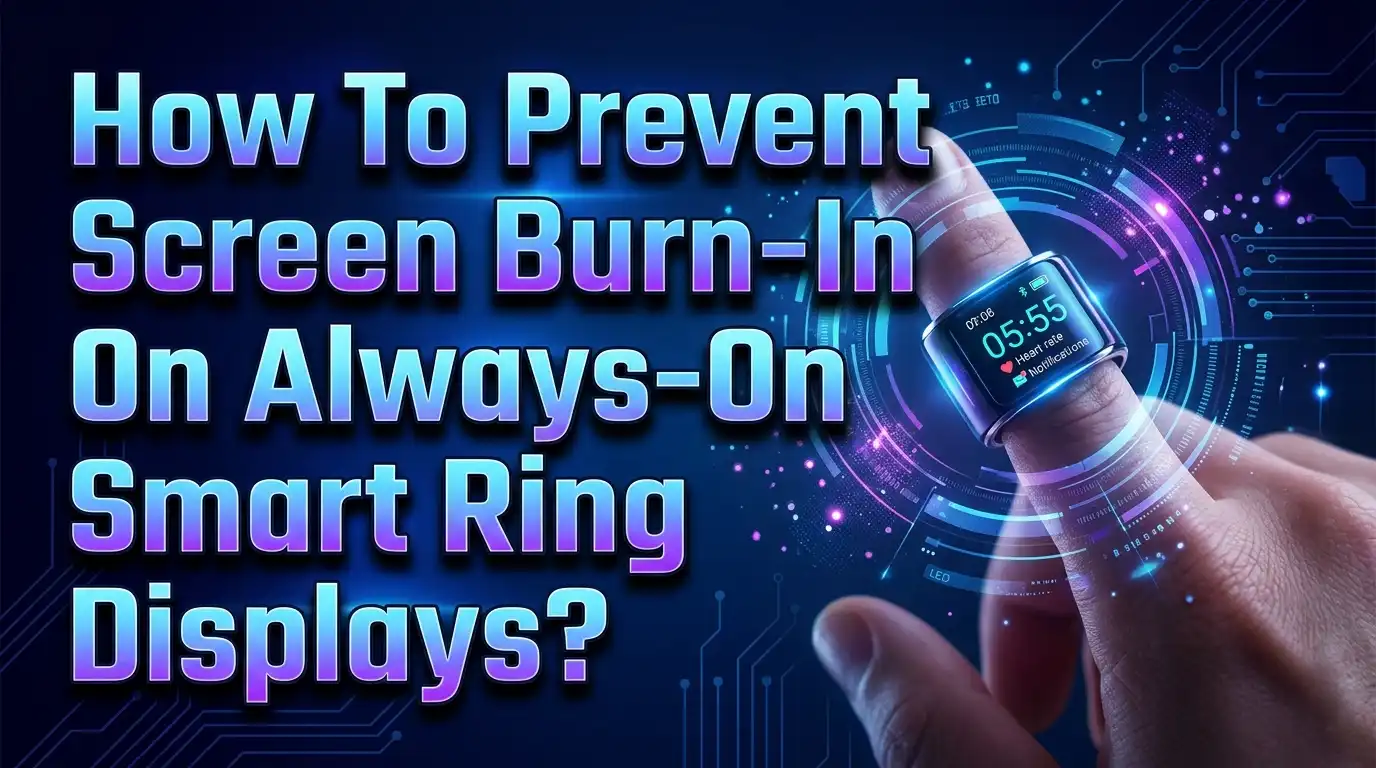
How To Prevent Screen Burn In On Always On Smart Ring Displays?
Smart rings with built in displays are becoming one of the hottest wearable trends. These tiny screens show you the time, heart rate, step count, and other health metrics right on your finger. But there is a catch.
That small OLED or AMOLED display on your smart ring faces a real threat called screen burn in. If certain pixels stay lit with the same image for too long, they degrade faster than others. The result is a ghostly, permanent shadow that never goes away.
This problem is especially serious on always on displays, where static elements like clock digits or icons remain visible around the clock. The smaller the screen, the more noticeable the damage becomes. You paid good money for your smart ring, so the last thing you want is a faded, discolored display after just a few months of use.
The good news? You can take clear, practical steps to protect your smart ring display and keep it looking sharp for years. This guide covers everything you need to know about preventing screen burn in on your always on smart ring display. From brightness adjustments to pixel shifting and watch face choices, you will find actionable solutions that work.
In a Nutshell
- Screen burn in happens when static images cause uneven pixel wear on OLED and AMOLED displays. The organic compounds in these screens degrade at different rates depending on how long each pixel stays lit, leaving behind permanent ghost images.
- Lowering your display brightness is the single most effective step you can take. High brightness accelerates pixel degradation significantly, and most smart ring screens look great at 40 to 60 percent brightness.
- Turning off the always on display feature during sleep or inactivity gives pixels time to rest and recover. This also extends your smart ring’s battery life, often doubling it.
- Using dark or black backgrounds for your display reduces the number of active pixels at any given time. On OLED screens, black pixels are completely off, so they experience zero wear.
- Pixel shifting and screen timeout settings are built into many smart ring companion apps. Enable these features to move display elements slightly and reduce static image exposure.
- Rotating between different watch faces and display layouts ensures no single set of pixels carries the full burden. This simple habit distributes wear evenly across the entire screen.
What Is Screen Burn In and Why Does It Happen
Screen burn in is a form of permanent image retention. It occurs on OLED and AMOLED displays when certain pixels display the same content for extended periods. Those pixels degrade faster than the surrounding ones. Over time, you see a faint outline of a previous image even after the content changes.
OLED stands for organic light emitting diode. The word “organic” is key here. These displays use organic compounds that emit light when electricity passes through them. Unlike LCD screens, OLED pixels produce their own light. They do not rely on a backlight. This is what gives OLED screens their deep blacks and stunning contrast.
However, organic materials are more fragile than synthetic ones. Each pixel wears down gradually with use. When one group of pixels stays on longer than others, the wear becomes uneven. The result is a visible shadow or ghost image burned into the screen.
On a smart ring display, common burn in culprits include static clock digits, battery icons, heart rate symbols, and step count numbers. These elements sit in the same position for hours, making the pixels underneath work harder than the rest.
Why Smart Ring Displays Are More Vulnerable
Smart ring displays face a unique set of challenges that make them more prone to burn in than larger screens like phones or TVs. The first factor is screen size. A smart ring display measures roughly 0.3 to 0.5 inches. On such a tiny screen, every pixel matters. Uneven degradation becomes visible much faster.
The second factor is display content. Smart rings typically show limited information: time, heart rate, steps, and maybe stress level. These data points rarely change position on the screen. The static nature of this content creates the perfect conditions for burn in.
Third, many users keep their smart ring display active throughout the day. Unlike a phone that goes into your pocket, a smart ring sits exposed on your finger. The always on display feature keeps those same pixels lit for hours at a time.
Battery constraints add another layer. Smart ring makers use small, efficient OLED panels to save power. These panels may lack the advanced burn in protection features found in larger, more expensive displays used in phones and monitors. Budget smart rings under $100 often skip pixel shifting algorithms or auto brightness sensors entirely.
Lower Your Display Brightness Immediately
The single most effective action you can take is to reduce your screen brightness. High brightness levels push more electrical current through each pixel. This accelerates the degradation of organic compounds in the display. Research from display manufacturers confirms that running OLED panels at maximum brightness can reduce pixel lifespan by a significant margin.
Most smart ring companion apps let you adjust brightness in the display settings menu. Set your brightness to 40 to 60 percent of maximum. This range provides comfortable readability in most lighting conditions while drastically reducing pixel stress.
If your smart ring supports auto brightness, enable it right away. Auto brightness uses a light sensor to adjust the screen output based on ambient conditions. In dark rooms, the display dims automatically. In bright sunlight, it increases slightly. This dynamic adjustment prevents unnecessary pixel overuse.
Avoid the temptation to max out brightness outdoors. A momentary increase is fine, but keeping it at full power for extended periods will leave marks. On a tiny smart ring screen, even a small amount of burn in is highly noticeable and cannot be reversed.
Turn Off Always On Display During Inactivity
The always on display feature is convenient. A quick glance at your finger shows the time or your heart rate without any tapping or gestures. But this convenience comes at a real cost to your display’s health.
When always on display is active, static elements remain visible nonstop. Clock digits, icons, and data labels sit in the same position for hours. Every minute they stay on adds to the cumulative pixel wear. Over weeks and months, this steady exposure creates permanent shadows.
Turn off the always on display during periods of inactivity. When you sleep, your ring does not need a visible screen. During work meetings, commutes, or any time you are not checking your ring, the display should be dark.
Most smart rings offer a “tap to wake” or “gesture to wake” option. With this setting, the screen stays completely off until you actively interact with it. The display lights up for a few seconds, shows your data, and then turns off again. This approach reduces active screen time by 80 to 90 percent compared to always on mode.
As a bonus, disabling always on display can double your battery life. Many smart ring users report going from one day of battery to two or even three days simply by turning off this feature.
Use Dark and Black Display Themes
One of the greatest advantages of OLED technology is that black pixels are truly off. When a pixel displays pure black on an OLED screen, it receives no power and produces no light. This means black pixels experience zero degradation.
Choose dark or fully black backgrounds for your smart ring display. If your companion app allows custom themes, pick ones with a black background and minimal bright elements. White and bright colored elements force pixels to work harder, so reducing their screen area helps.
Look for watch faces or display layouts that use thin, small fonts instead of large, bold ones. A thin time display activates fewer pixels than a chunky, oversized clock. The less screen area used by static bright elements, the lower your burn in risk.
Some smart ring brands now offer OLED optimized display themes. These themes place key information in shifting positions and use minimal color. They are specifically designed to reduce static pixel exposure. Check your companion app’s theme store or settings page for these options.
If your ring displays icons for heart rate, steps, or battery level, see if you can disable the ones you do not check often. Fewer static icons means fewer pixels stuck in the same position all day.
Enable Pixel Shifting If Available
Pixel shifting is one of the most effective burn in prevention technologies. It works by moving the entire display content by one or two pixels in a random direction at regular intervals. The movement is so small that your eyes cannot detect it. But it makes a big difference for pixel health.
When pixel shifting is active, no single pixel stays on for the entire duration of display use. The workload gets distributed across neighboring pixels. This evens out the wear pattern and prevents the ghost images that define burn in.
Check your smart ring’s companion app for a pixel shifting or screen shift setting. It may be listed under display settings, screen protection, or advanced options. Enable it immediately if you find it.
Not all smart rings offer this feature, especially budget models. If your ring lacks pixel shifting, you can achieve a similar effect manually. Rotate between two or three different watch faces or display layouts every few days. Each layout positions elements in slightly different locations, which distributes pixel wear across the screen.
Manufacturers of larger OLED displays, like Samsung and LG, have used pixel shifting for years with proven results. The same principle applies to tiny smart ring displays. Even a shift of one or two pixels can extend your display’s healthy lifespan considerably.
Rotate Your Watch Faces and Display Layouts Regularly
Switching between different display layouts is a simple and powerful habit. Each watch face or data layout positions elements like time, heart rate, and step count in different areas of the screen. By rotating layouts, you ensure that no single pixel group bears the full burden of static content.
Set a reminder to change your display layout every three to five days. Some companion apps even offer an auto rotation feature that cycles through selected watch faces on a schedule. Use this if it is available.
Choose watch faces that differ meaningfully from each other. If your first layout shows the clock in the top center, pick a second one that shows it on the left side. If one layout uses large numbers, switch to one with small numbers next time.
This approach mimics what pixel shifting does automatically, but on a larger scale. Instead of shifting by one pixel, you shift entire design elements by dozens of pixels. The combined effect can dramatically reduce uneven wear.
Think of it like rotating tires on a car. You distribute the wear evenly so that no single tire wears out before the others. Your smart ring display benefits from the same principle.
Set a Short Screen Timeout
Screen timeout is the duration your display stays on after you interact with it. A shorter timeout means the screen turns off faster after each use. This directly reduces total pixel on time and lowers your burn in risk.
Most smart rings allow you to set a screen timeout between 3 and 30 seconds. Choose the shortest timeout that still feels comfortable for you. A 5 second timeout gives you enough time to read your heart rate or check the clock, and then the screen goes dark.
If you find 5 seconds too short, try 8 or 10 seconds. Avoid setting it to 30 seconds or longer. Most people glance at their ring for 2 to 3 seconds at a time. A long timeout means the screen stays lit for 10 to 20 unnecessary seconds after each glance.
Over the course of a day, those extra seconds add up. If you check your ring 50 times a day with a 30 second timeout, that is 25 minutes of screen on time. With a 5 second timeout, it drops to just over 4 minutes. The difference in cumulative pixel wear is enormous.
Short timeouts also help conserve battery power. Your ring charges less frequently, which reduces overall heat exposure to the display. Heat is another factor that accelerates organic compound degradation in OLED panels.
Avoid Displaying High Brightness Static Content
Certain types of content are especially harsh on OLED pixels. Bright white text, colorful icons, and high contrast static images cause the most damage because they push pixels to their maximum output for extended periods.
On a smart ring, the worst offenders are white clock digits on a black background that never move. While the black background is great for the surrounding pixels, the white digits themselves burn through their organic material faster than anything else on the screen.
Switch to display themes that use softer colors instead of pure white. Light gray, dim blue, or muted green text is much easier on your pixels. These colors require less electrical current, which slows degradation.
If your smart ring shows a bright battery icon or notification indicator, check if you can dim or disable these elements. A constantly lit bright icon in the corner of your tiny screen is a prime candidate for burn in.
Some companion apps let you customize font color and icon color independently. Take advantage of this. Choose dim, warm colors for any element that remains static. Reserve brighter colors for elements that change frequently, like an active heart rate reading that updates every second.
Keep Your Smart Ring Firmware Updated
Smart ring manufacturers regularly release firmware updates through their companion apps. These updates often include display optimization improvements that can help prevent burn in.
Firmware updates may introduce new pixel shifting algorithms, improved auto brightness curves, or better screen timeout behavior. Some updates add entirely new display protection features that did not exist when you first purchased the ring.
Check your companion app at least once a month for available updates. Enable automatic updates if the option exists. This ensures you always have the latest display protection features without any manual effort.
Beyond burn in protection, firmware updates fix bugs that might cause the display to stay on longer than intended. A software glitch that prevents the screen from timing out properly could leave your display lit for hours without your knowledge. Keeping firmware current eliminates these risks.
Manufacturers also improve power management in firmware updates. Better power management means more efficient pixel driving, which reduces the amount of current flowing through each pixel and slows degradation.
Charge Your Ring Before the Battery Dies Completely
This tip might surprise you, but battery management affects display health. When a smart ring’s battery drops very low, the device may enter a low power state that changes how the display operates. Some rings dim the screen erratically or disable protection features to conserve energy.
Charge your smart ring before the battery drops below 15 to 20 percent. Keeping the battery in a healthy range ensures all display protection features, including pixel shifting and auto brightness, continue to function properly.
Frequent deep discharges also generate more heat during subsequent charging cycles. Heat speeds up the degradation of organic compounds in OLED panels. A warm display ages faster than a cool one.
Set a daily charging routine. Many smart ring users charge their ring for 30 to 60 minutes each morning while getting ready. This keeps the battery topped up and avoids deep discharge cycles. Consistent charging habits protect both your battery and your display.
Avoid charging your ring in hot environments like direct sunlight or near heat sources. The combination of charging heat and ambient heat can push your display temperature into a range that accelerates pixel wear.
Consider Using the Display Only When Needed
Some smart ring users find that they do not actually need the display active most of the time. Health tracking features like heart rate monitoring, sleep analysis, and step counting work entirely through sensors, not the screen. The display is just a window for viewing data.
If you primarily use your smart ring for passive health tracking, consider keeping the display off by default. Check your stats through the companion app on your phone instead. This reduces your ring’s screen on time to nearly zero and virtually eliminates burn in risk.
When you do want a quick glance, use the tap to wake feature. A quick tap lights up the screen for a few seconds, shows your data, and then turns off. You get the information you need without any extended pixel exposure.
This approach also preserves battery life dramatically. Some users report their smart ring lasting five to seven days on a single charge with the display kept off. That is a significant improvement over the one to two day battery life typical of always on display usage.
Think of the display as a tool you use intentionally, not a feature that runs passively in the background. This mindset shift alone can add months or even years to your display’s lifespan.
What To Do If Burn In Has Already Started
If you notice faint ghost images or uneven brightness on your smart ring display, act quickly. In many cases, what appears to be burn in is actually temporary image retention. This can often be reversed.
First, turn off the display completely for several hours. Let the pixels rest. For temporary retention, this rest period alone may clear the ghost images. Leave the ring in a cool, dark place while the display is off.
Second, check your companion app for a pixel refresh or screen calibration tool. Some smart ring brands include this feature. It runs a cycle of rapidly changing colors and brightness levels across the entire screen, helping to even out pixel wear.
Third, try displaying a solid, medium brightness white image for 30 to 60 minutes. This pushes all pixels to a similar usage level and can reduce the visibility of retention marks. Some users find that looping a colorful, rapidly changing video or animation achieves similar results.
If the ghost images persist after these steps, the burn in is likely permanent. Permanent burn in means the organic material in affected pixels has degraded beyond recovery. At this point, prevention of further damage becomes the priority. Apply all the brightness, timeout, and display habit changes described in this guide to slow additional degradation.
Choose the Right Smart Ring From the Start
Prevention starts before you even buy the ring. Some smart rings are built with better display protection than others. Research the display technology and burn in prevention features before making your purchase.
Look for smart rings that use newer generation OLED panels with improved organic materials. These newer panels degrade more slowly and resist burn in better than older ones. Product specifications or reviews often mention the display type and generation.
Check if the ring’s companion app offers pixel shifting, auto brightness, and customizable timeouts. These three features form the foundation of burn in prevention. A ring that lacks all three will require much more manual effort to protect.
Read user reviews specifically for display longevity. If multiple users report burn in within the first six months, that is a red flag. Look for rings where users report clean displays after a year or more of regular use.
Smart rings priced in the mid to upper range tend to include better display components and more sophisticated protection software. While budget rings can be great for trying out the technology, they often cut corners on display quality and protection features.
Build a Daily Display Care Routine
The best protection against screen burn in is consistency. Build a simple daily routine that keeps your smart ring display healthy without requiring much thought.
Start each morning by placing your ring on its charger for 30 to 60 minutes. While it charges, check for firmware updates in the companion app. This keeps your battery healthy and your software current.
Before putting the ring on, glance at your display settings. Confirm that brightness is at a moderate level, always on display is off during sleep hours, and screen timeout is set to 5 to 10 seconds. These checks take less than 30 seconds and become automatic after a few days.
Every three to five days, switch to a different watch face or display layout. Bookmark two or three favorites in your companion app so switching takes just a couple of taps. This rotation distributes pixel wear and keeps your ring looking fresh.
Once a week, give your display a full rest. Turn off the screen for a few hours while you charge the ring. This lets all pixels return to a baseline state and allows any temporary image retention to clear naturally.
Following this routine adds minimal effort to your day. But the cumulative effect on your display’s lifespan is significant. A few small habits practiced consistently will keep your smart ring screen looking sharp for the life of the device.
Frequently Asked Questions
How long does it take for screen burn in to appear on a smart ring?
Burn in typically develops over several months of continuous use. The timeline depends on brightness levels, how often the always on display is active, and the quality of the OLED panel. Budget smart rings with lower quality panels may show signs in three to six months of heavy use. Higher quality panels can last a year or more. Reducing brightness and using short screen timeouts significantly extends this timeline.
Can screen burn in be fully reversed on a smart ring display?
Permanent burn in cannot be reversed. Once the organic compounds in OLED pixels have degraded, the damage is done. However, temporary image retention often looks similar to burn in and can be cleared by resting the display, running a pixel refresh cycle, or displaying varied content for an extended period. Act quickly if you notice ghost images because early intervention increases the chance of recovery.
Does turning off always on display completely prevent burn in?
Turning off always on display dramatically reduces your burn in risk, but it does not eliminate it entirely. Burn in can still occur during the brief periods the display is active if you always view the same layout at high brightness. Combine this step with low brightness, short timeouts, and regular watch face rotation for the best protection.
Is burn in covered under smart ring warranties?
Most smart ring manufacturers consider burn in to be normal wear and tear rather than a defect. It is rarely covered under standard warranties. Some premium brands may offer limited coverage for premature burn in that occurs within the first few months. Check your specific ring’s warranty terms before purchase. Prevention is always more reliable than warranty claims.
Do all smart rings with displays suffer from burn in?
Any smart ring that uses an OLED or AMOLED display can potentially experience burn in. It is an inherent characteristic of organic light emitting diode technology. However, the risk varies widely based on panel quality, brightness levels, software protections, and user habits. Smart rings with newer generation panels and strong companion app features face much lower risk than budget models with basic displays.
Should I avoid buying a smart ring with a display because of burn in?
No. Burn in is a manageable risk, not a dealbreaker. With proper display habits like moderate brightness, short timeouts, dark themes, and regular layout rotation, most users will never experience noticeable burn in during the useful life of their smart ring. The convenience of at a glance health data and time on your finger is well worth the small effort required to maintain the display.

I’m a tech enthusiast who loves breaking down gadgets, apps, and tools into simple, honest reviews. At GenResizeHub, I help you make smarter buying decisions through in-depth comparisons and easy-to-follow guides. Got a question? Drop me a mail!