Why Is My Apple Vision Pro Screen Flickering Black?
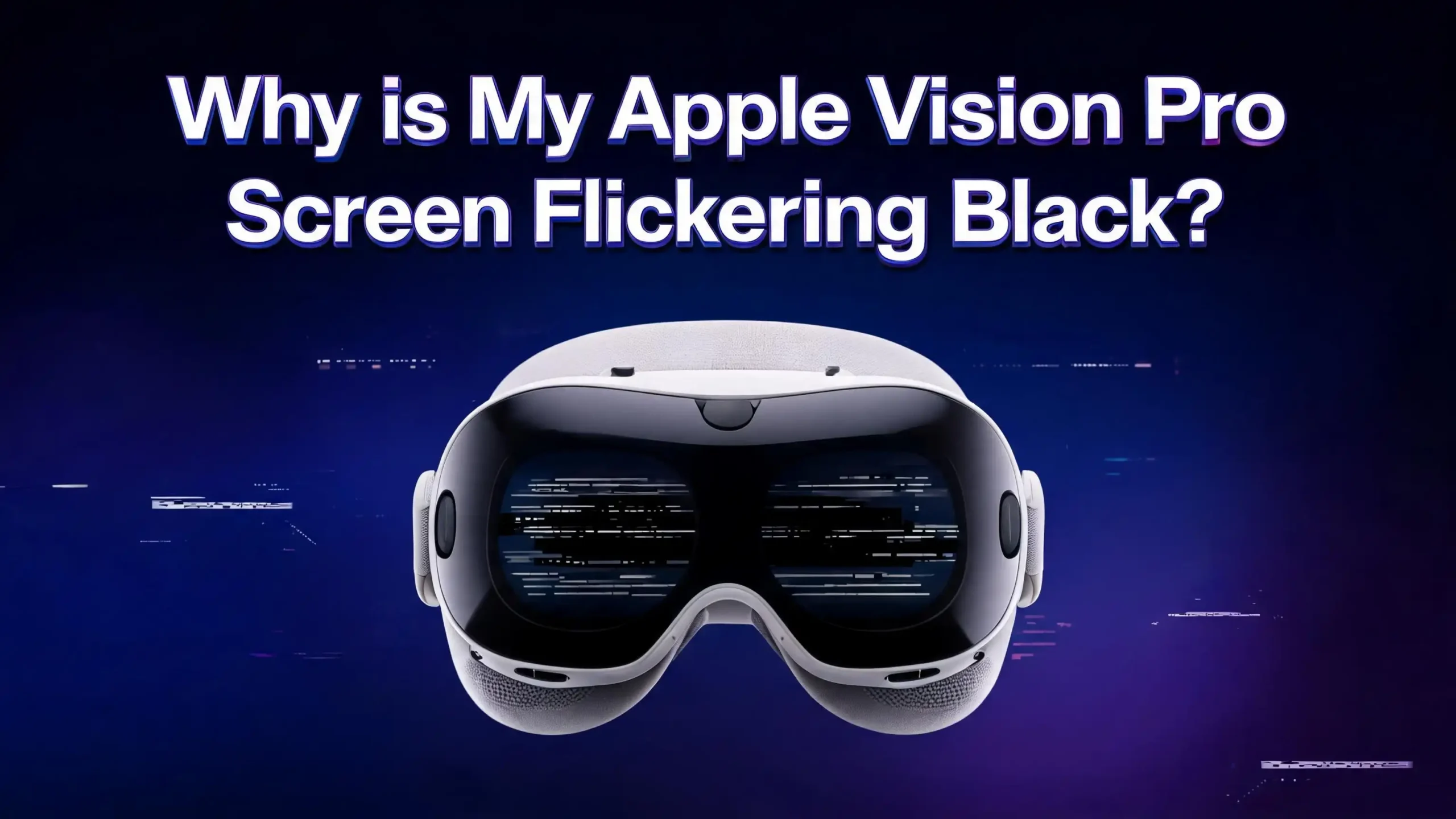
Is your Apple Vision Pro screen going black or flickering at random moments? You are not alone. Many users have reported this exact problem, and it can be both frustrating and disorienting, especially when you are right in the middle of an immersive experience.
The flickering black screen issue can range from a quick one-second black flash to full display blackouts that force a restart.
The good news is that most of these problems have clear, fixable causes. This guide walks you through every major cause and gives you specific, step-by-step actions to take right now.
Keep reading, because the fix you need is likely just a few sections away.
Key Takeaways
- A flickering or black screen on your Apple Vision Pro is commonly caused by software bugs, poor display alignment, ambient lighting frequency conflicts, overheating, or a loose battery connection, and most of these issues can be resolved without visiting an Apple Store.
- Force restarting your device by holding the Digital Crown and the top button together until the display goes black is one of the fastest and most effective first steps you can take.
- Updating to the latest visionOS is critical because Apple regularly releases patches that specifically address display flickering bugs, including known issues fixed in visionOS 26.5 released in May 2026.
- Ambient lighting plays a bigger role than most users expect. Fluorescent and some LED lights operate at frequencies that can conflict with the Vision Pro’s display refresh rate, causing visible flicker in the passthrough cameras and display panels.
- Recalibrating your eye setup and realigning your displays from the Settings menu resolves a large number of flickering and distortion complaints that are tied to tracking mismatches, not hardware failures.
- If none of the software fixes work, Apple’s support team and repair service are the correct next steps, and you should not attempt to open or self-repair the device under any circumstances.
Understanding Why the Apple Vision Pro Screen Flickers Black
Before you start pressing buttons and changing settings, it helps to understand what is actually happening inside your device when the screen flickers black. The Apple Vision Pro uses two micro-OLED displays, one for each eye, running at a refresh rate of up to 100Hz. These displays are driven by the M2 chip and R1 coprocessor, which handle both real-world passthrough video and virtual overlay content simultaneously.
When either the hardware or software pipeline encounters a processing delay, a power interruption, or a calibration conflict, the display can drop frames, flash black, or go completely dark. The flicker you see is essentially the display losing its signal for a fraction of a second. Sometimes this happens due to a software bug, sometimes it is a physical fit issue, and sometimes it is your room lighting confusing the cameras.
Knowing the root cause helps you apply the right fix rather than cycling through random troubleshooting steps that waste your time.
Start Here: Force Restart Your Apple Vision Pro
The very first thing you should try is a force restart. This step clears temporary memory, resets active display processes, and resolves a large percentage of one-time flickering events caused by software glitches. It is quick, safe, and does not erase any of your data.
Here is how to do it correctly. Press and hold the Digital Crown and the top button at the same time. Do not release when you see the Force Quit Applications window appear. Keep holding both buttons together until the display turns completely black. Then release both buttons. Your Vision Pro will restart within a few seconds, and the Apple logo will appear on screen.
Many users who experience random black screen reboots or sudden flicker bursts report that a simple force restart eliminated the problem entirely for days or even weeks. If the flickering returns after restarting, continue with the steps below to dig deeper into the cause.
Check for a visionOS Software Update
One of the most common and overlooked causes of screen flickering on the Apple Vision Pro is an outdated version of visionOS. Apple regularly pushes updates that fix display bugs, rendering errors, and refresh rate inconsistencies. For example, Apple released visionOS 26.3.1 specifically to fix a multiview flicker issue in the Apple TV app, and visionOS 26.5 released in May 2026 includes additional bug fixes and optimizations.
Checking for updates is straightforward. Put on your Vision Pro and go to Settings. Tap General, then tap Software Update. If an update is available, tap Download and Install. Make sure your battery pack is connected and sufficiently charged before starting the update so it does not interrupt mid-installation, which could cause additional problems.
Running an outdated version of visionOS means you are potentially living with known bugs that Apple has already patched. Keeping your software current is one of the simplest and most powerful things you can do to maintain a stable display experience. After installing the update, use your device normally for a day to see if the flickering has stopped.
Realign Your Displays Through Settings
Display alignment is a feature that many Vision Pro users are not aware of, but it plays a direct role in screen stability. When the displays fall slightly out of alignment with your eyes, the device can produce visual artifacts including flickering, blurring, and brief black flashes as it struggles to keep the rendering in the correct position.
Apple provides a built-in tool to fix this. Go to Settings, then tap Eyes and Hands, and select Realign Displays. The device will guide you through a process where you use the Digital Crown and the top button to adjust the display position. Follow the on-screen instructions carefully and complete the full process without interruption.
You should realign your displays whenever you take the headset off and put it back on after a long break, or if you adjust the headband fit. Physical position changes can shift how the optics line up with your eyes and trigger visual issues that look like hardware problems but are actually just calibration drift. This quick fix takes under two minutes and has solved flickering issues for a notable number of users.
Redo Your Eye Setup and Calibration
Eye tracking is at the core of how the Vision Pro renders content. If your eye setup calibration is off even slightly, the device can display content incorrectly, causing visual instability that can look like flickering or screen blinking. The system is extremely sensitive to changes in how you wear the headset.
To redo your eye setup, go to Settings, tap Eyes and Hands, and select Redo Eye Setup. You can also access this faster by pressing the top button four times while wearing the device. Follow the calibration dots on screen carefully, looking at each one without moving your head until it confirms your selection.
It is worth redoing this calibration every time you change the light seal, switch headbands, or notice visual anomalies. Multiple users in the Apple Support community have reported that poor eye calibration was the actual culprit behind what they thought was a hardware screen defect. The fix was simply a fresh eye setup, which took about 60 seconds to complete.
Adjust the Fit and Tighten Your Headband
The physical fit of your Apple Vision Pro matters more than you might think for display performance. If the headset sits loosely on your face or shifts during use, the micro-OLED displays move relative to your eyes, and the device struggles to compensate, which can create flicker or sudden dark patches.
Check that your headband is properly secured. The Vision Pro should sit firmly and evenly across your face without pressing too tightly. Use the headband adjustment dial or Velcro attachment points to achieve a snug but comfortable fit. If you are using the Solo Knit Band, make sure the back cradle sits at the base of your skull rather than the top of your head.
Apple’s official guidance states that you should press and hold the Digital Crown to automatically move the displays inward to the ideal position once you have your headset on and the headband properly tightened.
After adjusting the fit, go back and realign your displays using the steps in the previous section. Poor fit and display misalignment often work together to create compounding visual problems.
Address Ambient Lighting Conflicts
This cause surprises many users. The Apple Vision Pro’s passthrough cameras capture the real world at a specific frame rate. Fluorescent lights, some LED bulbs, and other artificial light sources pulse at frequencies that can conflict with the Vision Pro’s refresh rate, producing a visible flicker in both the passthrough view and the display itself.
The Vision Pro displays are rated for up to 100Hz specifically because Apple designed this rate to reduce conflicts with common lighting frequencies like 50Hz and 60Hz power cycles used in different countries. However, edge cases still exist, particularly with cheap LED strips, certain office fluorescent panels, and some RGB lighting setups.
To test whether your lighting is the cause, move to a different room with natural daylight or use a single incandescent lamp and see if the flickering stops. If the flicker disappears in a different lighting environment, your problem is lighting-related rather than device-related.
Solutions include switching to LED bulbs that are rated for high-frequency output, reducing your reliance on fluorescent lighting, or adjusting the angle of the Vision Pro so the cameras are not directly pointed at the offending light source.
Close Problematic or Crashing Apps
Third-party apps and even some first-party Apple apps can cause display flickering when they encounter rendering errors or memory conflicts. Users have reported that Safari on visionOS was a common offender, triggering aggressive full-screen flickering during heavy page loads or when multiple tabs were open at once.
To close a problematic app, press the Digital Crown to go to your home environment. Then press the Digital Crown and the top button together briefly to open the App Switcher. Swipe upward on any app window to close it completely. If you suspect a specific app is causing the issue, remove it from the home view and restart your device before testing again.
Keep your app library updated. Outdated apps that have not been optimized for the current version of visionOS can conflict with system-level display processes. Open the App Store, go to your account profile, and scroll down to see available updates. Install all pending updates and then test your display under normal usage conditions to determine if the flickering was app-related.
Check the Battery Pack Connection
The Apple Vision Pro draws power from an external battery pack connected via a proprietary cable. An intermittent or loose connection between the battery pack and the headset can cause momentary power fluctuations that appear as a black screen flash or a sudden reboot. This is more common than most people expect, especially with heavily used devices.
Inspect the cable connection at both ends: where it attaches to the headset and where it connects to the battery pack. Disconnect and firmly reconnect the cable to ensure it clicks securely into place. If the cable itself shows signs of wear, fraying, or kinking near the connectors, that cable may need to be replaced.
Also check the battery pack’s charge level. A battery pack that is nearly depleted may not deliver consistent voltage to the headset, causing instability in the display pipeline. Keep your battery pack at least 20% charged during active use. If you are using a third-party battery cable or adapter, switch back to the official Apple-supplied cable immediately, as unofficial accessories can introduce power delivery inconsistencies.
Prevent and Address Overheating
The Apple Vision Pro generates significant heat during intensive tasks such as spatial video playback, prolonged AR sessions, or running demanding applications. Overheating causes the internal components to throttle performance to protect themselves, and in some cases, the display may flicker or briefly cut to black as the thermal management system tries to stabilize the device.
You will know your Vision Pro is running hot if it feels warm through the frame, if apps are running slower than usual, or if you receive a temperature warning notification. When this happens, stop using the device immediately and let it cool in a well-ventilated area for at least 15 minutes before continuing.
To prevent overheating, avoid using the Vision Pro in direct sunlight or in environments above 35°C (95°F). Do not cover the ventilation areas around the frame during use. If you regularly experience heat-related flickering, consider taking regular breaks every 30 to 45 minutes of intensive use. Shorter, spaced-out sessions protect both the hardware and the display quality over the long term.
Reset All Settings Without Erasing Your Data
If you have tried all the above steps and the flickering continues, a settings reset is your next move. This process returns all system settings to their defaults, which can clear configuration conflicts, miscalibrated accessibility settings, or corrupted preference files that are causing display instability. Importantly, it does not erase your personal data, apps, or media.
Go to Settings, then General, then tap Transfer or Reset Apple Vision Pro. Select Reset, and from the list that appears, choose Reset All Settings. The device will restart with default settings applied. After it restarts, redo your eye setup and display alignment before resuming normal use.
This step resolves issues that are deeply embedded in the system configuration and would not respond to surface-level fixes like force restarts or app closures. Give yourself a day of normal use after resetting settings to determine whether the problem has been fully resolved before moving on to a full factory reset.
Perform a Full Factory Reset as a Last Software Resort
A full factory reset is the most thorough software-level fix available. It erases everything on the device and restores it to the state it was in when it left the factory. This should only be attempted after all other software fixes have failed, and only after you have backed up your important data through iCloud or your Mac.
To back up first, ensure your Vision Pro is connected to your Apple ID and iCloud. Then go to Settings, tap General, then Transfer or Reset Apple Vision Pro. Tap Get Started and follow the steps, which will walk you through signing out of iCloud and the App Store before erasing. After the erasure, you will be prompted to set up the device as new or restore from a backup.
If a factory reset eliminates the flickering, the issue was purely software-based. If the flickering returns even after a clean setup, you are almost certainly dealing with a hardware issue that requires Apple’s involvement. Do not attempt to skip this step and go directly to Apple support, because they will ask you to confirm that a reset was performed as part of their diagnosis process.
Use Apple Diagnostics and Contact Apple Support
If you have worked through every step above and the screen is still flickering black, the problem is most likely a hardware defect. Known hardware issues include faulty display connectors, micro-OLED panel degradation, or defects in the R1 coprocessor’s video pipeline that cannot be fixed through software alone.
The right next step is to contact Apple Support directly. You can do this through the Apple Support app on your iPhone, at support.apple.com, or by visiting an Apple Store. When you contact Apple, have the following information ready: the serial number of your device, your visionOS version, a description of when the flickering occurs, and a record of all the troubleshooting steps you have already taken.
If your device is within its one-year limited warranty or covered under AppleCare+, Apple will service or replace the device at no cost if the flickering is confirmed as a hardware defect. Do not attempt to open, repair, or modify your Apple Vision Pro yourself.
The device contains precision optics and sensitive electronics that can be permanently damaged by unauthorized repairs, and self-repair will void your warranty immediately.
Prevent Future Display Issues With Good Habits
Once you have resolved the flickering issue, a few consistent habits will go a long way toward keeping your display stable and performing well over time. Prevention is always easier than troubleshooting, and most display problems can be avoided entirely with regular maintenance routines.
First, keep visionOS updated at all times. Enable automatic updates by going to Settings, then General, Software Update, and toggling on Automatic Updates. Second, redo your eye setup and realign your displays every few weeks or any time you change your light seal or headband. Third, store your Vision Pro properly in its Apple-provided travel case when not in use. Avoid leaving it in hot cars, near windows, or in humid environments.
Clean your device regularly using the Apple-recommended dry, soft, lint-free cloth. Dust or residue buildup around the sensor areas can interfere with passthrough cameras and eye tracking, which indirectly affects display rendering.
Keep your battery pack cable free of kinks by storing it loosely coiled rather than tightly wrapped. These small habits compound over time and significantly extend both the display quality and the overall lifespan of your device.
FAQs
Why does my Apple Vision Pro screen go black for a second and then come back?
This is usually caused by a brief software glitch, a loose battery connection, or a calibration conflict between the eye-tracking system and the display pipeline. Start by force restarting the device. Then check your battery cable connection and ensure your visionOS software is fully updated. If it happens repeatedly at short intervals, redo your eye setup through Settings and realign your displays.
Can flickering on the Apple Vision Pro damage my eyes?
Occasional brief flickers are unlikely to cause lasting eye damage, but repeated or prolonged flickering can cause eye strain, headaches, and discomfort. If you are experiencing physical symptoms, stop using the device immediately and rest your eyes. Address the underlying cause before resuming use to avoid compounding the discomfort.
Does the type of room lighting affect the Apple Vision Pro display?
Yes, it does. Fluorescent and some LED lights pulse at specific frequencies that can conflict with the Vision Pro’s refresh rate and cause visible flickering in the passthrough cameras and display. Try using the device in natural daylight or under incandescent lighting to see if the flickering stops, which would confirm that lighting is the cause.
Will updating visionOS fix my screen flickering?
In many cases, yes. Apple has released multiple updates specifically targeting display bugs and flicker issues, including the visionOS 26.5 update released in May 2026. Always install the latest visionOS update as one of your first troubleshooting steps before exploring hardware-related explanations.
How do I force restart my Apple Vision Pro?
Press and hold the Digital Crown and the top button simultaneously. Keep holding both even when the Force Quit Applications window appears on screen. Release only when the display turns completely black. Your device will restart on its own within a few seconds and the Apple logo will confirm the restart was successful.
Is a flickering screen covered under Apple’s warranty?
Yes, if the flickering is caused by a hardware defect and your device is within the one-year limited warranty period or covered by AppleCare+, Apple will repair or replace it at no cost. Contact Apple Support and explain the issue along with all the troubleshooting steps you have already attempted. Apple will guide you through a diagnostic process before scheduling a repair.
Can third-party apps cause the Apple Vision Pro screen to flicker?
Yes. Poorly optimized or outdated third-party apps can overload the rendering pipeline and cause display flickering or black flashes. Close all open apps, update everything in the App Store, and test whether the flickering continues during basic visionOS tasks without any third-party apps running. If the flickering stops without third-party apps open, one of those apps is likely the culprit.
What should I do if nothing works and my Apple Vision Pro keeps flickering?
If you have completed a force restart, updated visionOS, realigned displays, redone eye setup, reset all settings, and performed a full factory reset, and the flickering persists, the issue is almost certainly a hardware defect. Contact Apple Support immediately. Do not try to open or repair the device yourself, as this will void your warranty and can cause permanent damage.

I’m a tech enthusiast who loves breaking down gadgets, apps, and tools into simple, honest reviews. At GenResizeHub, I help you make smarter buying decisions through in-depth comparisons and easy-to-follow guides. Got a question? Drop me a mail!