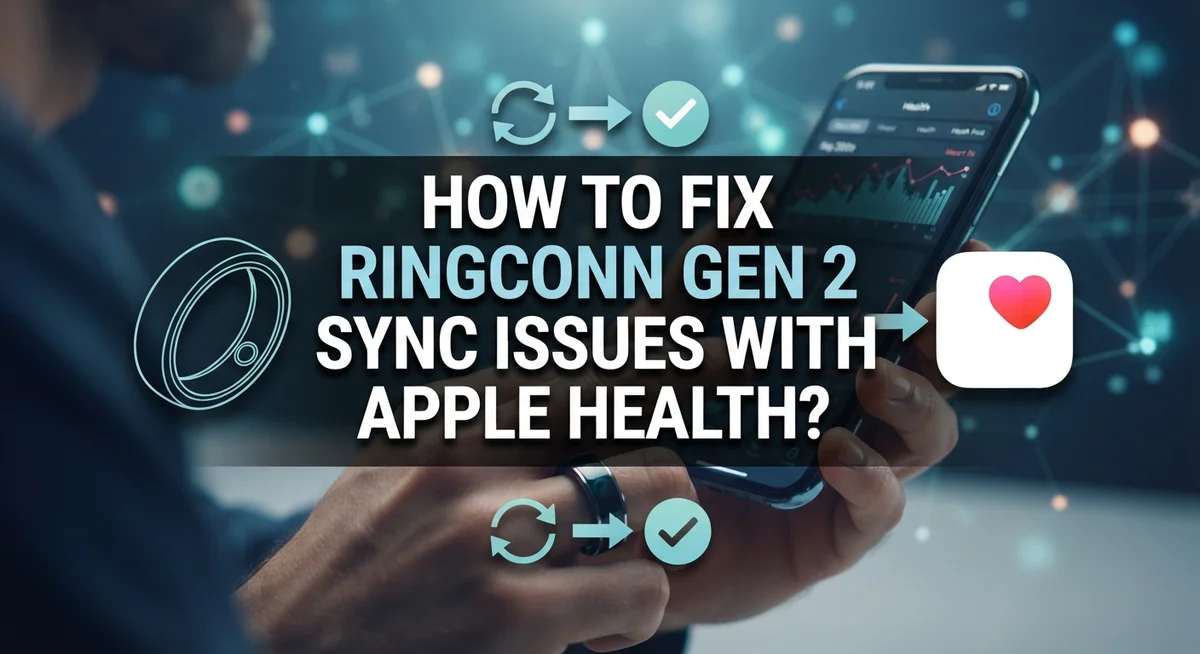
How To Fix RingConn Gen 2 Sync Issues With Apple Health?
Getting your RingConn Gen 2 to sync properly with Apple Health can feel frustrating when the data just won’t show up. You open the Health app, and nothing is there. Sound familiar?
This is actually a common problem for many RingConn users. Step counts look wrong, activity rings aren’t updating, or the RingConn app doesn’t even appear in Apple Health’s compatible app list. These issues have clear fixes.
The good news is that most sync problems come down to a few simple things. Permissions may not be set up correctly. The app might not have been fully launched before accessing settings. Or the data verification step gets skipped entirely.
This guide walks you through exactly how to fix RingConn Gen 2 sync issues with Apple Health. You will learn the correct connection path, how to configure permissions, and how to verify your data is actually syncing.
In a Nutshell
The connection path matters. Go to RingConn app → Me → Data Management → Connect to Apple Health to start the sync process.
Permissions must be set up manually. Skipping the permission configuration in data-sharing settings is the most common reason sync fails.
Always check both apps. Verify data in the Fitness app first, then confirm it appears under Browse → Activity → Exercise Minutes in the Health app.
Blank Exercise Minutes means something went wrong. An empty field usually points to a Watch connectivity issue or a failed sync.
Step counts may not match perfectly. This is a known issue after syncing, not necessarily a sign that something is broken.
Launch the RingConn app fully before changing any settings. A partially loaded app can cause export and sync functions to fail at the same time.
How RingConn Gen 2 Connects to Apple Health
Your RingConn Gen 2 connects to Apple Health through a specific pathway that you need to follow exactly. Open the RingConn app on your iPhone and tap the Me section at the bottom of your screen.
From there, look for Data Management in your settings menu. This is where the connection magic happens. Tap Connect to Apple Health to begin the sync process.
The app will ask you for permission to share your health data. This step is absolutely critical. Many users skip over this or dismiss the permission prompt too quickly. You must explicitly allow RingConn to access your Apple Health data, or nothing will sync.
Once you grant permission, your ring data starts flowing into Apple Health. The connection works one way initially. Your RingConn metrics travel into the Apple ecosystem, where they appear in both your Fitness app and Health app.
Here’s what happens behind the scenes. RingConn sends your activity data, exercise minutes, and other metrics to Apple Health’s database. The Fitness app on your iPhone then pulls this information to display your activity rings and daily summaries.
Make sure the RingConn app is fully loaded before you access these settings. A partially loaded app can cause permission requests to fail silently.
Wear your ring normally during this entire setup phase. Don’t take it off or charge it right away. The ring needs to be collecting data while you’re establishing the connection.
After you complete the setup, check your Fitness app first to verify the data appeared. Then open the Health app and navigate to Browse → Activity → Exercise Minutes to confirm everything synced properly. This two app verification step prevents confusion later.
How to Set Up Apple Health Sync on RingConn Gen 2
Setting up Apple Health sync on your RingConn Gen 2 requires you to follow a specific sequence. Start by opening the RingConn app on your iPhone and tap the Me tab at the bottom of your screen.
Next, locate Data Management within your settings menu. This is where all your health data sharing options live. Tap on it to see your sync options.
You’ll see an option to Connect to Apple Health. Tap this button to begin the connection process. Your phone will prompt you to grant permission for the RingConn app to access your health data.
Grant all requested permissions when the system asks. This step is crucial because skipping it is the most common reason syncs fail. You need to allow the app to read and write your activity data, exercise minutes, and ring information.
After granting permissions, the RingConn app needs a moment to establish the connection. Keep the app open and running during this process. Don’t close it or switch to another app immediately.
Once the connection completes, verify that it worked by opening your Fitness app. Look for updated ring data in your activity summary. If you see your ring information there, the sync is working.
Next, open the Health app and go to Browse → Activity → Exercise Minutes. Check that this field shows data and isn’t blank. A blank field means your Watch connection needs attention.
Wear your ring normally throughout this entire setup phase. Don’t remove it or put it away while the sync is initializing. Your ring needs to collect data continuously so Apple Health receives accurate information from the start.
How to Grant the Right Permissions for Data Sharing
Granting the right permissions is the foundation of successful data sharing between your RingConn Gen 2 and Apple Health. Without proper permission setup, your ring data simply cannot flow into the Apple ecosystem.
Start by opening your RingConn app and making sure it’s fully loaded. Navigate to the Me section, then find Data Management in your settings. You’ll see a clear option that says Connect to Apple Health. Tap this option to begin the permission process.
When the system prompts you, grant all requested permissions without skipping any. The app will ask for access to health data, activity information, and workout details. Each permission serves a specific purpose in the sync process. Don’t assume you can skip permissions and add them later. This is where most users encounter problems.
Pay attention to what each permission request actually says. Some permissions relate to reading your data, while others allow writing data to Apple Health. You need both types to enable complete syncing. Read each prompt carefully before confirming.
After you grant permissions, the RingConn app needs a few moments to establish the connection with Apple Health. Don’t close the app during this time. Wait for a confirmation message indicating the connection is active.
Once permissions are granted and the connection establishes, verify everything worked properly. Open your Fitness app and check if your ring data appears. Then open the Health app, go to Browse, select Activity, and look for Exercise Minutes. If this field shows data, your permissions are configured correctly and sync is working as intended.
How to Verify Your Data Is Actually Syncing Correctly
Start by opening your Fitness app on your iPhone. Look for your ring data in the activity rings section. Your move, exercise, and stand rings should display updated information from your RingConn Gen 2.
If you see numbers updating regularly, your sync is working. If the rings show old data or nothing at all, a sync problem exists.
Next, open the Health app and navigate to Browse. Select Activity and then Exercise Minutes. This field should contain recent data from your ring. An empty Exercise Minutes section means your Watch connectivity failed or data isn’t transferring properly.
Compare the step counts between your RingConn app and the Health app directly. Open your RingConn app and check today’s step total. Then check the same information in your Health app under Activity. These numbers should match or be very close. If they differ significantly, the sync isn’t working correctly.
Check the time stamps on your data. Look at when your last activity updated in both apps. If one app shows data from hours ago while the other shows current information, something interrupted your sync process.
Open your RingConn app settings again and verify that the Apple Health connection still shows as active. Sometimes connections drop without obvious signs. The status should clearly indicate that syncing is enabled.
Pay attention to any error messages in your RingConn app. These messages often appear near your data management settings. Error codes tell you exactly what went wrong with your sync.
Test by taking a short walk with your ring on. Wait five minutes, then refresh both apps. New step data should appear in both places quickly. This real time test reveals whether active syncing works or remains broken.
Common RingConn Gen 2 Sync Problems and What Causes Them
Your RingConn Gen 2 might stop syncing with Apple Health for several reasons. Understanding these common problems helps you fix them quickly.
Step count mismatches happen frequently after sync. You notice your ring shows 8,000 steps, but Apple Health displays 7,500 steps. This occurs when data transfers incompletely or your Watch hasn’t synced with Apple Health yet. The ring collects accurate data, but the middle connection breaks down.
Your RingConn app might not appear in Apple Health’s compatible app list. This means permissions weren’t set up correctly during initial configuration. The system needs explicit approval to share your activity data. Without this approval, Apple Health simply cannot receive information from your ring.
Export and sync failures happening together signal a deeper connection problem. Both functions rely on the same data pathway between apps. When one fails, the other typically fails too. This usually points to permission issues or app communication errors.
Activity ring data stops updating in your Fitness app when your Watch loses connection to your iPhone. Your RingConn ring collects the data perfectly, but it cannot reach Apple Health through your Watch. The sync chain has a broken link somewhere.
Empty Exercise Minutes fields in your Health app indicate your Watch never received the data. This means the RingConn app successfully collected your activity, but the handoff to Apple’s ecosystem failed.
Most sync problems stem from three causes: incomplete permission setup, app communication failures, or Watch connectivity issues. Start by checking if your RingConn app shows as connected in your Health app settings. Then verify your Watch can actually reach your iPhone through Bluetooth. These two checks solve most sync problems quickly.
Step-by-Step Troubleshooting for RingConn Gen 2 Sync Failures
When your RingConn Gen 2 stops syncing with Apple Health, start by checking your app permissions. Open your RingConn app and navigate to Me, then Data Management, then Connect to Apple Health. Verify that all permissions show as active and enabled.
Next, force close your RingConn app completely. Swipe it away from your recent apps list. Wait 30 seconds, then reopen it. This simple restart often fixes temporary connection glitches between your ring and Apple Health.
Check your iPhone’s Health app directly. Tap Browse, then Activity, then Exercise Minutes. If this field appears empty, your Watch hasn’t received the data from your ring yet. This tells you the problem lies in Watch connectivity, not your phone.
Open your Fitness app and look for recent activity updates. If the data appears stale or hasn’t changed in several hours, your sync connection has broken. Return to your RingConn app settings and toggle the Apple Health connection off, wait 10 seconds, then toggle it back on.
Verify that your ring is actually worn on your finger during this process. Your ring must be actively tracking to sync any data. Take a short walk while wearing it to generate fresh data for the system to transmit.
Compare step counts between your RingConn app and your Health app directly. Significant mismatches suggest the apps aren’t communicating properly. If numbers match but don’t update in real time, your sync is partially working but needs a full reset.
Finally, check that your RingConn app appears in Apple Health’s compatible apps list. Go to Health app settings and search for RingConn. If it’s missing, the connection never established properly from the start.
Mistakes to Avoid When Syncing RingConn Gen 2 With Apple Health
Skipping permission setup is the biggest mistake you can make. Many users open the RingConn app and assume data flows automatically to Apple Health. It doesn’t. You must go to Me, then Data Management, then explicitly connect to Apple Health. Without this step, nothing syncs.
Don’t ignore the permission screen when it appears. Your iPhone asks for specific access rights. Tap “Allow” or “Turn On” when prompted. Rejecting these permissions stops all data transfer. Check your settings later if you’re unsure whether you granted access.
Never assume sync is working without verification. Many people think their data transfers successfully when it actually doesn’t. Open your Fitness app and look for recent updates. If numbers haven’t changed in hours, something is wrong. Check your Health app next by going to Browse, then Activity, then Exercise Minutes. An empty field here means your Watch never received the data.
Avoid troubleshooting without checking both apps first. People jump to complicated fixes when the real problem is simple. Your ring might not be syncing because permissions got turned off accidentally. Your Watch might have lost connection to your iPhone. Your app might not appear in Apple Health’s compatible list.
Don’t force close the RingConn app and immediately reopen it expecting instant results. Give the app time to reconnect after a restart. Wait at least 30 seconds before checking your data again.
Wearing your ring normally during setup matters more than people realize. Take it off and your data won’t transfer properly. Keep your ring on your finger throughout the entire sync process. This ensures accurate readings reach your Health app without gaps or errors.
Tips to Keep RingConn Gen 2 and Apple Health Syncing Reliably
Keeping your RingConn Gen 2 and Apple Health synced reliably requires consistent attention to a few key practices. Start by wearing your ring normally during the entire setup phase. Your device learns your patterns best when you use it as intended, which helps the sync process work smoothly from the beginning.
Check both your Fitness app and Health app regularly to verify data appears correctly. Open your Fitness app first and look for recent activity updates. Then navigate to your Health app, select Browse, tap Activity, and check your Exercise Minutes field. If this field stays empty, your Watch may not be receiving data properly.
Ensure your RingConn app is fully launched before accessing any settings. Many sync issues happen because users access settings while the app is still loading. Wait a few seconds after opening the app to let it fully initialize.
Verify that your RingConn app appears in Apple Health’s compatible apps list. This confirms the connection path is established correctly. If your app doesn’t show up, your permissions may need adjustment.
Compare step counts between your RingConn app and your Health app directly. Small differences are normal, but large gaps suggest a sync problem. Document these numbers so you can track whether the issue improves.
Test your connection by taking a short walk with your ring on. Check if both apps update with your new steps within a few minutes. This simple test reveals whether real time syncing is working.
Make data verification a weekly habit. Catch problems early before they become serious sync failures. Regular checks help you maintain reliable health tracking throughout your week.
Final Thoughts
Syncing your RingConn Gen 2 with Apple Health is not always instant, but it is absolutely manageable with the right steps.
Most issues come down to three things: permissions, app communication, and Watch connectivity. Once you understand these three causes, troubleshooting becomes much less frustrating.
The connection path through Me → Data Management → Connect to Apple Health is your starting point for everything. If that permission setup is incomplete, nothing else will work correctly.
Always verify your data in both the Fitness app and the Health app. Checking only one of them gives you an incomplete picture of what is actually happening.
Empty Exercise Minutes fields are a clear signal that your Watch never received the data properly. That one check alone can save you a lot of guesswork during troubleshooting.
Step count mismatches between your RingConn app and Apple Health are common after syncing. Do not panic when you see differences. Work through the permission checks first before assuming something is broken.
Wearing your ring normally during the setup phase genuinely matters. Consistent wear gives the system accurate data to transfer and verify.
Patience is part of the process. After force closing and reopening the RingConn app, give the sync a few minutes before checking results.
The goal is a smooth, automatic flow of health data from your ring into Apple Health every single day. With consistent checks and correct permission settings, that goal is completely achievable.
Keep both apps updated, stay consistent with your habits, and revisit these steps any time the sync behaves unexpectedly.
Frequently Asked Questions
Why isn’t my RingConn Gen 2 data showing up in Apple Health?
Data doesn’t appear for a few reasons. First, check that you completed the permission setup in the RingConn app. Go to Me, then Data Management, then Connect to Apple Health. If you skipped this step, your ring won’t send information over.
Second, verify the RingConn app appears in Apple Health’s compatible apps list. Open Health, tap Browse, then check Activity. Look for your ring in the apps section.
Third, ensure your Watch has connectivity. If your Watch can’t reach your phone, the data won’t sync. Take a short walk with your ring on and check if step counts update after a few minutes.
How long does syncing usually take?
Syncing isn’t instant. Data typically appears within 5 to 15 minutes after your ring captures it. Don’t assume something is broken if you don’t see updates immediately.
If data still hasn’t appeared after 30 minutes, then troubleshooting is needed. Check both your Fitness app and Health app to see if anything transferred at all.
What does an empty Exercise Minutes field mean?
An empty Exercise Minutes field signals a problem. It means your Watch never received activity data from your ring. This usually points to a connectivity issue between your phone and Watch.
Try disconnecting and reconnecting your Watch to your phone. Then wear your ring normally for another activity session and check again.
Why do my step counts not match between apps?
Step count differences happen because the apps calculate activity differently. RingConn may count steps one way, while Apple Health counts them another. Small differences of 50 to 200 steps are normal and not a problem.
Large gaps suggest the sync didn’t complete fully. Verify permissions are active and your Watch is connected to your phone.

I’m a tech enthusiast who loves breaking down gadgets, apps, and tools into simple, honest reviews. At GenResizeHub, I help you make smarter buying decisions through in-depth comparisons and easy-to-follow guides. Got a question? Drop me a mail!