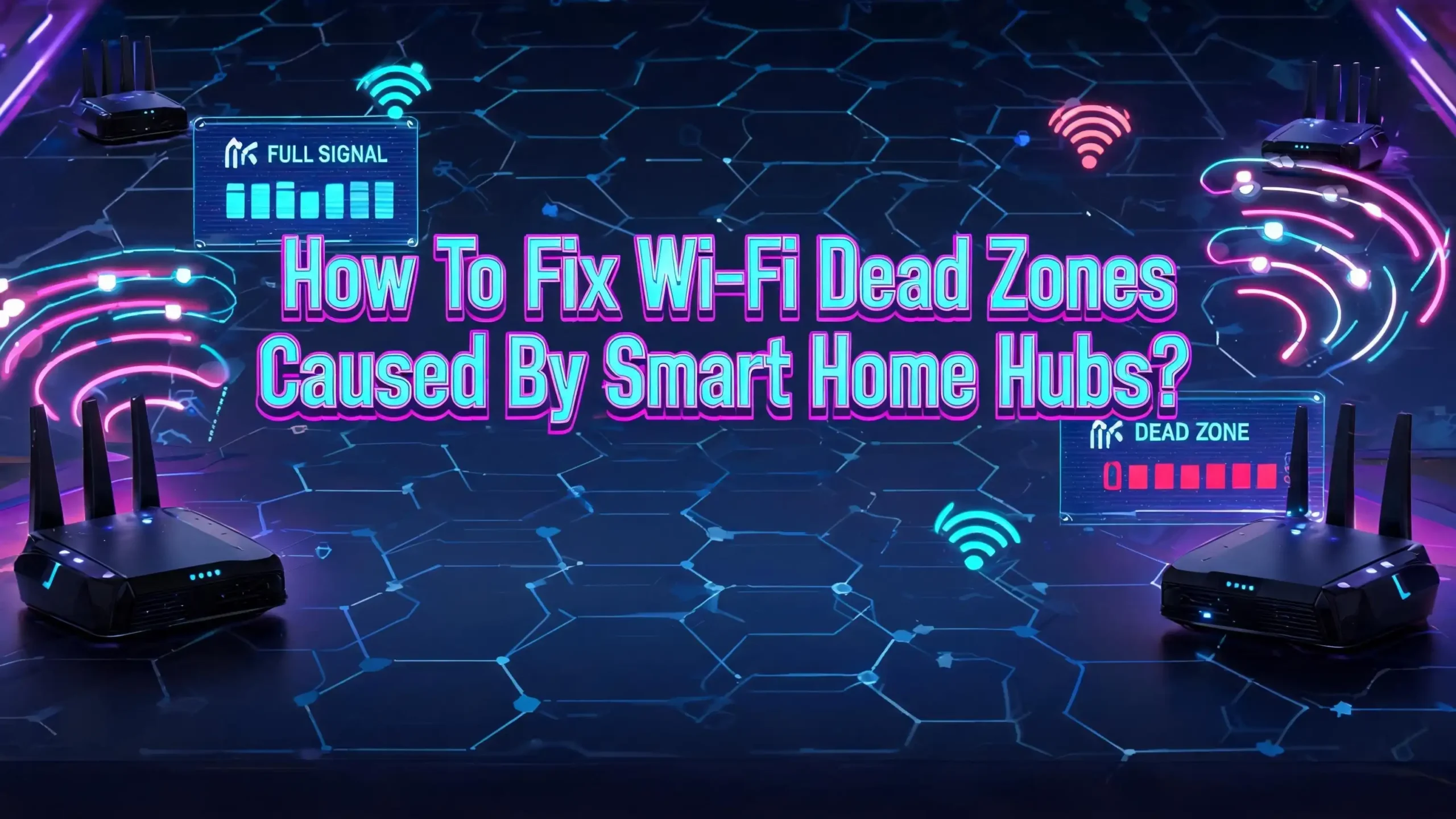
How To Fix Wi-Fi Dead Zones Caused By Smart Home Hubs?
You just added a smart thermostat, a few smart bulbs, and a video doorbell. Your home feels futuristic. But then your laptop starts buffering. Your video calls drop. Certain rooms lose Wi-Fi completely. Sound familiar?
Smart home hubs and devices are a hidden cause of Wi-Fi dead zones. Most people blame thick walls or old routers, but the real problem often sits right on your shelf. Smart home hubs use radio frequencies that overlap with your Wi-Fi signal.
They create interference and congestion that choke your wireless network. The result is frustrating dead zones where your internet slows to a crawl or disappears entirely.
The good news? You can fix this. This guide walks you through every practical solution, from quick settings changes to smarter hardware placement. Whether you have three smart devices or thirty, these steps will help you reclaim full Wi-Fi coverage in every corner of your home.
Key Takeaways
- Smart home hubs cause Wi-Fi dead zones because most smart devices operate on the crowded 2.4 GHz band, the same frequency your Wi-Fi router uses. This creates signal interference and network congestion that leads to weak spots throughout your home.
- Channel conflicts between Zigbee and Wi-Fi are a major culprit. Zigbee, one of the most popular smart home protocols, shares the 2.4 GHz spectrum with Wi-Fi. Incorrect channel settings can make both networks perform poorly.
- Relocating your smart home hub and router can produce immediate improvements. Physical distance between these devices reduces direct signal interference and opens up coverage in previously dead areas.
- Switching to a mesh Wi-Fi system with a wired backhaul eliminates most dead zone problems. Mesh systems spread coverage evenly, and a wired connection between nodes keeps your Wi-Fi radios free for devices.
- Creating a separate network (VLAN or dedicated SSID) for smart home devices prevents IoT traffic from slowing down your main network. This keeps your laptops, phones, and streaming devices running at full speed.
- Moving smart devices to protocols like Zigbee, Z-Wave, or Thread takes them off your Wi-Fi entirely. This frees up bandwidth and reduces the interference that creates dead zones in the first place.
Why Smart Home Hubs Create Wi-Fi Dead Zones
Smart home hubs act as the central control point for your connected devices. They communicate with smart bulbs, sensors, locks, and cameras using wireless signals. The problem is that most of these signals operate on the 2.4 GHz frequency band, and so does your Wi-Fi router.
When two devices broadcast on the same frequency, they compete for airtime. Your router tries to send data to your laptop. At the same time, your smart hub sends commands to your light bulbs. These signals collide, causing packet loss and slowdowns. The effect gets worse with every smart device you add.
Smart home devices also send frequent broadcast packets, even when idle. A door sensor checks in regularly. A smart plug confirms its status. A camera streams data. Each of these tiny transmissions eats into available airtime on your Wi-Fi network. Over time, this steady chatter creates congestion that mimics the symptoms of a dead zone.
The 2.4 GHz Problem: Too Many Devices on One Band
The 2.4 GHz band has only three non-overlapping channels: 1, 6, and 11. Every Wi-Fi router and smart home device in your home shares this limited space. Your neighbors’ routers also broadcast on these same channels, adding even more competition.
Smart home manufacturers chose 2.4 GHz for a good reason. It offers longer range than 5 GHz or 6 GHz, which makes it easier to reach devices in distant rooms. The radio components are also cheaper to produce. But this convenience comes at a cost. The band is now extremely crowded.
Your laptop and phone can switch to 5 GHz or 6 GHz, but most smart home devices cannot. They are locked to 2.4 GHz. This means your smart thermostat, smart plugs, and Wi-Fi cameras all fight for the same narrow slice of radio spectrum. The more devices you add, the worse the congestion becomes. Areas far from your router suffer the most because the signal is already weak before interference compounds the issue.
How Zigbee and Wi-Fi Interfere With Each Other
Zigbee is a popular protocol used by many smart home hubs. Devices from brands like Philips Hue, Samsung SmartThings, and Aqara rely on Zigbee for communication. Zigbee also operates on the 2.4 GHz band, right alongside Wi-Fi.
The overlap is not theoretical. Zigbee channels and Wi-Fi channels share actual radio frequencies. For example, Zigbee channel 11 sits very close to Wi-Fi channel 1. If both your Wi-Fi router and your Zigbee hub use overlapping frequencies, they will interfere with each other. The Zigbee network usually suffers first because it transmits at much lower power than Wi-Fi.
But Wi-Fi does not escape unharmed. When a Zigbee device transmits, it can cause brief disruptions that force your Wi-Fi devices to wait and retransmit data. These micro delays add up quickly in a home with dozens of smart devices. The result is slower speeds and dead zones, especially in rooms where both your router and hub signals are already weak.
Step 1: Map Your Wi-Fi Dead Zones
Before you fix anything, you need to know exactly where the dead zones are. Guessing wastes time. Use a Wi-Fi analyzer tool to create a signal map of your home.
Free apps like NetSpot, Wi-Fi Analyzer (Android), or Wi-Fi Deadspot (iOS) let you walk through each room and record signal strength. You will see a clear picture of where the signal drops below usable levels. Pay close attention to rooms near your smart home hub, as these often show unexpected weakness.
Write down the location of every smart device, your router, and your smart home hub. Note the channel each device uses. Look for patterns. Are the dead zones clustered near your Zigbee hub? Do they line up with rooms full of smart devices? This information tells you whether interference, distance, or physical barriers cause your dead zones. Most Wi-Fi analyzer tools also show neighboring networks, so you can identify external sources of channel congestion.
Step 2: Separate Your Smart Home Hub From Your Router
One of the simplest fixes is physical separation. Place your smart home hub at least 3 to 5 feet away from your Wi-Fi router. When these two devices sit right next to each other, their signals directly interfere.
The hub’s radio transmissions can overwhelm the router’s receiver at close range. This is especially true for hubs that contain multiple radios, such as devices with both Zigbee and Wi-Fi built in. Moving them apart reduces direct signal interference immediately.
Keep both devices in open, elevated positions. Avoid placing them inside cabinets, behind TVs, or near large metal objects. Metal and thick walls block and reflect wireless signals. A hub tucked behind a television creates a shadow zone where neither Zigbee nor Wi-Fi signals can reach effectively. Elevating both devices to shelf height gives the signals a better path through your home.
Step 3: Optimize Your Wi-Fi Channel Settings
Changing your Wi-Fi channel can eliminate interference with your smart home hub. Log into your router’s admin panel and manually set the 2.4 GHz channel. Do not rely on auto channel selection, as it often picks a poor channel.
If your Zigbee hub uses channel 11 (the most common default), set your Wi-Fi router to channel 6 or channel 11 (Wi-Fi channel 11, not Zigbee channel 11, as they occupy different frequencies). This places your Wi-Fi signal far enough from the Zigbee frequency to avoid overlap.
The ideal pairings are:
If your Zigbee network runs on channel 11, use Wi-Fi channel 6 or 11. If you can change your Zigbee channel to 25 or 26, you gain the most flexibility. Zigbee channels 15, 20, 25, and 26 sit outside the most common Wi-Fi frequencies. Setting your Zigbee hub to channel 26 and your Wi-Fi to channel 1 or 6 creates maximum separation. Also, set your 2.4 GHz channel width to 20 MHz instead of 40 MHz. The narrower channel reduces the frequency range your router occupies and leaves more room for other devices.
Step 4: Move High Bandwidth Devices to 5 GHz or 6 GHz
Your laptop, phone, tablet, and streaming devices do not need to use 2.4 GHz. Move every capable device to the 5 GHz or 6 GHz band. This frees up the crowded 2.4 GHz band for your smart home devices.
Most modern routers support dual band or tri band operation. Log into your router settings and check if band steering is enabled. Band steering automatically pushes compatible devices to higher bands. However, band steering does not always work well. Some devices bounce between bands unpredictably.
A better approach is to create separate SSIDs for each band. Name your 5 GHz network something distinct, like “HomeNetwork_5G.” Connect all your laptops, phones, and streaming devices to this network. Let your smart home devices use the 2.4 GHz SSID. This manual separation ensures that your fast devices never compete with your smart plugs and sensors for airtime.
Step 5: Create a Dedicated IoT Network
Setting up a separate network for your smart home devices is one of the most effective solutions. This isolates their traffic from your main network, so a chatty smart camera never slows down your video call.
Many modern routers support guest networks or VLANs (Virtual Local Area Networks). Create a dedicated SSID on the 2.4 GHz band for all your IoT devices. Name it something like “SmartHome_IoT” and connect every smart device to it.
VLANs take this a step further. They create a true network boundary between your smart devices and your main devices. Your smart bulbs can still reach the internet, but their broadcast traffic stays contained. This reduces the noise on your primary network and can instantly fix dead zone symptoms caused by congestion rather than signal weakness. Most prosumer routers and mesh systems now support VLAN configuration through their apps or web interfaces.
Step 6: Upgrade to a Mesh Wi-Fi System
A single router struggles to cover a large home, especially one filled with smart devices. A mesh Wi-Fi system uses multiple nodes placed throughout your home to create blanket coverage. Each node communicates with the others to form a single, seamless network.
Mesh systems solve dead zones by placing a signal source in every area that needs coverage. Instead of relying on one router to reach every corner, you position nodes in hallways, upstairs rooms, and near clusters of smart devices.
The best mesh systems use a wired backhaul. This means the nodes connect to each other through Ethernet cables rather than wirelessly. A wired backhaul keeps all the Wi-Fi radios free for your devices, instead of wasting half the capacity on relaying data between nodes. If running Ethernet cables is not possible, look for tri band mesh systems. These dedicate one radio band exclusively to communication between nodes, leaving the other bands open for your devices.
Step 7: Switch Smart Devices to Zigbee, Z-Wave, or Thread
The most permanent solution is to take your smart devices off Wi-Fi entirely. Protocols like Zigbee, Z-Wave, and Thread were designed specifically for smart home communication. They use their own radio frequencies and do not compete with your Wi-Fi.
Z-Wave operates on the 908 MHz band in the US (868 MHz in Europe), which is completely separate from Wi-Fi. Z-Wave devices will never interfere with your router. Zigbee operates on 2.4 GHz but at very low power, and with proper channel planning, it coexists well. Thread is a newer protocol that also uses low power and is part of the Matter smart home standard.
When your smart devices stop using Wi-Fi, they free up bandwidth and airtime. Your router has fewer connections to manage. The 2.4 GHz band becomes less congested. Dead zones caused by device overload often disappear completely. You will need a compatible hub for each protocol, but the long term network performance gains make this worthwhile.
Step 8: Use Wi-Fi Access Points for Targeted Coverage
Sometimes a dead zone exists in one specific area. Adding a dedicated Wi-Fi access point in that location can solve the problem without replacing your entire setup.
An access point connects to your router through an Ethernet cable and broadcasts its own Wi-Fi signal. Unlike a range extender, which rebroadcasts a weaker copy of your signal, an access point delivers full strength coverage. Place it in or near the dead zone for immediate results.
Access points work especially well in homes where smart devices cluster in one area. For example, a garage full of smart sensors or a basement with a smart entertainment system may overwhelm the main router’s signal. A dedicated access point in that area handles the local traffic and prevents it from creating congestion elsewhere. You can even set the access point to broadcast only on 2.4 GHz for your IoT devices, keeping your main router focused on high bandwidth tasks.
Step 9: Update Firmware on Your Router and Smart Hub
Outdated firmware causes performance problems that look like dead zones. Check for firmware updates on your router, smart home hub, and mesh nodes regularly.
Router manufacturers release firmware updates that fix bugs, improve channel selection algorithms, and optimize how the device handles multiple connections. Smart home hub manufacturers do the same. A single firmware update can improve signal handling and reduce interference.
Log into your router’s admin panel and look for a firmware update option. Many modern routers update automatically, but some require a manual check. Do the same for your smart home hub through its companion app. After updating, restart both devices. A fresh restart clears memory leaks and resets connections, which often improves performance immediately.
Step 10: Reduce the Number of Wi-Fi Connected Smart Devices
Every Wi-Fi connected smart device adds load to your network. If you have dozens of smart plugs, bulbs, and sensors all on Wi-Fi, consider reducing that number.
Start by auditing your smart devices. Do you really need that Wi-Fi connected smart plug in the guest room? Is the Wi-Fi camera in the hallway still useful? Remove or unplug devices you no longer use. Each device you remove reduces broadcast traffic and frees up airtime.
Replace Wi-Fi devices with Zigbee or Z-Wave alternatives where possible. A Zigbee smart bulb does the same job as a Wi-Fi smart bulb but does not touch your Wi-Fi network. Prioritize replacing the devices that transmit the most data, such as cameras and video doorbells, or move them to a wired Ethernet connection. Even removing five Wi-Fi devices can make a noticeable difference in network performance and dead zone coverage.
Step 11: Check for Physical Barriers and Placement Issues
Wi-Fi signals weaken as they pass through walls, floors, and furniture. Smart home hubs placed behind obstacles create shadow zones that contribute to dead spots.
Concrete walls, brick, and metal studs absorb Wi-Fi signals aggressively. A hub placed in a basement behind a concrete wall will struggle to reach devices upstairs. Even large appliances like refrigerators and filing cabinets can block signals.
Walk through your home and identify what sits between your router, hub, and the dead zones. Can you move the hub to a more central, open location? Can you reposition the router to reduce the number of walls between it and your most used rooms? Small adjustments in placement often produce surprisingly large improvements. Raise both devices above floor level, ideally to shelf or table height, so signals travel over furniture rather than through it.
Step 12: Monitor and Maintain Your Network Over Time
Fixing Wi-Fi dead zones is not a one time task. Your network changes every time you add a new device, rearrange furniture, or a neighbor installs a new router.
Schedule a quarterly check of your network performance. Use a Wi-Fi analyzer app to scan for new sources of interference. Check that your channel settings are still optimal. Neighbors may change their router channels, creating new conflicts you did not have before.
Keep a log of your network layout, including device placements, channel assignments, and VLAN configurations. This makes troubleshooting faster when problems return. Set up alerts in your router app if it supports them. Many modern routers can notify you when a device drops offline or when a channel becomes congested. Proactive monitoring catches problems before they turn into full dead zones.
Frequently Asked Questions
Can a smart home hub really cause Wi-Fi dead zones?
Yes. Smart home hubs transmit on radio frequencies that overlap with Wi-Fi, especially on the 2.4 GHz band. When a hub and router operate on conflicting channels, their signals interfere with each other. This interference weakens Wi-Fi coverage and creates dead zones in areas where the signal was already marginal. Adding more smart devices increases the problem because each device adds traffic and noise to the same crowded frequency.
What is the best Wi-Fi channel to use with a Zigbee smart home hub?
The best combination depends on your Zigbee channel. If your Zigbee hub uses channel 11 (the default for many devices), set your Wi-Fi router to channel 6 or 11. For maximum separation, change your Zigbee hub to channel 25 or 26 and set your Wi-Fi to channel 1. This ensures the two signals do not overlap in frequency, eliminating the primary source of interference between them.
Will a mesh Wi-Fi system fix dead zones caused by smart home devices?
A mesh system helps significantly because it distributes Wi-Fi coverage across multiple nodes. However, a mesh system alone does not solve interference problems. You still need to optimize channel settings and separate your smart device traffic from your main network. The best results come from combining a mesh system with a wired backhaul, proper channel planning, and a dedicated IoT network.
Should I put all my smart devices on a separate Wi-Fi network?
Yes, this is one of the most effective steps you can take. A separate SSID or VLAN for your IoT devices isolates their traffic from your main network. Smart devices generate constant low level chatter that consumes airtime. By keeping this traffic on its own network, your laptops, phones, and streaming devices get full access to available bandwidth without competing with your smart bulbs and sensors.
Is Z-Wave better than Zigbee for avoiding Wi-Fi interference?
Z-Wave operates on a completely different frequency band (908 MHz in the US), so it never interferes with Wi-Fi. Zigbee uses the 2.4 GHz band and can cause interference if channels are not properly configured. If eliminating Wi-Fi interference is your top priority, Z-Wave is the safer choice. However, Zigbee offers a wider selection of devices and works well with proper channel planning. Thread is another strong option that avoids most Wi-Fi conflicts.
How often should I check my Wi-Fi network for dead zones?
Check your network performance every three to four months or whenever you add new smart devices. Environmental changes also affect your network. A new piece of furniture, a repositioned appliance, or a neighbor’s new router can all shift interference patterns. Regular scans with a Wi-Fi analyzer app help you catch and fix new dead zones before they become persistent problems.

I’m a tech enthusiast who loves breaking down gadgets, apps, and tools into simple, honest reviews. At GenResizeHub, I help you make smarter buying decisions through in-depth comparisons and easy-to-follow guides. Got a question? Drop me a mail!