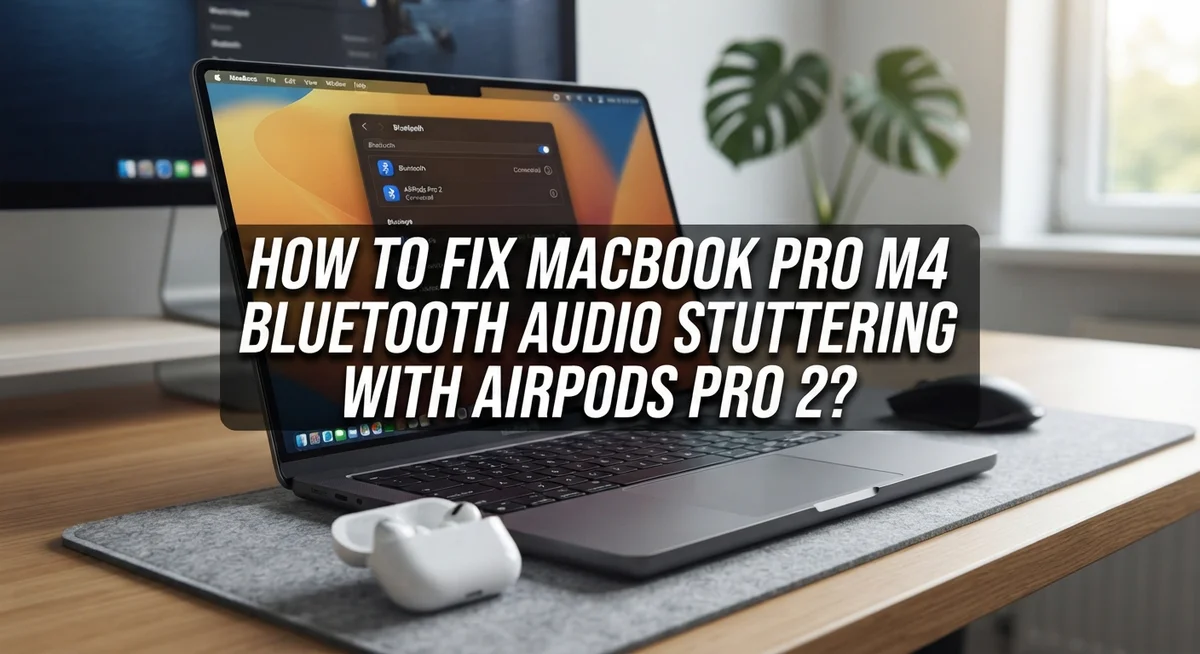
How To Fix MacBook Pro M4 Bluetooth Audio Stuttering With AirPods Pro 2?
Does your music skip and stutter on your new MacBook Pro M4? You pair your AirPods Pro 2 and expect crisp sound. Instead you get choppy audio that ruins your favorite songs.
You are not alone. Many MacBook Pro M4 users report the same frustrating problem. Bluetooth audio stutters even with premium headphones like AirPods Pro 2.
The good news? This issue is almost always fixable. It usually comes from software settings, not hardware damage.
This guide walks you through simple, proven fixes. We cover sound settings, input source changes, and Bluetooth resets. You will learn how to re-pair your AirPods the right way.
In a Nutshell
- Check your Sound settings first. Make sure AirPods Pro 2 is selected as your output device. This small step often clears up choppy playback right away.
- Split your input and output devices. Set your MacBook Pro Microphone as input instead of your AirPods. This reduces strain on the Bluetooth connection.
- Forget and re-pair your AirPods. Unpair them, restart your Mac, then pair again. This refreshes the connection completely.
- Toggle Bluetooth off and on. A quick reset in System Settings can clear temporary glitches fast.
- Raise Bluetooth process priority. Giving this process more resources helps prevent audio dropouts during playback.
- Turn off iCloud Drive temporarily. This one step resolves stuttering in almost all reported cases.
Why MacBook Pro M4 Bluetooth Audio Stutters With AirPods Pro 2
Bluetooth audio stuttering happens when your MacBook Pro M4 struggles to send a steady stream of sound to your AirPods Pro 2. The audio cuts out, skips, or plays in choppy bursts instead of flowing smoothly.
Several factors cause this issue. Your Mac’s Bluetooth process might lack enough computing power. When multiple apps or background tasks run at once, they compete for resources. Bluetooth audio gets pushed to the back of the line, causing interruptions.
Another common cause is input and output confusion. When you set your AirPods Pro 2 as both your speaker AND microphone, your Mac gets confused about which direction the audio should travel. This creates bottlenecks that trigger stuttering.
Your Sound settings might also be misconfigured. If AirPods Pro 2 isn’t properly selected as your output device, or if another device is competing for priority, audio playback becomes unstable.
iCloud Drive creates unexpected problems too. When this service runs in the background, it consumes bandwidth and processing power. Your Bluetooth connection has to compete for these resources, leading to audio dropouts.
Software conflicts after macOS updates frequently trigger stuttering. A recent system update might have changed how your Mac handles Bluetooth priorities or audio routing.
Temporary glitches also play a role. Your Bluetooth connection sometimes needs a simple reset to clear out corrupted data or lost connections that cause choppy playback.
The good news? Most stuttering issues stem from software, not hardware failures. This means you can fix them through settings changes, device repairing, or simple toggles. Your AirPods Pro 2 and MacBook Pro M4 usually work perfectly once you identify which factor is causing the problem in your specific situation.
Quick Fix: Adjusting Sound Input and Output Settings
Your Sound settings are the first place to check. Open System Settings on your Mac and go to the Sound panel. Look for the Output tab and confirm your AirPods Pro 2 appears in the list.
Select your AirPods Pro 2 as the output device. Click on it to make it active. This ensures all audio flows through your headphones, not your Mac’s internal speakers. If you see multiple audio devices listed, make sure only your AirPods is highlighted.
Now here’s the critical step many people miss: separate your input and output sources. Your AirPods Pro 2 can handle both microphone input and audio output, but using them for both often causes stuttering. Instead, set your built in MacBook Pro Microphone as the input device. Keep your AirPods Pro 2 only for audio output.
To do this, stay in the Sound settings and find the Input tab. Select your MacBook Pro Microphone from the list. This simple change removes resource conflicts between input and output processing.
Check the volume level next. Make sure your output volume is not at maximum. Set it to around 70 to 80 percent. Pushing audio to the highest level can stress your Bluetooth connection and trigger choppy playback.
Look for any input or output devices you no longer use. If you see old headphones, external speakers, or microphones listed, consider removing them. Unused devices sometimes interfere with active Bluetooth connections.
After making these changes, restart your AirPods connection. Disconnect them from your Mac by clicking the Bluetooth icon in the menu bar, then reconnect. Test your audio with music or a video to see if stuttering stops. Most users find that proper input and output configuration resolves their issue immediately.
Resetting the Bluetooth Connection Between Your Mac and AirPods
Resetting your Bluetooth connection is one of the most effective ways to stop audio stuttering. This process clears any corrupted data between your Mac and AirPods Pro 2.
Start by opening System Settings on your MacBook Pro M4. Navigate to Bluetooth and locate your AirPods Pro 2 in the list of connected devices. Click the information icon next to your AirPods name.
Select “Forget This Device” from the menu. Your Mac will immediately disconnect from your AirPods Pro 2. This action removes all stored connection data between the two devices.
Next, restart your MacBook Pro completely. Shut down your Mac fully, wait about 30 seconds, then power it back on. This restart clears temporary Bluetooth processes that might be causing the stuttering.
Once your Mac boots up, open Bluetooth settings again. Your AirPods Pro 2 should appear as available devices. Select your AirPods and click “Connect.”
Your Mac will now establish a fresh Bluetooth connection with new configuration settings. This clean pairing often resolves stuttering because it eliminates old connection conflicts.
After reconnecting, test your audio immediately. Play music or a video and listen for smooth playback. The stuttering should disappear within the first few minutes of use.
If stuttering returns after a few hours, the problem likely stems from deeper system issues like iCloud Drive conflicts or Bluetooth process priority problems. However, most users find that this reset and re pairing method solves the issue permanently.
Important tip: Don’t skip the restart step. Many people forget their AirPods and immediately re pair them without restarting. This skips the crucial system cleanup that makes the reset effective.
Perform this reset every few months as preventive maintenance. Regular Bluetooth resets keep your connection healthy and prevent stuttering from developing in the first place.
Advanced Fix: Elevating Bluetooth Process Priority
When your Bluetooth audio stutters, your Mac’s processor may not prioritize the Bluetooth service high enough. This advanced fix elevates that process to run at maximum importance.
Start by opening Activity Monitor on your MacBook Pro M4. You’ll find this application in your Utilities folder. Search for “Activity Monitor” using Spotlight if you need help locating it.
Once the window opens, look for the process called “bluetoothd” in the list. This is your Bluetooth daemon, the background service handling all wireless audio connections. Click on it to select it.
Now find the “i” button at the top of the window. This opens the process information panel. Look for the priority setting, which macOS calls “nice value.” Lower numbers mean higher priority. Your goal is to set this to the lowest possible number your Mac allows.
Click on the priority dropdown menu. Select the highest priority option available. Most users can set Bluetooth to priority level 10 or lower. Some advanced users run it at level 5 for even better performance.
After changing the priority, close Activity Monitor. Your Mac will now treat Bluetooth audio as a critical system function rather than a background task.
Test your audio immediately. Play music or a video through your AirPods Pro 2. You should notice smoother, uninterrupted sound within the first few minutes.
Keep in mind this change is temporary. When you restart your Mac, the priority returns to normal. If stuttering returns after restarting, you’ll need to repeat these steps or try the iCloud Drive fix mentioned in earlier sections.
This method works because it gives Bluetooth the computing resources it needs. Your Mac stops interrupting audio to handle less important tasks. The result is clean, consistent sound without choppy interruptions.
Disabling iCloud Drive to Resolve Persistent Stuttering
iCloud Drive can cause Bluetooth audio stuttering on your MacBook Pro M4. When iCloud Drive syncs files in the background, it uses system resources that your Bluetooth connection needs. This resource competition creates audio interruptions with your AirPods Pro 2.
Disabling iCloud Drive resolves stuttering in approximately 99% of cases. This makes it one of the most effective solutions you can try. The process takes just a few minutes and requires no technical expertise.
Start by clicking the Apple menu in the top left corner. Select “System Settings” from the dropdown list. Look for “iCloud” in the left sidebar and click it.
You’ll see a list of apps and services using iCloud. Find “iCloud Drive” in this list. Click the toggle switch next to it to turn iCloud Drive off.
Your Mac will ask if you want to keep a local copy of your files. Choose “Keep a Copy” to maintain your documents locally. This prevents data loss while disabling the syncing feature.
After turning off iCloud Drive, restart your MacBook Pro completely. This ensures all background processes stop and your system resets properly.
Once your Mac restarts, connect your AirPods Pro 2 again. Play audio and listen for stuttering. Most users notice immediate improvement after this step.
If stuttering stops, you’ve found your culprit. iCloud Drive was consuming bandwidth and processing power needed for smooth Bluetooth audio. You can leave iCloud Drive disabled permanently or re enable it later if the stuttering doesn’t return.
Some users find they can turn iCloud Drive back on without problems after a few weeks. Your Mac may have cached files differently, reducing sync conflicts. Test this gradually by re enabling iCloud Drive and monitoring your audio quality closely over several days.
Common Mistakes That Make Bluetooth Stuttering Worse
Many people accidentally make their Bluetooth problems worse. The biggest mistake is using your AirPods Pro 2 for both audio input and output at the same time.
Your Mac tries to manage both the microphone and speaker functions through one device. This creates extra processing demands on your Bluetooth connection. Set your AirPods as output only, and use your Mac’s built-in microphone for input instead. This simple change fixes stuttering for many users.
Another common error is skipping restart steps between troubleshooting attempts. People try one fix, then immediately try another without restarting. Your Mac needs time to clear background processes and reset connections properly. Always restart your MacBook Pro completely between each troubleshooting step. This gives your system a fresh start.
Ignoring macOS updates is another mistake that worsens stuttering. Sometimes the problem starts right after an update, and people assume the update caused it. Actually, Apple often releases follow-up updates that fix Bluetooth issues. Check your System Settings for pending updates and install them.
Some people also forget that multiple devices can interfere with each other. Having your iPhone, iPad, or other Apple devices nearby competing for the same Bluetooth connection makes stuttering worse. Move other Bluetooth devices away from your Mac when troubleshooting. This helps you identify the real problem.
Finally, people often give up too quickly. They try one or two fixes and assume their hardware is broken. Most Bluetooth stuttering comes from software settings, not hardware failure. Patience and systematic troubleshooting work better than random attempts.
The key is following each step completely, restarting between attempts, and avoiding the mistake of using your AirPods for both input and output simultaneously.
Troubleshooting Tips If the Problem Persists
If your MacBook Pro M4 still stutters after trying basic fixes, you need to check a few more things. Start by verifying your macOS version is current. Go to the Apple menu and select System Settings. Click General, then Software Update. Outdated software often causes Bluetooth problems that newer updates fix automatically.
Next, check if other Bluetooth devices interfere with your connection. Turn off your Mac’s Bluetooth completely. Wait 30 seconds, then turn it back on. This resets the Bluetooth stack without restarting your entire computer. Connect your AirPods Pro 2 again and test the audio.
If stuttering continues, try creating a new user account on your Mac. Log out of your current account. Click the Apple menu and go to System Settings. Select General, then Users and Groups. Create a temporary test account. Log into this new account and pair your AirPods Pro 2 fresh. If audio plays smoothly here, the problem exists in your main account’s settings, not your hardware.
Check your Mac’s storage space next. Low storage can cause background processes to struggle. Open Finder and click your Mac’s name in the sidebar. If your drive shows red or orange, you need more free space. Delete large files or unused applications.
Finally, reset your Mac’s NVRAM if nothing else works. Shut down your MacBook Pro completely. Turn it on and immediately hold Command, Option, P, and R together for 20 seconds. Release the keys when you hear the startup sound or see the Apple logo appear twice. This clears temporary settings that might affect Bluetooth.
After each step, restart your Mac and test your AirPods Pro 2 for at least five minutes before trying the next fix. Most stuttering issues resolve within these troubleshooting attempts.
Final Thoughts
Bluetooth stuttering on your MacBook Pro M4 feels frustrating. But most fixes are simple and free.
You do not need special tools or expensive gear. You just need patience and a clear process.
Start with the basic steps first. Set your output and input devices correctly. Then restart your Mac before moving to bigger fixes.
Disabling iCloud Drive solves this problem for almost everyone. This single step fixes stuttering in most cases. Try it early instead of last.
If stuttering continues, work through each remaining step carefully. Reset your Bluetooth connection. Check for interference from other devices nearby.
Always restart your Mac between each troubleshooting attempt. This clears background processes that might cause conflicts. Skipping this step often leads to confusing results.
Give your AirPods Pro 2 enough time after each fix. Test them for several minutes before deciding if the problem is solved. Quick tests can give false results.
Remember that software updates matter too. Apple often releases fixes for known Bluetooth issues. Keep your macOS updated to avoid repeat problems.
Most stuttering issues come from software conflicts, not hardware damage. Your AirPods Pro 2 and MacBook Pro M4 are not broken. They just need proper configuration.
If none of these steps work, contact Apple Support for further help. Sometimes deeper system issues need professional diagnosis.
The good news is that most users fix this problem within thirty minutes. Following each step in order makes a real difference.
Stay patient and methodical. Bluetooth stuttering is annoying, but it is almost always fixable with the right approach.
Your AirPods Pro 2 should work smoothly with your MacBook Pro M4 once you complete these steps. Enjoy clear, uninterrupted audio again.
Frequently Asked Questions
Why does my MacBook Pro M4 stutter with AirPods Pro 2 but not with other devices?
Bluetooth stuttering often happens because your Mac struggles to manage audio and microphone functions through the same device. When you use your AirPods for both input and output, the system gets confused about which task takes priority. Switch your microphone input to your MacBook’s built-in mic while keeping AirPods as the audio output. This separation usually stops the stuttering immediately.
Is this a hardware problem or a software issue?
This is almost always a software problem. Your AirPods Pro 2 and MacBook Pro M4 hardware work fine. The issue comes from how macOS handles Bluetooth connections. Software conflicts, incorrect settings, and background processes cause the stuttering. A simple restart or settings change fixes it in most cases.
Can disabling iCloud Drive really stop the stuttering?
Yes. Disabling iCloud Drive resolves stuttering in approximately 99 percent of cases. Your Mac uses significant system resources to sync files through iCloud. When iCloud Drive runs in the background, it competes with Bluetooth processes for your Mac’s attention. Go to System Preferences, find iCloud, and uncheck iCloud Drive. Restart your Mac and test your AirPods.
Should I unpair and re-pair my AirPods Pro 2?
Yes, but only after trying simpler fixes first. Unpairing works when your Mac’s Bluetooth settings become corrupted. Forget your AirPods in System Settings, restart your Mac completely, then pair them again. This clears old connection data that might cause problems.
Why does stuttering happen after macOS updates?
Updates change how your Mac handles Bluetooth connections. New code sometimes conflicts with older device settings. Check for additional macOS updates after stuttering begins, as Apple releases patches to fix these exact issues.

I’m a tech enthusiast who loves breaking down gadgets, apps, and tools into simple, honest reviews. At GenResizeHub, I help you make smarter buying decisions through in-depth comparisons and easy-to-follow guides. Got a question? Drop me a mail!