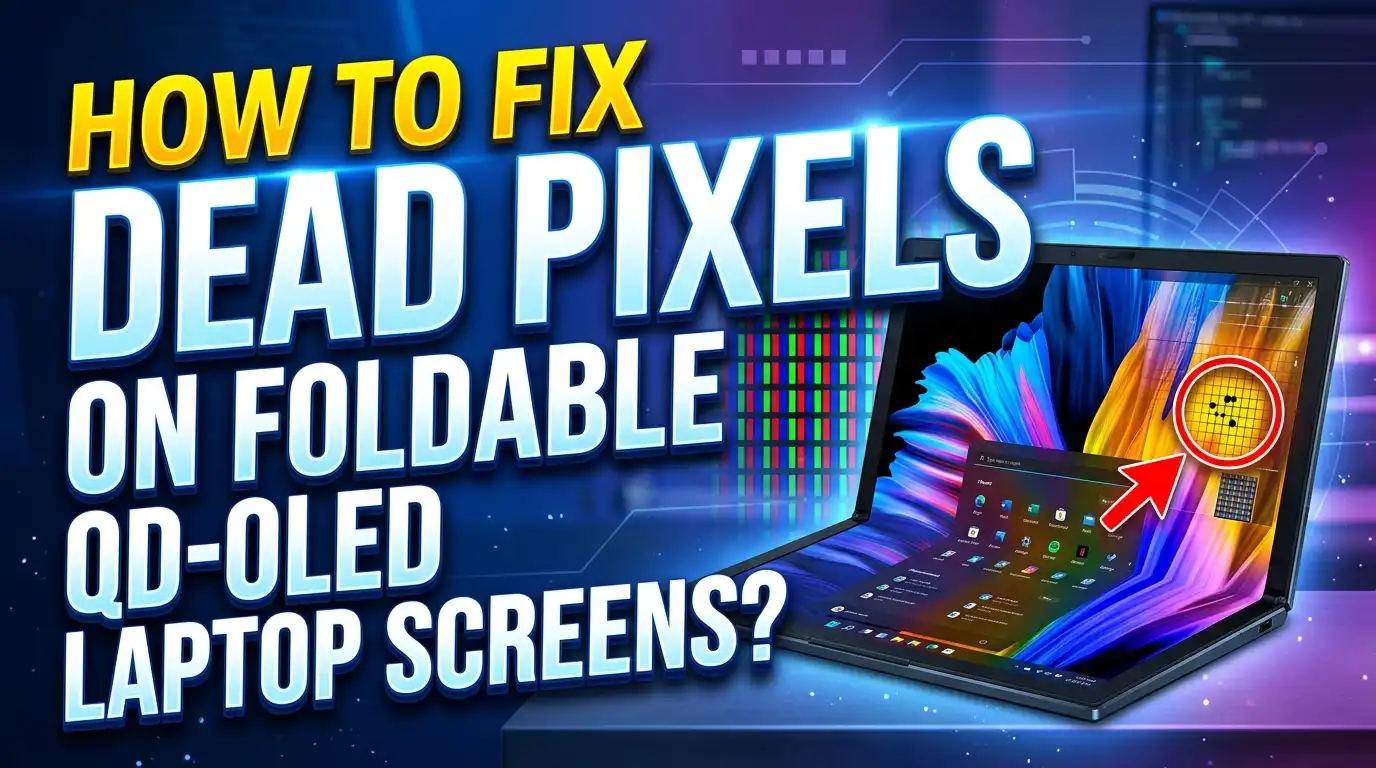
How To Fix Dead Pixels On Foldable QD OLED Laptop Screens?
Foldable QD OLED laptop screens deliver some of the most stunning visuals you will ever see on a portable device. The colors pop, the blacks are true, and the contrast ratio is off the charts.
But then you notice it: a tiny, stubborn dot that refuses to change. A dead pixel. It sits there like a speck of dust you cannot wipe away, and it can drive you absolutely crazy.
The good news is that you are not stuck with that pixel forever in most cases. Many pixel defects on foldable QD OLED screens are fixable at home, and some solutions take less than ten minutes.
This guide walks you through every practical method to identify, fix, and prevent dead pixels on your foldable QD OLED laptop screen.
Key Takeaways
- Stuck pixels and dead pixels are different problems. A stuck pixel shows a constant color like red, green, or blue, while a dead pixel stays permanently black. Stuck pixels are much easier to fix than dead pixels, so proper identification is the first critical step.
- Free software tools like JScreenFix can fix many stuck pixels in under 30 minutes. These tools flash rapid color patterns over the affected area to shock the pixel back into normal function. They are safe for QD OLED panels and require no installation.
- The pressure method should be your last resort. Foldable QD OLED screens are extremely delicate, especially near the fold. Applying even slight pressure in the wrong spot can cause permanent damage to the panel.
- Built in pixel refresh cycles on QD OLED laptops can resolve early stage pixel issues. Most QD OLED laptops include a panel refresh or pixel cleaning tool in their display settings. Running this tool regularly helps maintain pixel health.
- Manufacturer warranty policies vary, but most cover pixel defects. Check your laptop brand’s dead pixel policy before attempting risky fixes. Some brands offer zero bright pixel guarantees on premium OLED models.
- Prevention is more effective than repair. Avoiding extreme temperatures, reducing static image display time, and handling the fold mechanism gently will significantly lower your risk of developing pixel defects.
Understanding QD OLED Technology in Foldable Laptops
QD OLED stands for Quantum Dot Organic Light Emitting Diode. This display technology combines quantum dot color conversion with self emitting OLED pixels. Each pixel produces its own light, which means the screen does not need a backlight. This results in perfect blacks, wide viewing angles, and vivid color accuracy.
In a foldable laptop, the QD OLED panel sits on a flexible substrate that allows the screen to bend along a hinge. Samsung Display pioneered mass production of these flexible OLED panels for laptops, and several manufacturers now use them in premium devices. The flexible nature of the panel introduces unique challenges that traditional flat screens do not face.
The fold area is the most vulnerable part of the screen. Repeated bending creates mechanical stress on the pixel layer. Over time, this stress can cause individual pixels to malfunction. The organic compounds in each pixel can degrade faster near the fold crease. This makes foldable QD OLED screens more prone to pixel issues than their flat counterparts.
Understanding this technology helps you approach pixel repair with the right expectations. QD OLED pixels are self emitting, so a dead pixel means the organic material or the thin film transistor driving that pixel has failed. A stuck pixel means the transistor is sending an incorrect signal. Both problems have different fix rates, and knowing the difference saves you time and effort.
How To Tell If Your Pixel Is Dead or Stuck
Before you try any fix, you need to determine what kind of pixel problem you have. This step matters because stuck pixels respond well to software fixes, while truly dead pixels often require professional repair or warranty replacement.
A stuck pixel appears as a bright dot in one constant color. It might be red, green, blue, or white. The sub pixel is receiving power but is locked in an “on” position. You will see it clearly against dark backgrounds. On QD OLED panels, stuck pixels are fairly common and usually fixable.
A dead pixel appears as a black dot that never lights up. It stays dark regardless of what the screen displays. This means the pixel has lost its electrical connection or the organic material has failed. Dead pixels on QD OLED screens are much harder to fix because the damage is physical.
To test your screen, open a full screen color test tool. Websites like DeadPixelBuddy display solid backgrounds in red, green, blue, white, and black. Cycle through each color and look carefully at every part of the screen. Pay extra attention to the fold area, as this is where pixel problems most often appear on foldable laptops. Use a magnifying glass if needed to confirm whether the dot is colored (stuck) or black (dead).
Running Pixel Fixing Software on Your QD OLED Screen
Software based pixel repair is the safest and most effective first step for stuck pixels on foldable QD OLED displays. These tools work by rapidly cycling colors over the affected pixel area. The intense flashing stimulates the stuck sub pixel and can often restore normal function.
JScreenFix is the most popular free tool for this purpose. It runs directly in your web browser, so you do not need to install anything. Open the JScreenFix website, and you will see a small window with rapidly flashing pixels. Drag this window directly over the stuck pixel on your screen. Let it run for at least 20 to 30 minutes. Many users report success after a single session.
If JScreenFix does not work on the first try, run it for a longer period. Some stubborn stuck pixels need several hours of continuous color cycling. You can safely leave the tool running while you step away. The flashing patterns will not damage your QD OLED panel.
Other useful tools include PixelHealer and UndeadPixel. PixelHealer is a lightweight desktop application that lets you set the flash speed and color pattern. UndeadPixel runs similarly and allows you to target specific screen areas. For QD OLED screens specifically, the faster flash rates tend to produce better results because the pixel response time on OLED is near instant.
You can also search YouTube for “stuck pixel fixer” videos. These are long videos that display rapidly cycling colors across the full screen. Play one at full screen and maximum brightness for an hour or two. This is a low effort method that works surprisingly well for minor stuck pixel issues.
Using Your Laptop’s Built In Pixel Refresh Tool
Most QD OLED laptops come with a built in pixel refresh or panel care utility. This tool is different from third party software. It runs at the firmware level and compensates for uneven pixel aging across the display. Samsung QD OLED panels include automatic pixel refresh that triggers roughly every four hours of use.
To access the pixel refresh tool, go to your laptop’s display settings. Look for options labeled “Panel Care,” “Pixel Refresh,” or “Screen Optimization.” The exact name varies by manufacturer. Some laptops place these settings in a dedicated display management app rather than the standard system settings.
There are usually two types of pixel refresh available. The short refresh runs automatically in the background and takes a few minutes. The full panel refresh is a longer process that can take up to an hour. During a full refresh, the screen may appear off or show a progress bar. Do not interrupt this process.
If you notice a pixel behaving strangely, trigger a manual full panel refresh before trying other methods. This process recalibrates the voltage delivered to each pixel and can fix early stage pixel anomalies. It is especially useful for pixels near the fold crease that experience uneven voltage distribution due to the flexible substrate.
Run a full panel refresh once every few weeks as part of your regular screen maintenance routine. This single habit can prevent many pixel issues from developing in the first place.
The Pressure Method: Proceed With Extreme Caution
The pressure method is a classic fix for stuck pixels, but it carries significant risk on foldable QD OLED screens. This technique should only be attempted as a last resort after software methods have failed. The thin, flexible nature of a foldable OLED panel makes it especially vulnerable to pressure damage.
Here is the step by step process if you choose to proceed. First, turn off your laptop screen completely. Get a soft, lint free microfiber cloth and fold it into a small pad. Wrap the cloth around the rounded tip of a stylus or pen cap. You need a smooth, blunt point that will not scratch the screen.
Place the cloth covered tip directly over the stuck pixel. Apply very gentle, steady pressure. Do not push hard. While maintaining this light pressure, turn the screen back on. Hold the pressure for about five seconds, then slowly release. Check if the pixel has returned to normal function.
Never attempt this method near the fold crease of your foldable laptop. The screen layers at the fold are thinner and more fragile. Even light pressure at the fold can crack the internal layers, cause new dead pixels, or create a visible line of damage. Only use the pressure method on flat portions of the screen, far from the hinge area.
If the pixel does not respond after one or two gentle attempts, stop. Repeated pressure applications increase the risk of panel damage. Move on to other solutions instead.
The Heat Method for Stubborn Stuck Pixels
Heat can sometimes coax a stuck pixel back to life on QD OLED panels. The idea is that gentle warmth can help the organic material in the pixel reset its electrical state. This method works best for pixels that flicker intermittently rather than those that are completely frozen.
Dampen a clean microfiber cloth with warm water. The cloth should be warm to the touch but never hot enough to be uncomfortable on your skin. Wring out any excess water thoroughly. You do not want moisture dripping onto your laptop.
Place the warm cloth over the stuck pixel area for about 30 seconds. Remove it and check the pixel. You can repeat this process three or four times. The gentle heat encourages the organic compounds inside the QD OLED pixel to become more responsive.
Do not use a hair dryer, heat gun, or any direct heat source. QD OLED panels are sensitive to temperature extremes. Excessive heat can permanently damage the organic layer, destroy neighboring pixels, or delaminate the flexible substrate. Keep the temperature mild and the exposure brief.
This method is particularly useful on foldable screens because the fold area tends to be slightly cooler than the rest of the panel during use. Temperature differences across the display can contribute to pixel irregularities. A brief, even warming session can help balance things out and resolve minor issues.
The Power Cycle and Rest Method
Sometimes the simplest solution works best. Turning off your laptop screen and letting it rest for an extended period can resolve temporary pixel anomalies on QD OLED panels. This method costs nothing and carries zero risk of damage.
Power off your laptop completely. Do not just close the lid or put it to sleep. Shut down the entire system and leave it off for at least 24 hours. During this rest period, any residual charge in the stuck pixel’s transistor can dissipate. The organic material gets time to return to its neutral state without any electrical stimulation.
After 24 hours, power the laptop back on and immediately check the pixel with a full screen color test. Many users report that stuck pixels resolve themselves after a rest period, especially if the issue was caused by prolonged display of static content.
You can combine this method with a power cycle routine. Turn the laptop off, unplug it from all power sources, and hold the power button for 15 seconds to drain residual charge. Then leave it off overnight. This full discharge cycle can sometimes reset minor electrical glitches in the display panel.
If the pixel is still stuck after resting, try combining this method with the software approach. Run JScreenFix immediately after a long rest period. The combination of rest and software stimulation often succeeds where each method alone does not.
Fixing Dead Pixels Near the Fold Crease
The fold crease is the most delicate area of your foldable QD OLED laptop screen. Pixel problems near the fold are more common because the display layers undergo constant mechanical stress every time you open and close the device.
Dead pixels near the fold usually result from micro cracks in the thin film transistor layer or separation of the organic material from the flexible substrate. These are physical failures that software tools cannot fix. However, some pixels near the fold that appear dead are actually stuck in a low power state due to uneven voltage distribution.
Before assuming the worst, try the following steps. Run a full panel refresh from your laptop’s display settings. This can recalibrate the voltage across the fold area. Next, run JScreenFix or a similar pixel cycling tool for at least two hours over the affected area. If the pixel shows even a flicker of color during testing, there is a chance it can be recovered.
If the pixel remains completely black, it is likely a hardware failure. Do not apply pressure or heat near the fold. These methods can worsen the damage in this fragile zone. Your best option at this point is to contact the manufacturer for warranty service.
Document the dead pixel by taking a close up photograph against different color backgrounds. This evidence will support your warranty claim. Note the exact location relative to the fold, as manufacturers are often more lenient with fold area defects because they recognize the inherent vulnerability of this zone.
Checking Your Warranty and Dead Pixel Policies
Before you attempt any risky repair method, check your manufacturer’s dead pixel warranty policy. Most laptop brands have specific guidelines about how many dead pixels qualify for a free replacement or repair.
Dell, Lenovo, HP, and Asus each maintain their own pixel defect thresholds. Some premium OLED models come with a zero bright pixel guarantee, which means even a single stuck bright pixel qualifies for a warranty replacement. Dead pixels (black dots) usually have a higher tolerance, often requiring three to five defective pixels before the manufacturer authorizes a panel swap.
Foldable QD OLED laptops often carry extended display warranties because manufacturers understand the unique stress these panels endure. Check your original purchase documentation for display specific warranty terms. Some brands offer separate coverage for the display panel that extends beyond the standard hardware warranty period.
To file a warranty claim, contact your manufacturer’s support team with the following information: your laptop model and serial number, a description of the pixel defect, photographs showing the dead pixel against multiple color backgrounds, and the approximate date the issue first appeared. The clearer your documentation, the faster the process moves.
If your warranty has expired, ask about out of warranty repair pricing. A panel replacement on a foldable QD OLED laptop can be expensive, but some manufacturers offer discounted repair programs for known display issues.
Preventing Dead Pixels on Your Foldable QD OLED Screen
Prevention is always better than repair, especially with foldable screens where replacement costs are high. A few simple habits can significantly reduce your risk of dead pixel development.
Handle the fold mechanism gently. Open and close your laptop with slow, even motion. Do not snap it open or slam it shut. Aggressive handling creates sudden stress on the pixel layer at the fold. Over time, this leads to micro fractures that cause pixel failure.
Reduce static image display time. Static images like taskbars, desktop icons, and browser bookmarks bars keep the same pixels lit at the same brightness for hours. This accelerates uneven aging on OLED panels. Use auto hide for your taskbar, change your wallpaper regularly, and avoid leaving static content on screen when you step away.
Keep your screen brightness at moderate levels. Running your QD OLED panel at maximum brightness all the time increases thermal stress on the organic material. Most daily tasks look great at 50 to 70 percent brightness. Save maximum brightness for HDR content and outdoor use.
Avoid temperature extremes. Do not leave your foldable laptop in a hot car or expose it to freezing temperatures. The flexible substrate contracts and expands with temperature changes, and extreme shifts can damage the pixel layer. Let your laptop adjust to room temperature before opening it if it has been in a cold environment.
Enable all built in panel care features. Turn on pixel shift, screen dimming, and auto pixel refresh in your display settings. These features work quietly in the background to distribute wear evenly across the panel and detect early signs of pixel degradation.
When Professional Repair Is Your Best Option
Some pixel problems cannot be solved at home. If your foldable QD OLED screen has multiple dead pixels, a growing cluster, or visible damage near the fold, professional repair is the right call.
A certified repair technician has diagnostic tools that can distinguish between a truly dead pixel and a pixel with a failing transistor connection. In some cases, a micro soldering repair on the flex cable connecting the display can restore pixels that appear dead but are actually disconnected due to fold stress.
Never open your foldable laptop’s display assembly yourself. The screen layers are bonded together with specialized adhesives and calibrated at the factory. Disassembly without proper tools and training will void your warranty and almost certainly cause additional damage.
Contact your laptop manufacturer’s authorized service centers for repair options. Provide them with your documentation of the pixel defect, including photos and a description of when the issue started. Authorized centers have access to genuine replacement panels that match your laptop’s exact specifications.
If your laptop is out of warranty and the manufacturer’s repair cost is too high, look for independent repair shops that specialize in OLED display repair. Ask about their experience with foldable screens specifically. Not all display repair shops have the skills and tools needed to work on flexible OLED panels, so choose carefully.
Common Mistakes To Avoid During Pixel Repair
Many well meaning repair attempts make things worse. Knowing what not to do is just as important as knowing what to do when dealing with pixel issues on a foldable QD OLED screen.
Do not tap or flick the screen. Some old guides recommend tapping a stuck pixel with your finger or a stylus. This is dangerous on foldable OLED panels. The screen surface is softer than traditional glass displays, and tapping can crack the ultra thin glass or polymer layer protecting the pixels.
Do not use compressed air near the fold. The fold area has a tiny gap where the screen bends. Blowing compressed air into this gap can push debris under the screen layer and cause new pixel damage. Clean the fold area only with a soft, dry cloth.
Do not run pixel fixing software at maximum brightness for days on end. While longer sessions can help, excessive use can accelerate OLED wear in the surrounding area. Limit continuous pixel fixing sessions to four hours at a time with breaks in between.
Do not ignore spreading pixel damage. If one dead pixel quickly becomes two, then three, then a cluster, this indicates a deeper hardware problem. Continuing to use the laptop without professional inspection can make the issue worse. A spreading pattern often points to flex cable damage at the fold hinge, which requires immediate attention.
Do not use third party screen repair kits sold online that claim to fix dead pixels with suction cups or adhesive patches. These products are not designed for OLED panels and can permanently destroy your screen.
Step By Step Quick Fix Checklist
Here is a complete action plan you can follow from start to finish. Work through each step in order, as they go from lowest risk to highest risk.
Step one: Run a full screen color test using DeadPixelBuddy or a similar tool. Identify whether your pixel is stuck (colored dot) or dead (black dot). Record the pixel’s exact position on screen.
Step two: If the pixel is stuck, open JScreenFix in your browser. Drag the flashing window over the stuck pixel. Let it run for 30 minutes to two hours. Check the result.
Step three: If JScreenFix did not work, open your laptop’s display settings and run a full panel refresh cycle. Let the process complete without interruption.
Step four: Power off your laptop completely and unplug it. Let it rest for 24 hours. Power it back on and check the pixel again.
Step five: Try the warm cloth method on flat screen areas only. Apply gentle warmth for 30 seconds, then check. Repeat up to four times.
Step six: As a last resort for stuck pixels on flat screen areas only, try the pressure method with a cloth wrapped stylus. Do not use this near the fold.
Step seven: If none of these steps resolve the issue, document the defect with photos and contact your manufacturer’s warranty support team.
This checklist gives you the best chance of success while protecting your expensive foldable QD OLED display from accidental damage during the repair process.
Frequently Asked Questions
Can dead pixels on a foldable QD OLED screen fix themselves over time?
Stuck pixels can sometimes resolve on their own after a period of rest or regular use. The color cycling that occurs during normal screen activity may gradually unstick a frozen sub pixel. True dead pixels do not fix themselves because the underlying hardware has failed. If a pixel has been black for more than a week despite all repair attempts, it is almost certainly a permanent defect that requires professional service or warranty replacement.
Will running pixel fixer software damage my QD OLED screen?
No. Pixel fixing software like JScreenFix, PixelHealer, and UndeadPixel is safe for QD OLED panels. These tools cycle colors rapidly, which is well within the normal operating parameters of an OLED display. Keep sessions under four hours to avoid unnecessary wear on the surrounding pixels. The risk of damage from these tools is extremely low compared to physical methods like the pressure technique.
How many dead pixels does my laptop need before the manufacturer will replace the screen?
This depends on the brand and model. Some premium QD OLED laptops have a zero bright pixel policy, meaning one stuck bright pixel qualifies for replacement. Dead (black) pixels typically require a higher count, often three to five, before manufacturers authorize a replacement. Check your specific model’s pixel policy in the warranty documentation or on the manufacturer’s support website.
Is it safe to use the pressure method near the fold of my foldable laptop?
No. Never apply pressure near the fold area of a foldable QD OLED screen. The display layers are thinnest and most fragile at the fold crease. Even gentle pressure can crack the ultra thin glass layer, damage the transistor connections, or create new dead pixels. The pressure method should only be used on flat portions of the screen, and even then, it should be a last resort after all software methods have been exhausted.
How can I tell if my pixel problem is caused by fold crease damage?
Fold crease damage usually produces pixel defects in a line or cluster pattern along the fold axis. If you see a row of dead or discolored pixels running parallel to the fold, the flexible substrate or transistor layer has likely developed micro cracks. Single pixel defects away from the fold are more likely manufacturing defects or random failures. Document the pattern with photos and share them with your manufacturer’s support team for accurate diagnosis.
Does lowering screen brightness help prevent dead pixels on QD OLED screens?
Yes. Running your QD OLED panel at lower brightness reduces thermal and electrical stress on the organic material inside each pixel. Moderate brightness levels between 50 and 70 percent are ideal for daily use. This practice slows down overall panel aging and reduces the likelihood of premature pixel failure. Combine this with enabling pixel shift and auto dimming features for the best long term results.

I’m a tech enthusiast who loves breaking down gadgets, apps, and tools into simple, honest reviews. At GenResizeHub, I help you make smarter buying decisions through in-depth comparisons and easy-to-follow guides. Got a question? Drop me a mail!