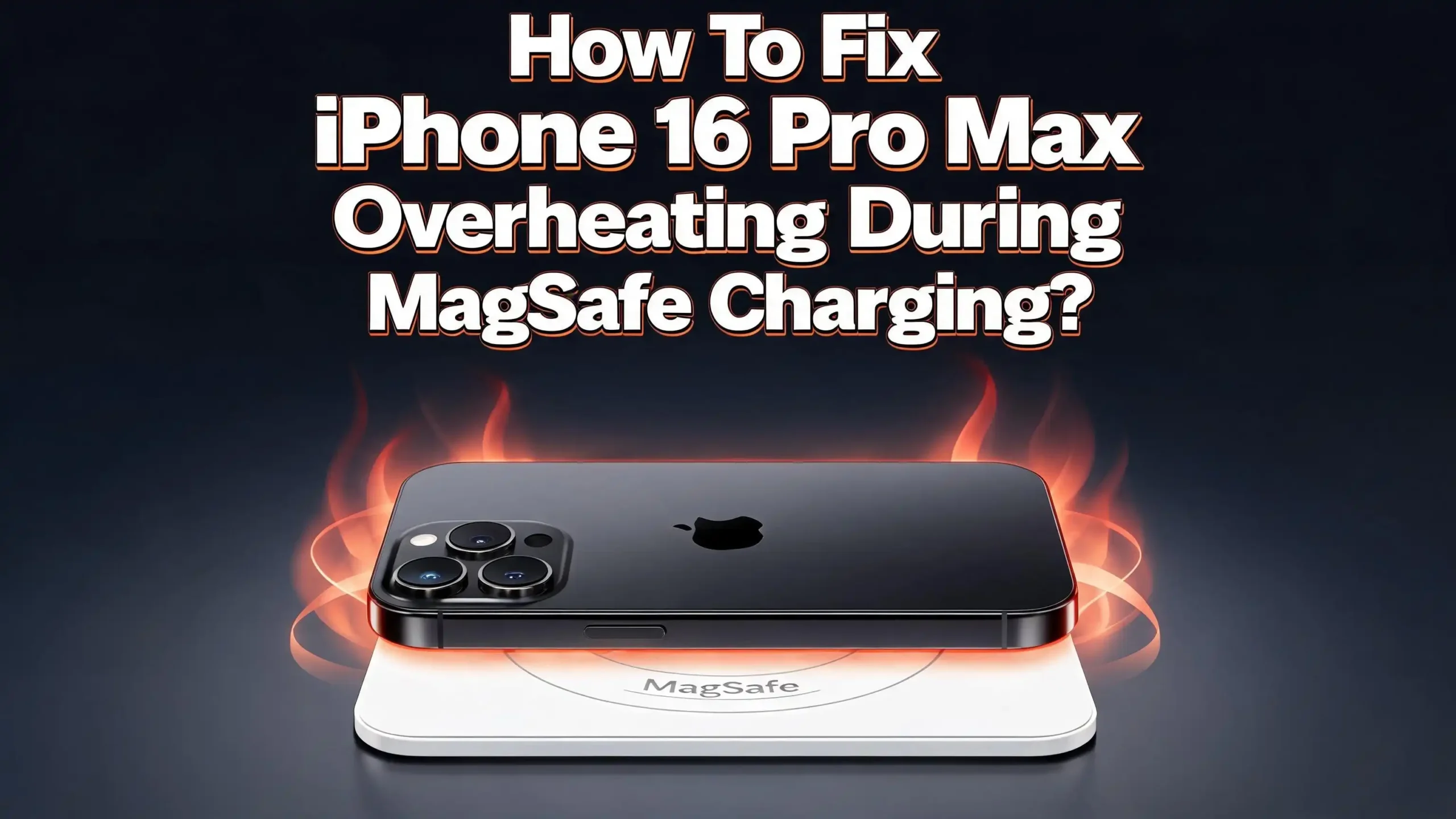
How To Fix iPhone 16 Pro Max Overheating During MagSafe Charging?
Your iPhone 16 Pro Max feels like a hot plate every time you place it on a MagSafe charger. The back of the phone gets warm, the charger heats up, and sometimes charging stops altogether at 80%. You see the dreaded “Charging On Hold” message and wonder if something is seriously wrong. You are not alone.
Thousands of iPhone 16 Pro Max users report the same frustrating problem. MagSafe wireless charging generates heat by nature, but excessive overheating is a fixable issue.
This guide walks you through every practical solution, from simple software tweaks to smart charging habits. Each fix addresses a specific cause, so you can identify your exact problem and solve it fast. Keep reading to protect your battery, prevent damage, and charge your iPhone 16 Pro Max without the stress of overheating.
Key Takeaways
- MagSafe charging generates heat by design. Wireless power transfer uses electromagnetic induction, and some energy loss as heat is normal. The concern starts only when your phone becomes too hot to hold comfortably or charging pauses repeatedly.
- Your phone case is often the biggest culprit. Thick, non MagSafe cases trap heat against the back of your iPhone 16 Pro Max. Removing the case or switching to a thin MagSafe certified case can reduce temperatures significantly.
- Software settings play a major role in heat management. Background App Refresh, Location Services, and intensive apps running during charging all force the processor to work harder. This extra workload adds heat on top of what MagSafe already produces.
- The right power adapter matters more than most people think. A 20W or higher USB C adapter delivers power efficiently to MagSafe chargers. Underpowered or cheap adapters create extra resistance and generate unnecessary heat.
- Apple’s built in thermal protection is your safety net. iOS automatically slows or stops charging when temperatures get too high. If you see the “Charging On Hold” notification, your iPhone is protecting itself from battery damage.
- Persistent overheating may signal a hardware issue. If none of the software and accessory fixes resolve the problem, a faulty battery or damaged charging coil could be the cause. Visit an Apple Store or authorized service provider for diagnosis.
Why Does the iPhone 16 Pro Max Overheat During MagSafe Charging
MagSafe uses electromagnetic induction to transfer power wirelessly from the charger to your iPhone. This process converts electrical energy into a magnetic field, and then back into electrical energy inside the phone. Energy is lost during each conversion step. That lost energy becomes heat.
The iPhone 16 Pro Max supports MagSafe charging at up to 15 watts. This is double the power of standard Qi wireless charging at 7.5 watts. More power means faster charging, but it also means more heat generation. The A18 Pro chip, the 5G modem, and the large display all contribute additional warmth during use.
Apple states that iPhones operate best in ambient temperatures between 62°F and 72°F (16°C to 22°C). Charging in environments above 95°F (35°C) can permanently reduce battery lifespan. So the combination of MagSafe heat output and a warm room can push your phone past comfortable operating temperatures.
Your iPhone also performs background tasks while charging. Spotlight indexing, iCloud photo syncing, app updates, and system maintenance all use processor power. This processor activity adds heat from the inside while MagSafe adds heat from the outside. The result is a phone that feels uncomfortably warm.
Remove Your Phone Case Before MagSafe Charging
Phone cases are one of the most common causes of MagSafe overheating. Most cases act as insulation, trapping heat between the case material and the back glass of your iPhone 16 Pro Max. This prevents heat from escaping into the surrounding air.
Cases made from leather, silicone, and thick rubber are the worst offenders. These materials have low thermal conductivity, meaning they hold heat rather than allowing it to pass through. Even some cases labeled as MagSafe compatible can cause temperature problems if they are too thick.
Try this simple test tonight. Remove your case completely and place your iPhone on the MagSafe charger. Monitor the temperature over 30 minutes. If your phone stays noticeably cooler, the case is your problem.
You have two practical options. First, you can remove the case every time you charge wirelessly. This works but adds a step to your routine. Second, you can switch to a thin, MagSafe certified case with proper alignment magnets. These cases allow the charger to sit closer to the charging coil and permit better heat dissipation. Look for cases that specifically mention heat management or ventilation in their product details.
Update iOS to the Latest Version
Apple regularly releases iOS updates that include thermal management improvements and bug fixes. Early versions of iOS 18 had known issues that caused excessive background processing and higher temperatures. Users reported significant temperature drops after installing subsequent updates.
Open Settings, then General, then Software Update. Install any available update. Major iOS releases often trigger background tasks like photo library indexing and Siri learning. These tasks can run for 24 to 72 hours after an update and generate extra heat. This is temporary and normal.
If your iPhone 16 Pro Max started overheating shortly after an iOS update, the background indexing process is likely the cause. Give your phone a few days to complete these tasks. The overheating should resolve on its own as the system finishes its initial processing.
However, if the overheating continues beyond a week after updating, the issue lies elsewhere. Check for app updates in the App Store as well. Developers frequently release patches that fix compatibility issues and resource intensive bugs that can cause apps to consume excess CPU power during charging.
Turn Off Background App Refresh
Background App Refresh allows apps to update their content even when you are not actively using them. Social media apps, news readers, email clients, and weather apps all use this feature. Each refresh cycle requires processor power, and processor power generates heat.
Go to Settings, then General, then Background App Refresh. You have three options: Off, Wi Fi, or Wi Fi and Cellular Data. Selecting Off gives you the maximum heat reduction during charging. Selecting Wi Fi is a reasonable middle ground that limits refresh activity.
You can also disable Background App Refresh for individual apps rather than turning it off globally. Scroll through the app list and toggle off refresh for apps you do not need instant updates from. Keep it enabled only for messaging and essential communication apps.
This single change can reduce CPU usage by 10% to 30% during idle charging periods. Less CPU usage means less internal heat. Combined with the external heat from MagSafe, this reduction makes a meaningful difference in overall device temperature.
Disable Unnecessary Location Services
Location Services is a major battery and heat contributor that most users overlook. Many apps request constant GPS access even though they only need your location while you actively use them. GPS tracking requires continuous communication between the phone, satellites, and cell towers. This constant work generates heat.
Go to Settings, then Privacy and Security, then Location Services. Review each app’s access level. You will see options like Never, Ask Next Time, While Using the App, and Always. Change as many apps as possible from Always to While Using the App.
Pay special attention to apps like social media platforms, shopping apps, and games. These apps rarely need your location in the background. Weather apps and navigation apps are reasonable exceptions that may need periodic location access.
Also scroll to the bottom of the Location Services screen and tap System Services. You can disable features like Significant Locations, iPhone Analytics, and Routing and Traffic. These system level location services run constantly and add to the processor workload during charging.
Reducing location access does not just help with charging temperatures. It also improves overall battery life throughout the day, giving you a double benefit from this single adjustment.
Use a 20W or Higher Power Adapter
The power adapter you connect to your MagSafe charger has a direct impact on charging efficiency and heat generation. Apple recommends a 20W USB C adapter or higher for MagSafe charging. Using a lower wattage adapter forces the system to work harder to deliver power.
Many users plug their MagSafe charger into old 5W or 12W adapters they had from previous iPhones. These adapters cannot deliver enough current for efficient MagSafe operation. The result is longer charging times and extra heat from the inefficient power conversion.
Check the fine print on your current adapter. Look for the wattage rating, usually printed near the prongs. If it reads anything below 20W, replace it. Apple’s own 20W USB C adapter works well. Third party adapters from reputable brands with proper safety certifications are also acceptable.
Avoid extremely cheap, unbranded adapters from unknown sellers. These often lack proper voltage regulation and safety circuits. Poor voltage regulation causes power fluctuations that create resistance and heat within the MagSafe charger. A quality adapter costs a bit more upfront but protects your phone and charger from damage.
Charge on a Hard, Flat Surface With Good Airflow
Where you place your MagSafe charger matters more than most people realize. Soft surfaces like beds, pillows, couches, and blankets block airflow around the charger. Heat gets trapped beneath and around the device with nowhere to go.
Place your MagSafe charger on a hard, flat surface like a wooden nightstand, desk, or countertop. Hard surfaces absorb and dissipate heat more effectively than soft fabrics. They also allow air to circulate around the base of the charger.
Keep at least a few inches of clear space around the charger. Do not stack books, papers, or other objects on top of or directly next to the charging area. Good airflow acts as a natural cooling system for your phone and charger.
Avoid charging near heat sources like radiators, heating vents, lamps, or windows with direct sunlight. Apple states that ambient temperatures above 95°F (35°C) can cause permanent battery damage. Even room temperature differences of a few degrees can affect how warm your phone gets during a 15 watt MagSafe charge.
If you charge at your bedside, consider a MagSafe stand that elevates the phone vertically. Vertical stands expose more surface area to the surrounding air, allowing heat to escape from both sides of the phone instead of just the front.
Enable Optimized Battery Charging
Apple built Optimized Battery Charging into iOS specifically to address heat and battery wear during extended charging sessions. This feature learns your daily routine and adjusts charging behavior to minimize the time your battery spends at 100%.
Go to Settings, then Battery, then Battery Health and Charging. Make sure Optimized Battery Charging is toggled on. When active, your iPhone will charge to 80% at normal speed and then pause. It resumes charging to 100% just before your typical wake up time.
This pause at 80% is important because the last 20% of charging generates the most heat. The battery chemistry requires more energy to push from 80% to 100%, and that extra energy creates more waste heat. By delaying this final phase, your phone avoids hours of unnecessary heat exposure.
iOS 18 also introduced expanded Charge Limit options. You can set a hard cap at 80%, 85%, 90%, or 95%. If you rarely need a full 100% charge, setting the limit to 80% or 85% dramatically reduces heat and extends long term battery health. You will find this option in the same Battery Health and Charging menu. Most people can get through a full day at 80% without issues.
Close Intensive Apps Before Charging
Running processor heavy apps while MagSafe charging creates a double heat problem. The charger generates external heat through wireless power transfer. The active app generates internal heat through CPU and GPU usage. Together, they can push your iPhone 16 Pro Max past comfortable temperatures quickly.
Before placing your phone on the MagSafe charger, close all unnecessary apps. Swipe up from the bottom of the screen and pause to open the App Switcher. Swipe up on each app card to close it. Focus especially on games, camera apps, video streaming apps, and navigation apps.
Avoid using your phone while it charges on MagSafe. Picking up the phone to scroll social media or watch videos adds internal heat generation to the already warm charging process. If you need to use your phone, consider unplugging from MagSafe and using a wired USB C charger instead. Wired charging produces significantly less heat than wireless charging.
If you must leave certain apps running, check which ones consume the most power. Go to Settings, then Battery. The battery usage list shows which apps drain the most energy. Apps at the top of this list generate the most heat. Close those apps first before any MagSafe charging session.
Check Your MagSafe Charger for Damage
A damaged MagSafe charger does not just charge poorly. It becomes an active heat source that can harm your phone and create safety risks. Physical damage causes electrical resistance, and electrical resistance converts power into heat instead of charging energy.
Inspect the USB C cable from end to end. Look for fraying, kinks, sharp bends, or spots where the outer insulation appears worn or cracked. Even minor cable damage can create enough resistance to generate noticeable extra heat during charging.
Examine the charging puck surface. Check for cracks, scratches, warping, or discoloration. The flat charging surface must remain smooth and level for proper magnetic alignment with your iPhone. A warped puck creates uneven contact, leading to inefficient power transfer and hot spots.
Check both connection points. The cable to puck connection and the cable to adapter connection should both feel firm and secure. Loose connections cause electrical arcing, which generates significant heat and can damage your devices over time.
If you notice any physical damage, replace the charger immediately. Do not attempt to repair it with tape or other temporary fixes. Also, if you ever detect a burning or electrical smell from your charger, stop using it right away. This smell indicates an internal fault that could be a safety hazard.
Reset All Settings on Your iPhone
Sometimes overheating results from corrupted system settings that cause background processes to behave abnormally. A settings reset clears these glitches without deleting your personal data, apps, photos, or messages.
Go to Settings, then General, then Transfer or Reset iPhone, then Reset, then Reset All Settings. Your iPhone will restart and restore all settings to their defaults. You will need to reconnect to Wi Fi networks, re pair Bluetooth devices, and reconfigure notification preferences.
This reset addresses hidden configuration conflicts that can cause excessive CPU usage. Sometimes a combination of settings, such as specific accessibility options, email fetch frequencies, and notification configurations, creates an unusual workload that generates heat.
After the reset, monitor your MagSafe charging temperature over several sessions. Many users report that a settings reset alone resolved their overheating issue because it cleared problematic background service configurations. If the overheating persists after the reset, the cause is likely hardware related or tied to a specific accessory rather than software.
This fix is safe and does not erase your content. However, write down your Wi Fi password and note any custom settings before performing the reset so you can restore your preferences quickly.
Monitor Your Battery Health
Battery health directly affects heat generation during charging. A degraded battery has higher internal resistance, which produces more heat during every charge cycle. The worse your battery health gets, the hotter your phone will run during MagSafe charging.
Check your battery health by going to Settings, then Battery, then Battery Health and Charging. Look at the Maximum Capacity percentage. A new iPhone 16 Pro Max shows 100%. Apple considers batteries with 80% or above capacity to be functioning normally.
If your Maximum Capacity has dropped below 80%, your battery may need replacement. Degraded batteries not only overheat during charging but also drain faster during normal use. An Apple Store or authorized service provider can replace the battery and restore normal charging temperatures.
Also review the Cycle Count information available in newer iOS versions. Each full charge cycle slightly reduces battery capacity. Heavy users who charge their phone multiple times daily accumulate cycles faster. If your cycle count is unusually high for your phone’s age, the battery degradation may be accelerating heat issues.
Keep in mind that consistent overheating damages battery health further, creating a negative cycle. A hot battery degrades faster, and a degraded battery runs hotter. Addressing overheating early protects your battery from this accelerating decline.
When to Visit Apple Support for Professional Help
If you have tried every software fix, changed your case, upgraded your adapter, and improved your charging environment but overheating persists, the problem may be hardware related. Internal hardware faults require professional diagnosis and repair.
Specific signs that point to a hardware issue include: your iPhone gets hot even during wired USB C charging, the phone overheats with minimal usage and no charging, the back of the phone has visible swelling or deformation, or the MagSafe charging coil area feels significantly hotter than the rest of the phone.
Book an appointment at an Apple Store or Apple Authorized Service Provider. Apple technicians can run diagnostic tests that check the battery, charging circuits, and thermal sensors for faults. If your iPhone 16 Pro Max is still under warranty or covered by AppleCare Plus, qualifying repairs may be covered at no additional cost.
Do not attempt to open your iPhone or replace internal components yourself. Self repair voids certain protections and can cause further damage. The iPhone 16 Pro Max contains delicate components, adhesives, and waterproof seals that require specialized tools and training to handle properly.
If Apple finds a manufacturing defect related to the charging system or thermal management, they will typically replace the device or the affected component. Document your overheating issues, including dates, times, and conditions, to help the technician understand the pattern.
Frequently Asked Questions
Is It Normal for iPhone 16 Pro Max to Get Warm During MagSafe Charging
Yes, some warmth is completely normal. MagSafe transfers power at up to 15 watts through electromagnetic induction, and this process naturally generates heat. Apple confirms that mild warmth during wireless charging falls within expected behavior. The concern arises only when your phone becomes too hot to hold comfortably, displays a temperature warning, or repeatedly pauses charging with a “Charging On Hold” notification.
Can MagSafe Overheating Damage My iPhone Battery Permanently
Repeated exposure to high temperatures does degrade lithium ion battery health over time. Apple states that using or charging your device in ambient temperatures above 95°F (35°C) can permanently reduce battery capacity. Each overheating episode causes a small amount of irreversible chemical aging in the battery. Addressing overheating early preserves your battery’s maximum capacity and extends its useful lifespan.
Should I Use a Wired Charger Instead of MagSafe to Avoid Overheating
Wired USB C charging generates significantly less heat than MagSafe wireless charging. If overheating is a consistent problem and you need a reliable charging method, wired charging is the cooler option. However, most MagSafe overheating issues can be resolved with the fixes in this guide, allowing you to enjoy the convenience of wireless charging without excessive heat.
Does the iPhone 16 Pro Max Charge Limit Setting Help With Overheating
Yes. Setting a charge limit at 80% or 85% in Settings, Battery, Battery Health and Charging prevents your phone from entering the final charging phase, which generates the most heat. The battery requires more energy to charge from 80% to 100%, and that extra energy produces more waste heat. A lower charge limit keeps temperatures down and improves long term battery health.
How Long Should I Wait for My iPhone to Cool Down After Overheating
Apple recommends moving your iPhone to a cooler environment away from direct sunlight and allowing it to rest for 15 to 30 minutes. Turn the phone off if possible to speed up cooling. Do not place your phone in a refrigerator or freezer, as extreme cold can damage internal components and cause condensation that harms circuits. Charging will resume automatically once the device returns to a safe operating temperature.
Will a Factory Reset Fix MagSafe Overheating Issues
A factory reset is a last resort option that can resolve overheating caused by deep software corruption. However, try Reset All Settings first, as this clears problematic configurations without erasing your data. A full factory reset erases everything and should only be attempted after backing up your iPhone to iCloud or a computer. If overheating continues after a factory reset, the issue is almost certainly hardware related and requires professional service.

I’m a tech enthusiast who loves breaking down gadgets, apps, and tools into simple, honest reviews. At GenResizeHub, I help you make smarter buying decisions through in-depth comparisons and easy-to-follow guides. Got a question? Drop me a mail!