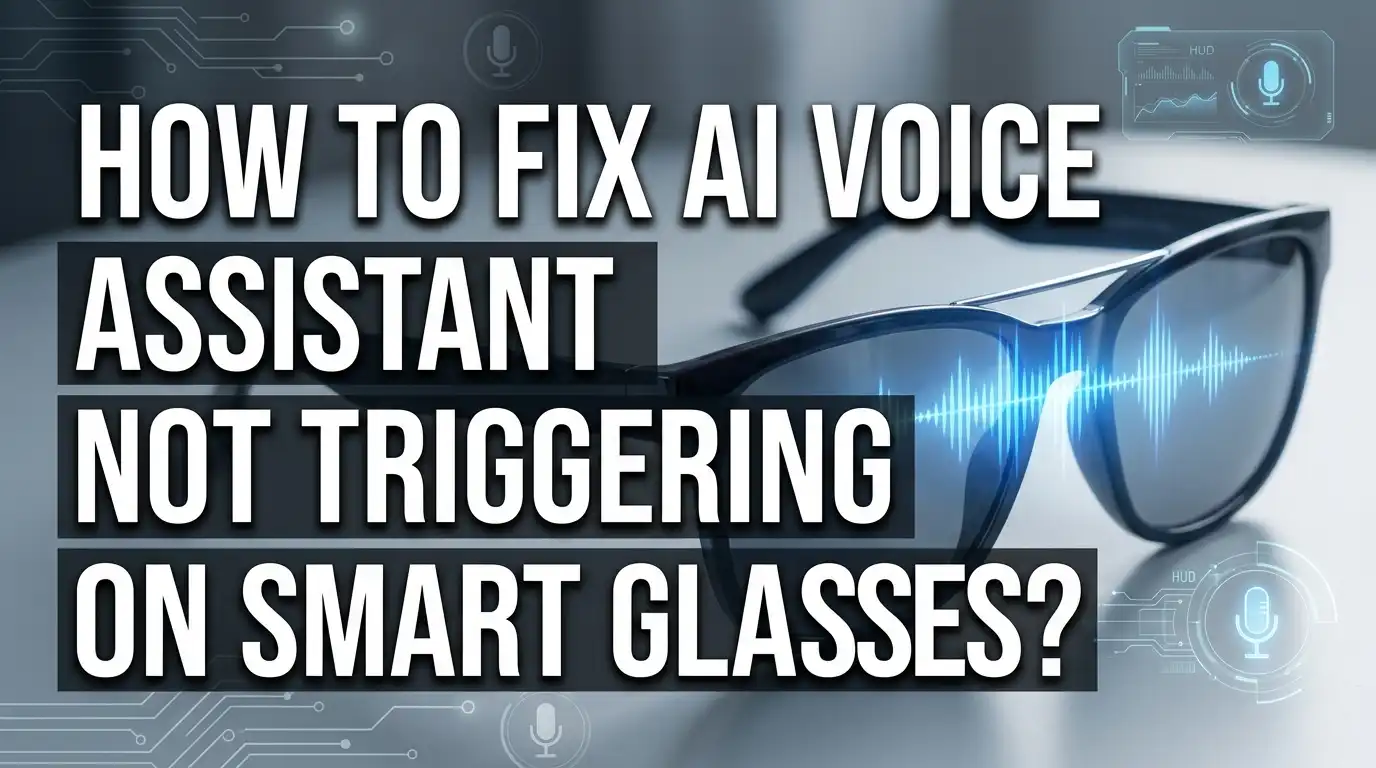
How To Fix AI Voice Assistant Not Triggering On Smart Glasses?
You ask your smart glasses to play music or send a message. Nothing happens. That moment of silence is frustrating, especially when you expected a seamless hands-free experience.
AI voice assistants on smart glasses can stop responding for several reasons. The trigger word may not be enabled. Your microphone might have a hardware issue. Regional restrictions could be blocking the feature entirely. Or a simple settings toggle may have been switched off without you realizing it.
The good news is that most of these problems are fixable. You do not need to be a tech expert to solve them.
This guide walks you through the most common reasons your AI voice assistant is not triggering on smart glasses. It also covers step-by-step troubleshooting methods that actually work, from checking your voice settings to unpairing and re-pairing your device.
Let’s get your voice assistant working again so you can get back to a smooth, hands-free experience.
In a Nutshell
Here is a quick summary of what you need to know:
Voice Control may be turned off in your app settings. Go to the Meta AI app, select your glasses, and toggle Voice Control on.
“Hey Meta” must be enabled separately. Check that the wake word is active inside the Voice settings menu.
Regional restrictions can block the feature entirely. If the assistant shows as unavailable in your region, this is a known limitation.
Microphone hardware issues can stop the assistant from hearing you. Test the mic and check for physical damage or blockage.
Unpairing and re-pairing your glasses fixes most triggering problems. Do this before trying anything more drastic.
A factory reset is a last resort. Only use it if all other steps have failed. Contact support if the problem continues after a reset.
Why Your AI Voice Assistant Stops Triggering on Smart Glasses
Your AI voice assistant stops triggering on smart glasses for several specific reasons. Understanding these causes helps you fix the problem faster.
Microphone problems are a leading cause. Your glasses may not hear your voice commands if the microphone is dirty, damaged, or blocked. Even small dust particles can prevent sound from reaching the sensor. Check if your microphone is physically obstructed.
Voice Control settings might be disabled. Many users forget that voice activation requires two separate toggles. The main Voice Control switch must be ON in your app. Additionally, the trigger phrase like “Hey Meta” needs its own separate activation. Both must be enabled for commands to work.
Regional restrictions block voice features in certain areas. Your smart glasses may show that voice control is “not available in your region.” This is a software limitation, not a hardware issue. You cannot use voice commands if your location falls outside supported areas.
Connection issues prevent your glasses from communicating with your phone or network. A weak Bluetooth connection or poor internet can cause the assistant to fail. Your glasses may detect the trigger phrase but cannot process your command due to connectivity problems.
Trigger detection without response happens when your glasses hear you but the assistant cannot complete the action. This often occurs with specific commands like calls or messages. The microphone works, but the command processing fails.
Outdated software sometimes causes triggering failures. Your glasses or companion app may need updates to function properly. Older versions can have bugs that prevent voice activation.
These issues account for most triggering problems you will encounter with smart glasses voice assistants.
How to Check and Enable Voice Control Settings
Start by opening your smart glasses companion app on your phone. This is where all voice settings live.
Look for the device settings section. Find your glasses in the list of connected devices and tap to open its settings page.
Scroll down until you see “Voice” or “Voice Control” options. This menu controls whether your assistant listens for commands at all.
Check the toggle switch next to “Voice Control.” If it shows as OFF, tap it to turn it ON. This is the master switch for all voice triggering.
Next, look for the specific wake word setting. Search for “Hey Meta” or similar trigger phrase options. Make sure this setting is also enabled. Some users disable it without realizing, which stops all voice commands.
Confirm your microphone permission is active. Go to your phone’s app permissions and verify the smart glasses app has microphone access. Without this, your glasses cannot hear anything you say.
Check your region settings in the app. Some features only work in specific countries. If your location shows as unsupported, voice control may be unavailable there.
Look for a “Language” setting and verify it matches your spoken language. Mismatched language settings cause the assistant to not recognize your commands properly.
Save any changes you make. Some apps require you to tap a save button at the bottom of the settings page.
Once you’ve enabled these settings, test your voice assistant. Say your wake word clearly and give a simple command like “what time is it.” If it responds, your voice control is working. If not, move on to the next troubleshooting step of unpairing and re-pairing your device.
How to Verify Hey Meta and Wake Word Configuration
Start by opening your smart glasses companion app on your phone. Find the device settings section for your glasses. Scroll down to locate the “Voice” or “Voice Control” options in the menu.
Look at the toggle switch next to “Voice Control.” If it shows OFF, tap it to turn it ON. This is one of the most common reasons your voice assistant stops responding. Many users accidentally disable this setting without realizing it.
Next, find the wake word configuration. Search for “Hey Meta” or your device’s specific wake word in the settings. Make sure the toggle next to it shows as enabled. The wake word must be turned on separately from general Voice Control, so check both settings independently.
Verify your microphone permission is active. Go to your phone’s app permissions and confirm the glasses app has microphone access. Without this permission, your glasses cannot hear your voice commands at all.
Check your region settings in the app. Some voice features only work in specific countries or areas. If your region shows as unsupported, this explains why your assistant never triggers. Look for a “Language” setting and confirm it matches the language you speak.
Make sure your microphone is physically clean and not blocked. Dust or debris can prevent sound from reaching the microphone sensor properly.
After adjusting these settings, test your voice assistant by saying the wake word clearly. Speak in a normal voice from about 12 inches away from the glasses. Wait for a response or visual indicator that the assistant activated.
Save all your changes before closing the app. These configuration steps fix most triggering issues within minutes.
How to Fix Microphone Issues on Smart Glasses
Your microphone is the core component that captures your voice commands. When your smart glasses don’t trigger, the microphone might be the problem. Let’s fix this.
Start with a physical check. Look at your smart glasses carefully. Find the microphone ports, usually located near the frame or bridge. Gently wipe these areas with a clean, dry cloth. Dust and debris block sound from reaching the microphone sensor. If you’ve worn your glasses outdoors or in dusty environments, this step matters.
Check for moisture next. Smart glasses can collect condensation from humidity or sweat. If your glasses feel damp, let them dry completely in a warm, dry room for several hours. Never use heat sources like hair dryers. Moisture inside the microphone prevents it from working.
Test your microphone in your companion app settings. Open the app and go to Voice settings. Look for a microphone test option. Speak clearly and see if the app detects your voice. If nothing registers, your microphone likely has a hardware issue.
Verify microphone permissions on your connected phone. Your smart glasses rely on your phone’s microphone access. Open your phone’s settings and check that microphone permissions are enabled for your glasses app. Some phones require you to grant permissions individually for each app feature.
If the microphone still doesn’t work after cleaning and checking permissions, the hardware may be damaged. Contact support for repair or replacement options. A faulty microphone sensor cannot be fixed through software updates or settings changes alone.
How to Unpair and Re-Pair Your Smart Glasses to Resolve Trigger Failures
When your voice assistant stops responding, unpairing and re-pairing your smart glasses often fixes the problem. This process clears connection errors that prevent the trigger from working properly.
Start by opening your smart glasses companion app on your phone. Find the device settings section and look for your glasses in the connected devices list. Tap on your glasses name to view the device details. Look for an “Unpair” or “Disconnect” option and select it. The app will ask you to confirm the action. Tap yes to proceed.
After unpairing, your glasses will no longer connect to your phone. Wait about 30 seconds before moving to the next step. This pause allows the system to fully reset the connection.
Now re-pair your glasses by putting them back into pairing mode. Check your glasses for a pairing button or menu option. Most smart glasses have a dedicated button on the frame or a settings menu you access through the device itself. Hold the button or navigate the menu until you see a pairing indicator light.
Return to your companion app on your phone. Look for an option to add a new device or pair glasses. Select this option and your phone will search for nearby devices. Your glasses should appear in the list. Tap on them to begin the pairing process.
Follow the on-screen instructions carefully. The app may ask you to confirm a code or complete a setup wizard. Complete all steps fully.
Once pairing finishes, open your voice control settings again. Enable voice control and confirm your wake word is activated. Test your voice assistant by saying your wake word clearly. The trigger should now respond properly. If problems continue, contact support for additional help.
How to Fix Voice Commands Failing for Calls and Messages Specifically
Voice commands for calls and messages require specific settings to work properly. If your voice assistant isn’t responding when you try to make calls or send messages, several issues could be blocking these functions.
Start by checking your permissions. Open your companion app and go to Voice settings. Look for a toggle labeled “Voice Commands for Calls” or “Voice Messaging.” Make sure both are switched ON. If they appear grayed out, your region might not support this feature yet. Check your region settings in the app to confirm availability in your location.
Next, test your microphone quality. Say a command like “Hey Meta, call Mom” or “Hey Meta, send a message.” Speak clearly and pause after the wake word. If the assistant hears you but doesn’t complete the action, the microphone is working but the command processing might be failing.
Check your contact list. Voice commands for calls work best when you use contact names the assistant recognizes. Make sure your contacts are synced between your phone and glasses. If a name isn’t in your contacts, the assistant may not understand who you’re trying to reach.
If commands still fail, try unpairing and re-pairing your glasses. This resets the connection between your phone and glasses, which often fixes call and message command issues. Open your companion app, find device settings, and select unpair. Wait 30 seconds, then re-pair by following the on-screen instructions.
If these steps don’t work, your glasses might have a hardware issue with the microphone or speaker. Contact support for further assistance if voice commands continue to fail after re-pairing.
How to Perform a Factory Reset When Other Fixes Fail
A factory reset removes all settings and returns your smart glasses to their original state. This step works when other fixes fail to restore your voice assistant function.
Before you reset, back up any important data stored on your glasses. Some glasses save personal settings, contacts, or preferences. Check your companion app for backup options. Most apps offer cloud storage features for this purpose.
Open your companion app on your phone. Navigate to the device settings section. Look for an option labeled “Factory Reset,” “Reset Device,” or “Restore to Factory Settings.” The exact name depends on your glasses model.
Select the factory reset option. Your app will ask you to confirm this action. Read the warning message carefully. Confirm that you want to proceed.
The reset process takes a few minutes. Your glasses will restart automatically. During this time, keep your glasses powered on and near your phone.
After the reset completes, your glasses return to their original state. You will need to set them up again from scratch. Open your companion app and follow the initial setup wizard. This includes pairing your glasses to your phone again.
Once setup finishes, enable your voice assistant in the Voice settings section. Toggle Voice Control to the ON position. Confirm that your wake word is active.
Test your voice assistant by saying the trigger phrase clearly. Speak in a normal tone about 12 inches from your glasses.
If your voice assistant still doesn’t trigger after a factory reset, contact your glasses manufacturer’s support team. A hardware issue may be preventing the voice feature from working. Support specialists can run diagnostic tests and offer replacement options if needed.
Common Mistakes That Prevent the Voice Assistant From Triggering
The most common mistake is leaving Voice Control disabled in your settings. Many users complete initial setup but forget to actually turn on the feature. Open your companion app, go to Voice settings, and confirm the toggle switch is ON. This single step fixes most triggering problems.
Regional restrictions block voice assistants in certain areas. Your device may show “feature not available in your region” even though setup seemed complete. Check your app settings to see your current region. If you recently moved or travel frequently, update your location settings. Some features only work in specific countries.
Forgetting to enable the trigger phrase is another frequent error. Your voice assistant needs permission to listen for “Hey Meta” or your device’s specific wake word. Navigate to Voice settings and look for the trigger phrase option. Make sure it shows as enabled. Without this, your glasses won’t respond to voice commands at all.
Many people skip microphone testing during setup. Your smart glasses need a working microphone to hear commands. Test this by speaking clearly near your glasses. If nothing happens, your microphone may have a hardware problem.
Not re-pairing after connection issues causes triggering failures too. When your glasses lose connection to your phone, the voice assistant stops working. Simply unpairing and re-pairing usually solves this without needing a factory reset.
Finally, some users disable voice control accidentally while adjusting other settings. Double check that Voice Control remains ON after making any changes to your device settings. These simple oversights account for most voice assistant problems.
Final Thoughts
Fixing an AI voice assistant that won’t trigger on your smart glasses takes patience, but the steps are straightforward.
Start with the simplest checks first. Make sure Voice Control is turned on in your companion app. This single setting causes most triggering failures.
Next, confirm your trigger phrase like “Hey Meta” is enabled. Without it, your glasses have nothing to listen for.
If basic settings look correct, test your microphone. Speak clearly and at a normal distance from the glasses. Background noise can block the trigger from registering properly.
Regional restrictions are easy to overlook. Some voice features simply aren’t available in every country. Check your app to see if your region supports the feature you’re trying to use.
When settings look fine but the assistant still won’t respond, unpair and re-pair your glasses. This resolves most connection-related triggering issues before you need to try anything drastic.
A factory reset should be your last step before contacting support. It clears all settings and gives your glasses a fresh start. Only use this option after other fixes have failed.
If nothing works, reach out to your manufacturer’s support team directly. Hardware problems like a damaged microphone cannot be fixed through software steps alone.
The key takeaway here is simple. Most voice assistant issues come from disabled settings, skipped setup steps, or connection problems. These are all fixable without technical expertise.
Work through each fix in order. Don’t skip steps or jump straight to a factory reset. Systematic troubleshooting saves time and usually solves the problem faster than you expect.
Frequently Asked Questions
Why does my smart glasses say “feature not available in your region”?
Voice assistant features depend on your location. Some regions don’t support voice control yet due to language support or regulatory requirements. Check your glasses settings to confirm your region is selected correctly. If the setting shows the right location but the feature remains unavailable, your area may not have access yet. Contact your manufacturer’s support team to learn when voice control will launch in your region.
My glasses detect the trigger phrase but don’t respond. What’s wrong?
Your microphone might be picking up the sound, but your glasses can’t process the command. This usually means a connectivity issue between your glasses and phone. Try unpairing and re-pairing your glasses through the companion app. If that doesn’t work, restart both your glasses and phone. Sometimes a simple reboot fixes response delays.
Can a microphone malfunction prevent voice commands from working?
Yes. A broken or blocked microphone stops voice commands completely. Check if your microphone has dust or debris blocking it. Gently clean the microphone opening with a soft cloth. Test the microphone through your companion app’s diagnostic tools if available. If cleaning doesn’t help, the microphone hardware may need replacement.
Should I factory reset if my voice assistant won’t trigger?
Factory reset should be your last option, not your first step. Try simpler fixes first like toggling Voice Control off and on, or re-pairing your glasses. Only reset after confirming your microphone works and your settings are correct. A factory reset erases all data, so back up important information before proceeding.
What do I do if nothing fixes the problem?
Contact your glasses manufacturer’s support team directly. Provide details about what you’ve already tried. They can check for software updates, diagnose hardware issues, or replace your device if needed.

I’m a tech enthusiast who loves breaking down gadgets, apps, and tools into simple, honest reviews. At GenResizeHub, I help you make smarter buying decisions through in-depth comparisons and easy-to-follow guides. Got a question? Drop me a mail!